Chapter 18. Options and Customization
18.2 CUSTOMIZE DIALOG
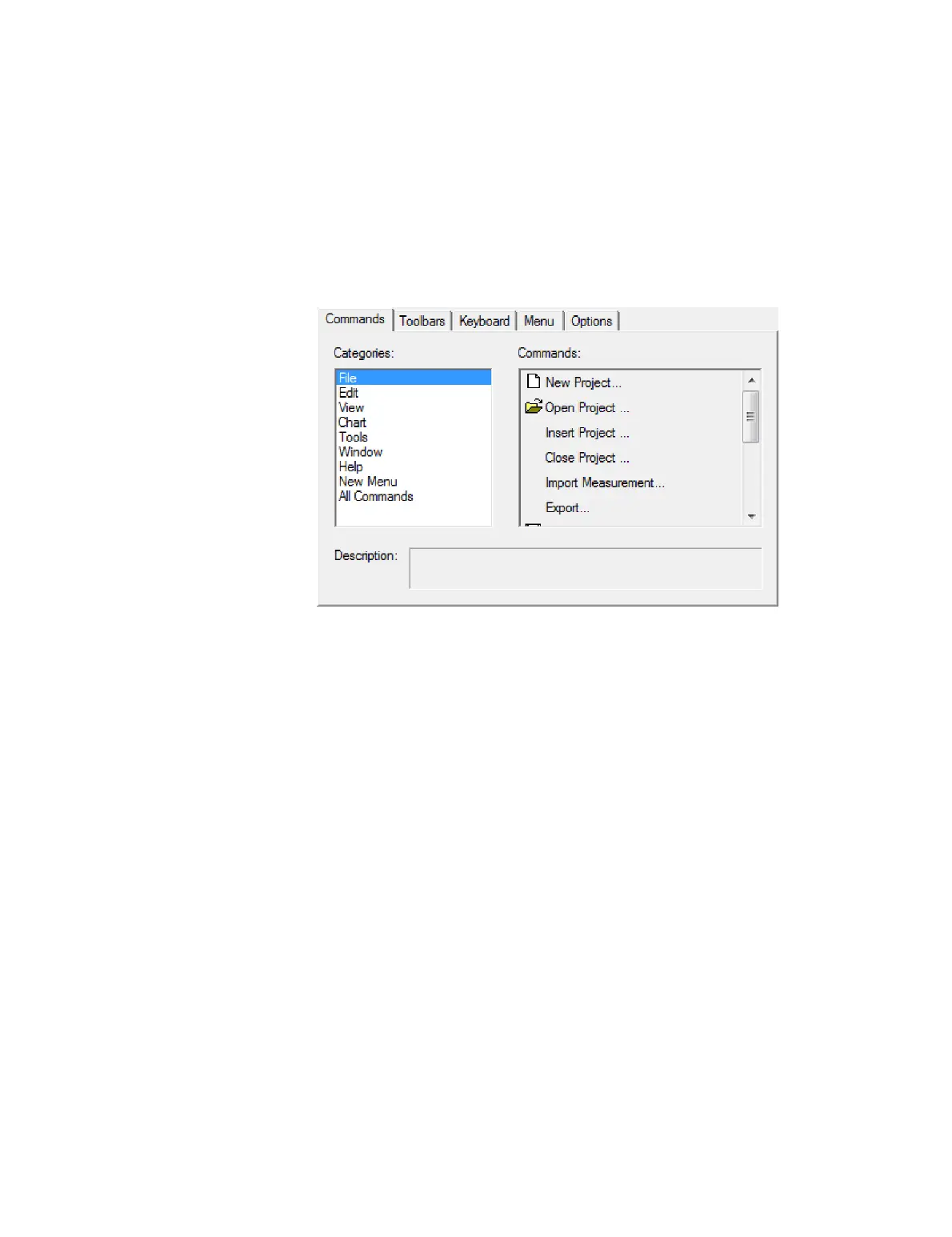
The Customize dialog is opened from the Tools menu. Changes made in this dialog take
effect immediately.
18.2.1 Commands tab
Use this tab to add commands to toolbars or menus. (For examples, see page 158.)
To add a command:
Locate the desired command by selecting the category on the left, and then the
command on the right. Drag the selected command onto:
x An existing toolbar, or
x A menu in the main menu bar (the menus will unfold as the drop cursor is
moved over them).
To add a new menu:
Select the “New menu” category on the left, and drag the item “New menu” on
the right onto a menu bar. (It can also be dragged onto a toolbar.)
To rename or delete an item from a menu or toolbar:
While the Customize dialog is open, right-click on the menu or toolbar item that
you want to change. Select “Edit” to change its name, or “Delete” to remove it.



 To Next Page