Chapter 12. Room EQ
COPYING ROOM EQ FILTERS
Parametric room EQ filters can be copied between profiles using cut-and-paste
operations. For example, to copy room EQ settings from Profile 𝟣 to Profile 𝟤:
1. Click on the Profile 𝟣 selector button.
2. Right-click in the Profile Settings area and select “Copy” from the popup menu.
3. Click on the Profile 𝟤 selector button.
4. Right-click in the Profile Settings area and select “Paste” from the popup menu.
VIEWING MULTIPLE ROOM MEASUREMENTS
Multiple measurements around the listening area can be used to perform more
comprehensive room analysis and EQ. To take a series of measurements with different
microphone positions, click on More on Screen 9 of the room measurement wizard
(page 87). You will be taken back to Screen 5, where you can enter the name of the new
position and proceed with another measurement.
When viewing multiple measurements for room EQ, it is often desired to view a single
speaker or subwoofer, but at multiple positions. (For example, the subwoofer at four
different measurement positions.) One way to do this is to use the room measurement
wizard, select “Load an existing room measurement,” and then use the checkboxes to
select the required individual measurements.
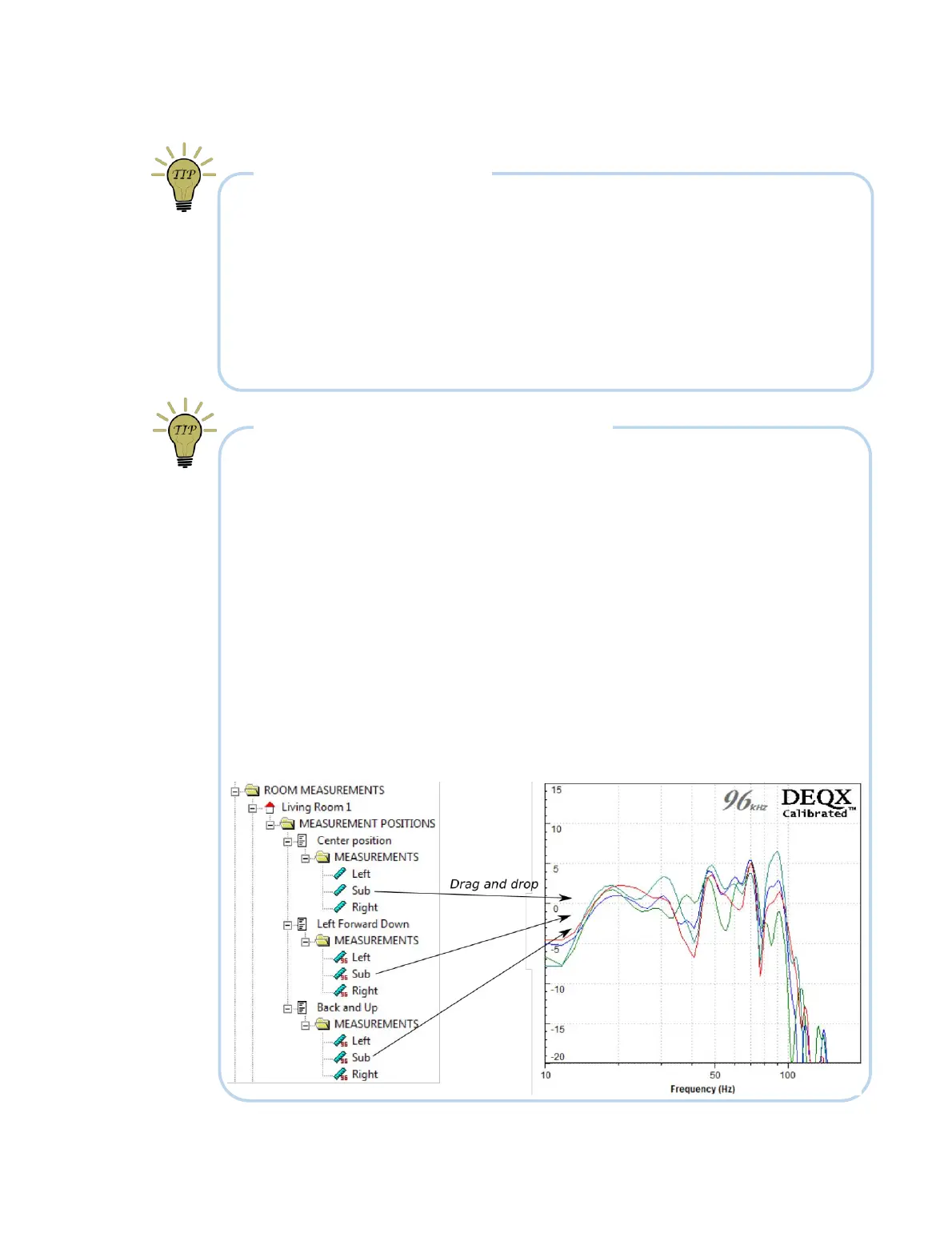
A second approach is to use drag and drop from the project explorer – locate each
measurement in turn and drag and drop it onto the Equalizer tab of the IO Manager.
This example shows the measurements of a subwoofer at four different locations:



 To Next Page