DEQX User Manual
THERE IS NO SIGNAL ON THE INPUT LEVEL METER WHEN TAKING A MEASUREMENT
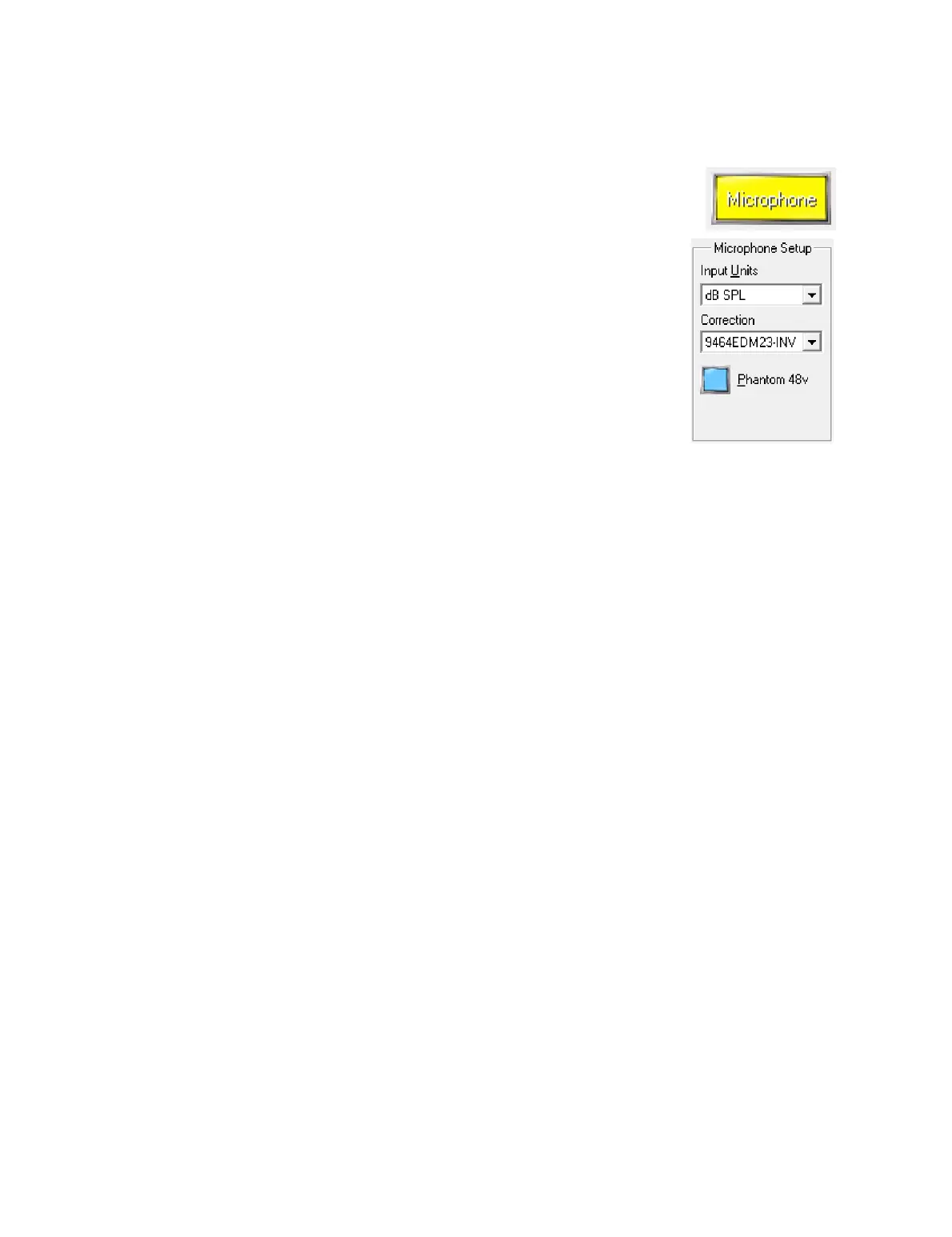
1. Check that the Microphone input is active in the DEQX-Cal IO
Manager.
2. Check that the Microphone Setup area in the IO Manager
shows that Phantom 48V power is turned on. (This applies to
microphones supplied with the DEQX Standard Calibration
Kit and the DEQX Reference Calibration Kit. If you are not
using a DEQX Calibration Kit, double-check whether your
microphone requires 48V phantom power. Note that use of
microphones not supplied in a DEQX Calibration Kit is not
supported by DEQX.)
3. Check that the microphone cable is plugged into the
Microphone input on the DEQX rear panel. (Make sure that you have not
inadvertently plugged the microphone into the Dig 4 input or the left balanced
analog input.)
COMMUNICATION TO THE DEQX FAILS
1. Try the operation (e.g. “Save All to DEQX”) again.
2. If it fails again, save the project and quit DEQX-Cal. Restart DEQX-Cal and retry the
operation.
3. Proceed through the steps given on page 169 for “DEQX-Cal does not detect a
connected DEQX unit.” (Sometimes a marginal USB connection can appear to
connect successfully, but fail on data-intensive operations.)
4. If the operation continues to fail, contact DEQX Support (page 14).
THE PROJECT ICON IS GREYED OUT
The corresponding project file is read-only, preventing DEQX-Cal from updating it. This
can happen if the project file is on a read-only medium such as a CD-ROM, or if it is set
to read-only in the Windows file system.
1. Close the project in DEQX-Cal and copy the project file to a writable medium (such
as a hard drive). Then open the new copy in DEQX-Cal.
2. If the file is already on a writable medium (such as a hard drive), check that the file
has not been set to read-only in the Windows file system.
THE DEQX ENTERS FAULT MODE
Fault mode is indicated by the front panel LEDs displaying a combination of red, blue
and yellow. The DEQX will usually not respond to any user input when in fault mode.
1. Turn off all connected equipment and power cycle the DEQX.
2. If the DEQX does not reboot and operate normally, or if the error recurs, contact
DEQX Support (page 14).



 To Next Page