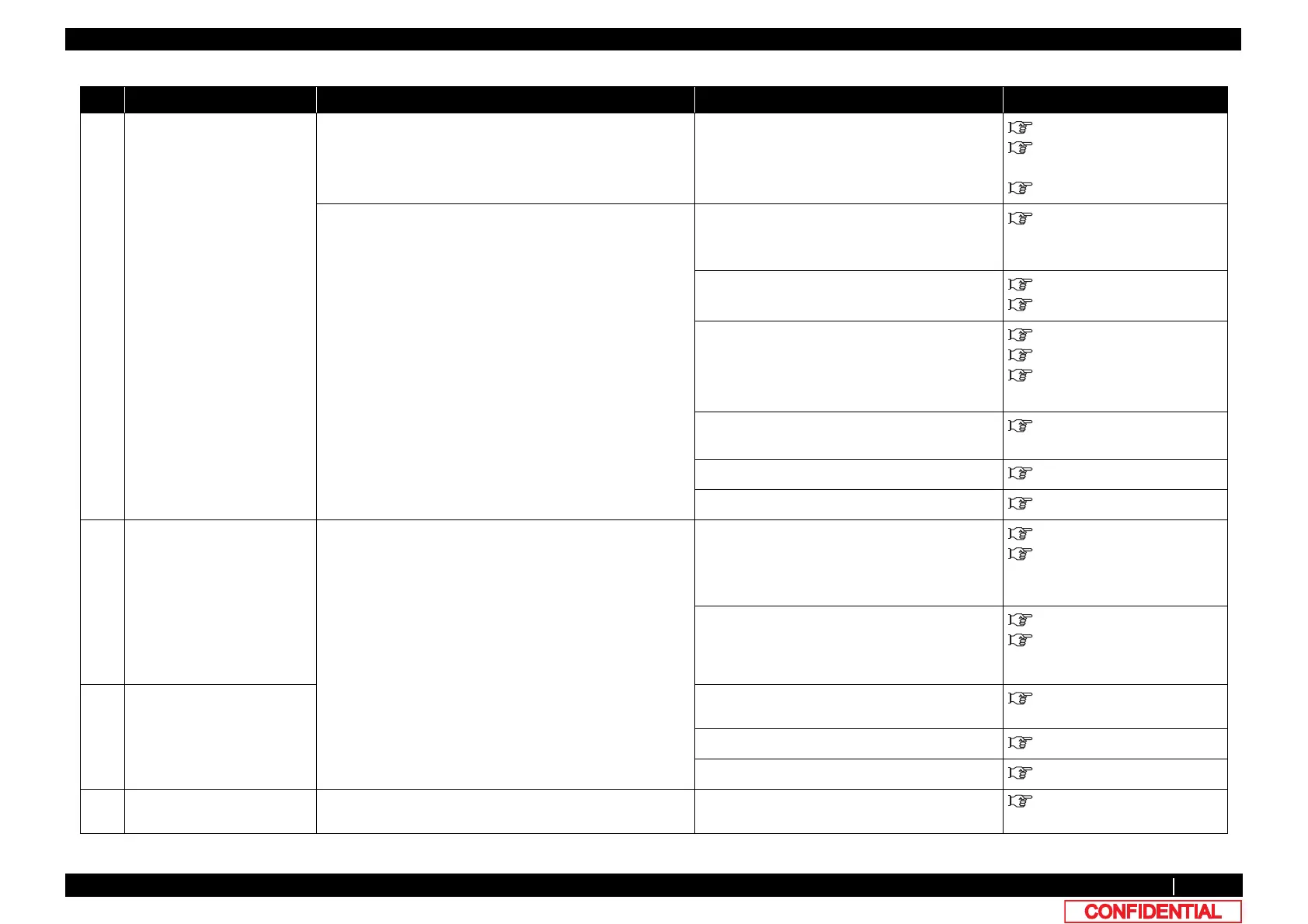
2.3 Troubleshooting Without Error Messages VJ628XE-M-00
2.3.1 Initial Operation Problems 37
6 • The printer does not
operate after turned
on.
• The printer does not
stop operation even
when Front cover or
Maintenance cover is
opened.
• After the printer is
turned on, "Initializing"
is displayed and the
printer resets
• Loading media does
not start the initial
operation
• The printer does not
operate even when
Front cover or
Maintenance cover is
closed.
(Continued)
1. Is “Cover open” displayed on LCD monitor while Front
cover is closed?
Does Front cover sensor correctly operate in “Test:
Sensor” – “Sen.: Cover” in the self-diagnosis function?
• Check the connectors of MAIN board.
• Adjust the mounting position of Front
cover sensor.
• Replace Front cover sensor.
"3.5.10Replacing MAIN Board
"3.3.2Replacing Cover Switch
Assy
"Cover open
2. Check the connection of Panel FFC connector areas on
the Panel unit side and MAIN board side.
• Is Panel FFC obliquely inserted?
Correctly plug the following connectors again.
• Panel FFC
"3.5.10Replacing MAIN Board
3. Is “Set media” displayed on LCD with pressure arm
lowered?
• Check MAIN board connector.
• Replace Lever sensor.
"3.5.10Replacing MAIN Board
"3.6.7Replacing Lever Sensor
4. Does P Rear Sensor correctly detect in “Test: Sensor” –
“Sen.: Rear” in the self-diagnosis function
• Check MAIN board connector.
• Replace P Rear Sensor.
"5.4.7Record Menu
"3.5.10Replacing MAIN Board
"3.6.14Replacing P_REAR
Sensor
5. Is DC cable between Power board and MAIN board
correctly connected?
• Reconnect DC cable.
• Replace DC cable.
"3.5.1Replacing Power Board
6. MAIN board may be damaged. Replace MAIN board.
"3.5.10Replacing MAIN Board
7. Power board may be damaged. Replace Power board.
"3.5.1Replacing Power Board
7 The printer does not
recognize the installed ink
cartridges
1. Does the next self-diagnosis function correctly operate
while specific ink bags are securely inserted?
• Ink detection in “Sen.: Ink END”
• Cartridge detection in “Sen.: Ink NOT”
• Follow the same procedure as when “Ink
END” is displayed to take appropriate
measures.
"2.2.2Errors with Message
"5.9.2Parameter Update Menu
2. Does the dedicated cartridge status properly operate in
“Ctrl: Sensor” – “Sen. : etc” – “ Ink ID” in the self-
diagnosis function, while specified ink bags are securely
inserted?
• Follow the same procedure as when Error
concerning “S/C” is displayed to take
appropriate measures.
"2.2.2Errors with Message
"5.9.2Parameter Update Menu
8 Nothing can be input from
Operation panel
1. Check the connection of Panel FFC connector area on
the Panel unit side and MAIN board side.
Connect Panel FFC securely.
"3.5.10Replacing MAIN Board
2. Panel unit may be damaged. Replace Panel unit.
"3.3.1Replacing Panel Board
3. MAIN board may be damaged. Replace MAIN board.
"3.5.10Replacing MAIN Board
9 Printing does not start even
after receiving data.
--"2.3.5Online Function Problems
Table 2-6 Symptoms, Check Items and Actions for Initial Operation Problems(Continued)
No. Symptom Check item Action Reference



 To Next Page