Select the input mode
Introduction
You can use the ‘Input mode’ setting to specify how a job will be sorted: the ‘Single sheet’
option treats each sheet as a separate job. “Multiple sheets” produces the specified number
of copies for each sheet in a job and then continues with the next sheet. Graphically this
looks as follows:
[102] The principle of 'Multiple sheets'
‘Set’ produces one copy for each sheet in a set and then continues with the next copy of
the entire set, as follows:
[103] The principle of a 'Set'
The input mode 'Matrix copy' enables you to create several print jobs out of one scanned
set.
The current input mode can be closed by pressing the Stop key. The currently selected
input mode is indicated by the ‘o’ symbol.
Select the input mode
1.
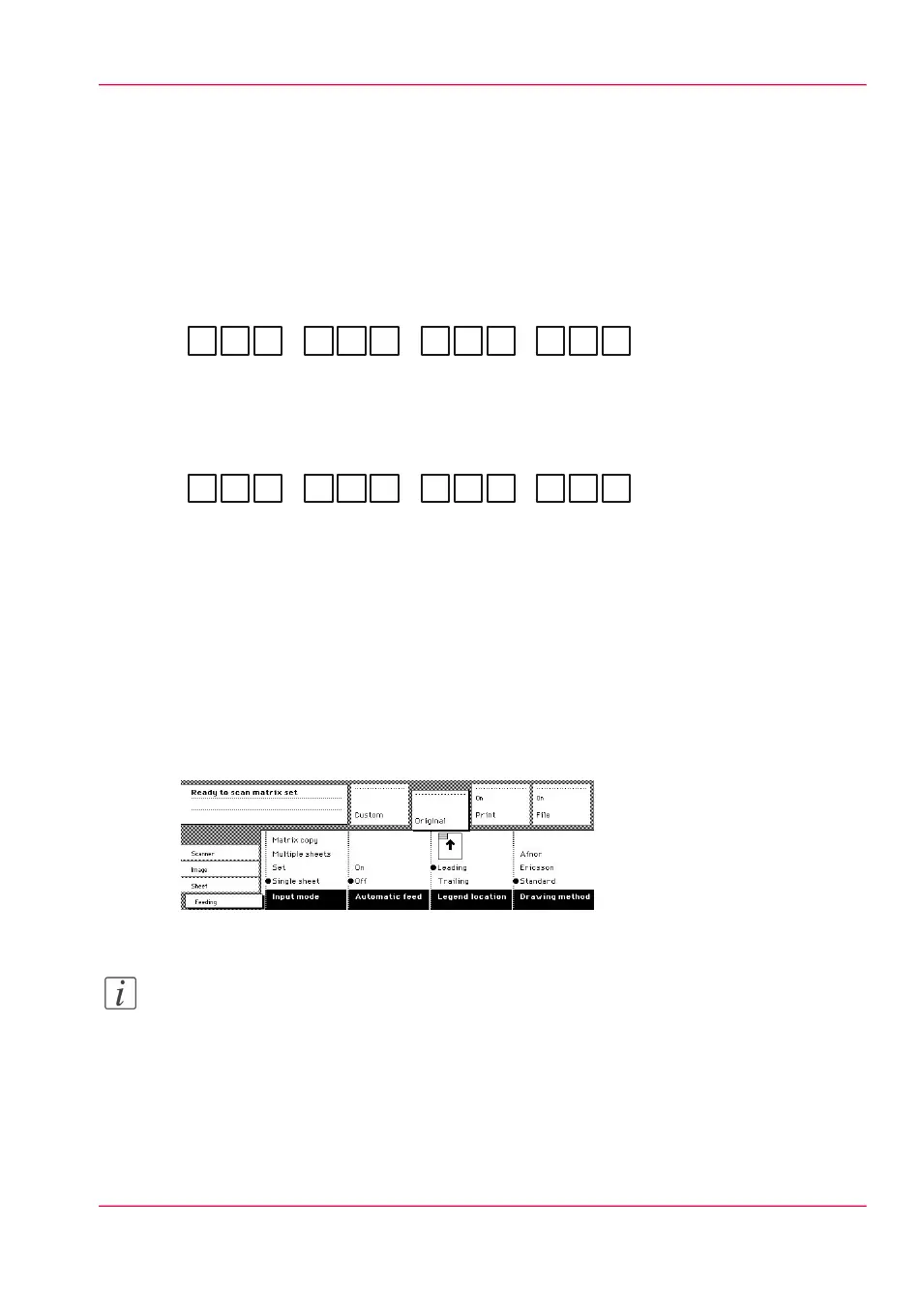
Select the “Feeding” card in the “Original” section.
2.
Select the input mode with the ‘Input mode’ function key.
[104] Select the input mode
Note:
You can also select the input mode from the “Custom” section (if this setting has been
defined for this).
Chapter 5 - Use the Océ PlotWave 900 scanner to copy 161
Select the input mode



 To Next Page