Use the Océ PostScript
®
3 Driver to send a print job
Introduction
Océ provides the Océ PostScript
®
3 Driver that allows you to send print jobs to your
Océ PlotWave 900.
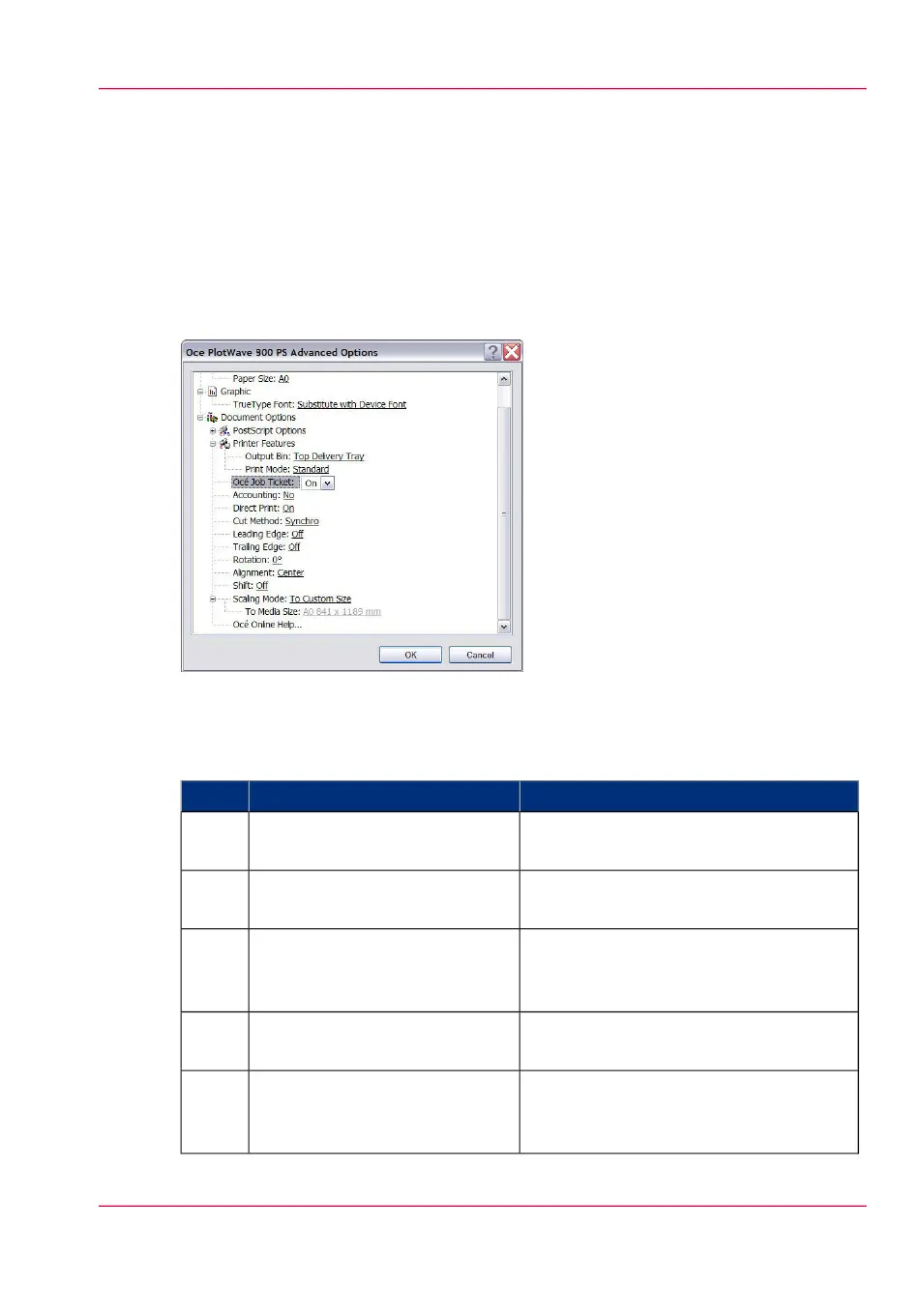
Illustration
How to use the Océ PostScript
®
3 Driver to send a print job
#
RemarksActionStep
Open the file that you want to
print in the source application.
1
From the 'File' menu of the ap-
plication, click 'Print'.
2
Select the Océ PlotWave 900 in
the 'Printer' area of the 'Print'
dialog box.
3
When you select Properties you can make
settings for the print job.
Click 'Properties' and 'Ad-
vanced'.
4
Activate the Océ Job Ticket to
overrule the default values for
the job settings.
5
Chapter 4 - Use the Océ PlotWave 900 to print 137
Use the Océ PostScript
®
3 Driver to send a print job



 To Next Page