The scan width
Introduction
To prevent information loss when copying a non-standard original, you can select the
‘non-standard’ scan width. The scanned width will then be larger than the original width.
It is also possible to define the scanned width and length yourself.
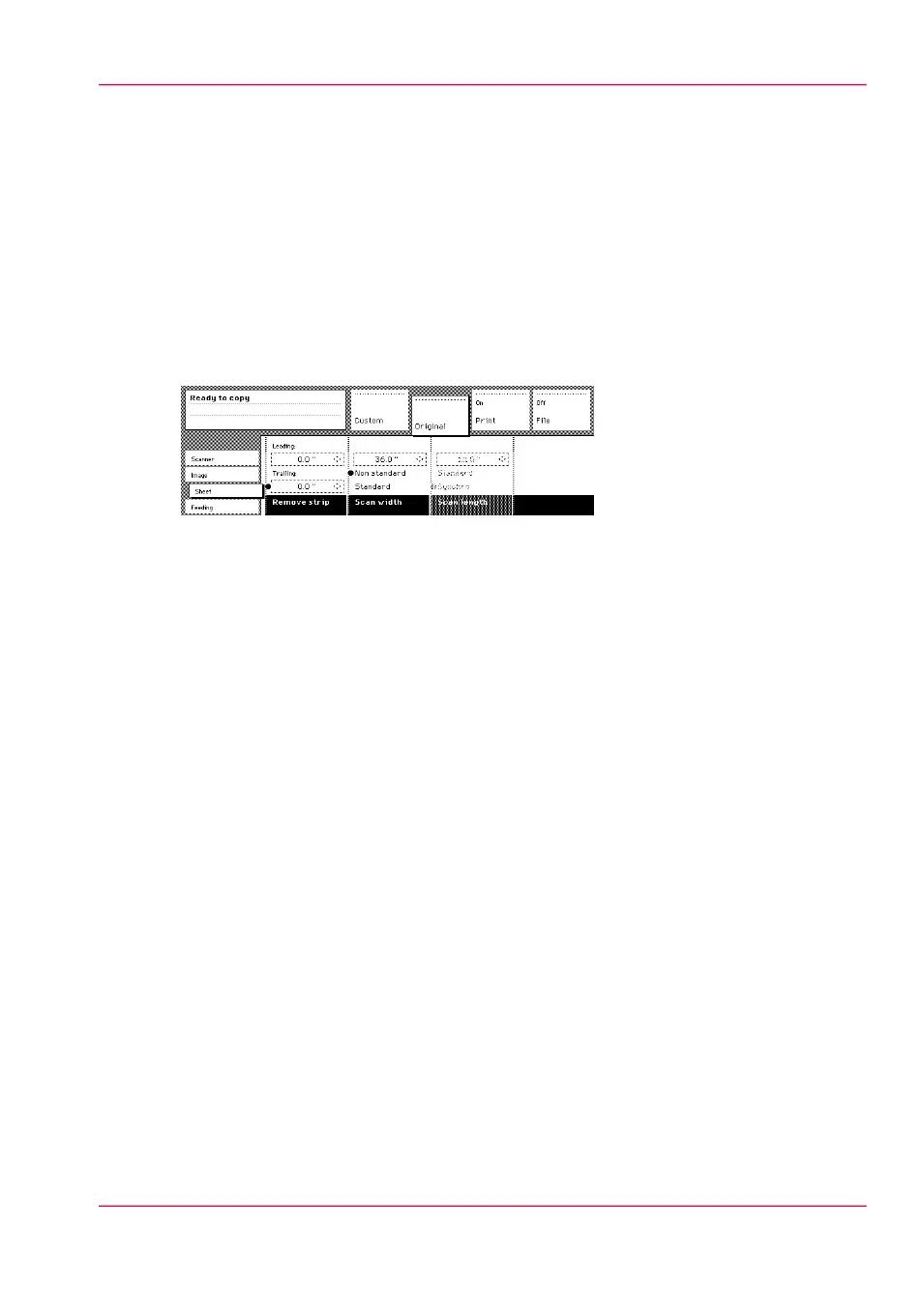
Define the scan width
1.
Open the “Sheet” card in the “Original” section.
[149] Select ‘Non-standard’ scan size
2.
Press ‘Scan width’ to select the required setting:
•
Standard. This option must be used to copy a standard-size original.
•
Non-standard. This option can be used to copy a non-standard original. The scanned
width will be larger than the original width (to the next larger, standard size) to prevent
information loss.
•
Numeric. You can define the scan width yourself using the higher/lower keys or the
numeric keys.
Chapter 8 - Special copy and scan jobs 227
The scan width



 To Next Page