Chapter 4—Configuring the Library Enabling BlueScale Software Support, Options, and Upgrades
August 2017 User Guide—Spectra T50e Library
111
Determine the Hardware ID
ThelibraryHardwareIDisrequiredforrenewingorextendingyour
servicecontract,whichincludestheBlueScaleSoftwareSupportkey,and
forpurchasingadditionalCapacityonDemand(CoD)orotherupgrade
options.
1. AccesstheConfigurationmenu(seeAccesstheConfigurationMenuon
page99).
Note: IfthesecondaryConfigurationmenuisdisplayed,clickMore
Options(uparrow)todisplaythemainConfigurationmenu.
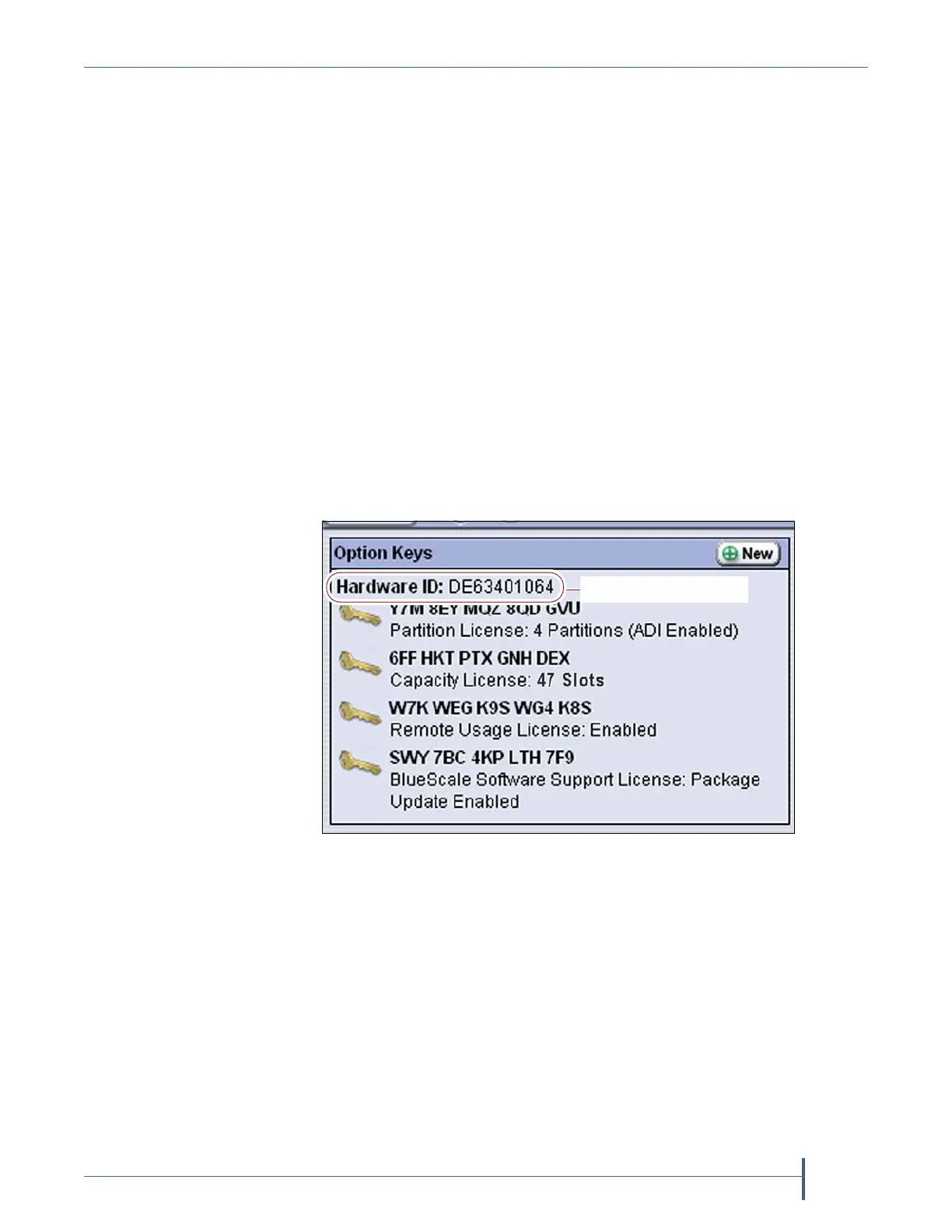
2. OntheConfigurationmenu,clickOption Keys todisplaytheOption
Keysscreen.TheHardwareIDappearsnearthetopofthisscreen.
Note: TheHardwareIDisaten‐characteralphanumericstring.Ifthe
Hardw areIDshownontheOptionKeysscreenisaseven‐digit
number,contactTechnicalSupportforassistanceinobtaining
theHardwareIDyoushoulduseforyourportalaccountand
whenpurchasingactivationkeys.SeeContactingSpectraLogic
onpage7.
Figure 61 Locate the library’s Hardware ID.
The library’s Hardware ID



 To Next Page