ESAB Cutting Systems
CROSSBOW Page 143
5.5.3 Instructions for Updating Software
The system software can be updated through a USB disk. In case a system software update is
supplied by ESAB and needs to be installed, carefully follow this procedure:
1) Copy the update file titled STARTCNC.EXE to a USB disk. The USB disk should be freshly
formatted as FAT or FAT32 format. The STARTCNC.EXE file should be the only file on the
USB disk.
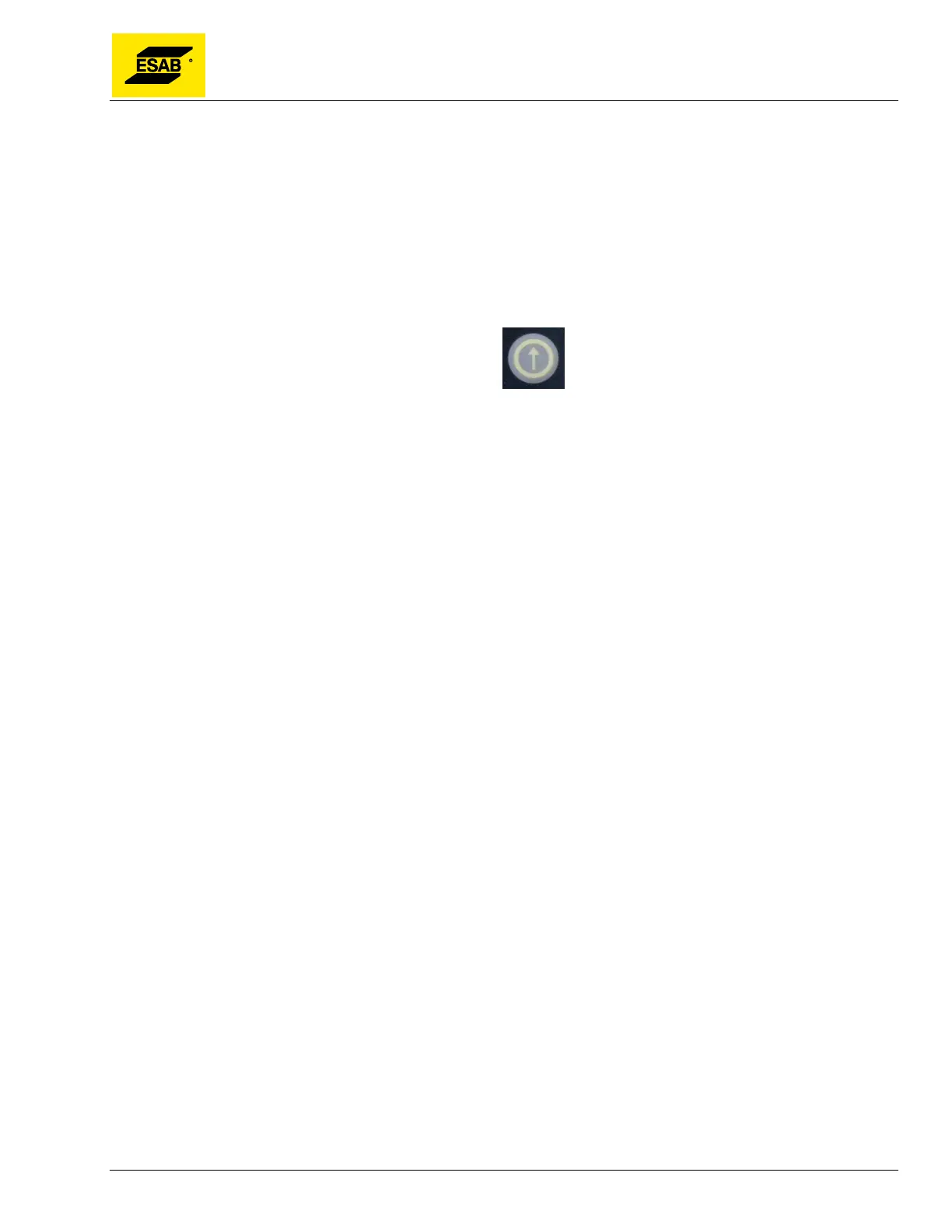
2) Press and hold the Software Update button while the system power is switched on. Continue
to hold the button until the upgrading window appears on the display screen.
Figure 109: Software Update Button
3) Plug the USB disk into the port and press the【F1】key to select UPDATE. The system will
automatically start the update operation.
4) If the update is successful, the system will display “UPDATE SUCCESSFUL”, and sound one
beep. If the update fails, the system will display “UPDATE FAILED”, and sound continuous
beeps.
5) Power the system off and unplug the USB disk. Reboot the system to start up the updated
system. The version number of the updated system software will appear on the screen after
boot-up.
Note: If the update fails, check the following:
1) The USB disk must be FAT or FAT32 format. FAT is preferred.
2) The update file must be named STARTCNC.EXE.
3) If no prompt appears in the updating process and the display returns to the main updating
window or updating fails due to any other interruption, first verify the name of the update file
and the USB formatting. If these two factors are confirmed, attempt the update again
following the above procedure. If the update fails again, contact ESAB Technical Support for
assistance.


 To Next Page