Basic Scanning
171
Scan
5
2 Sided Originals (Scans Both Sides of the Document)
You can automatically scan both sides of a 2 sided document.
By setting the binding style, front/back information can also be included in the scanned
data.
Note • This feature is not displayed for some models. An optional package is necessary. For more
information, contact our Customer Support Center.
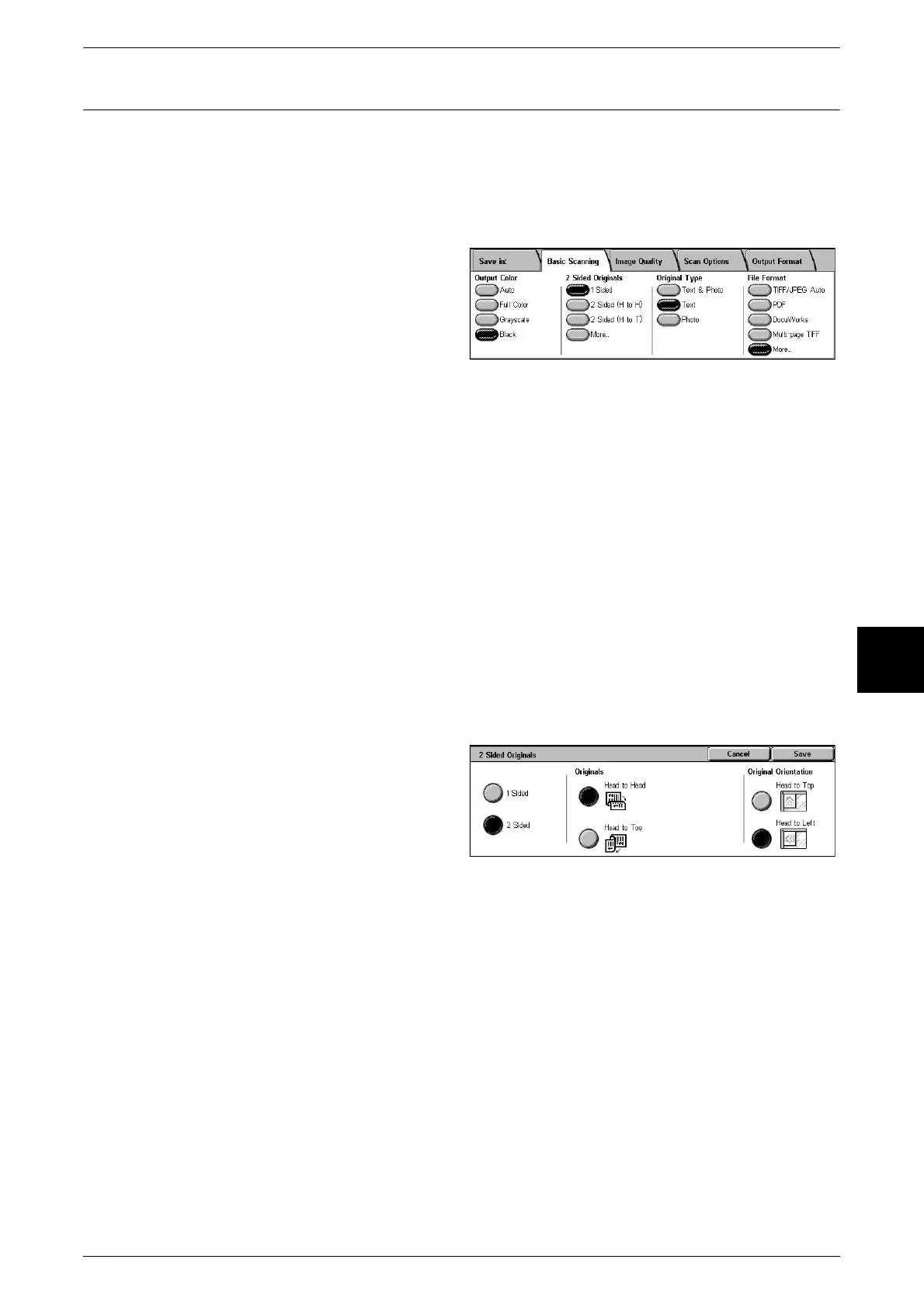
1 For [2 Sided Originals], select
either [1 Sided] or [2 Sided].
1 Sided
Select to scan only 1 side of the document.
2 Sided (H to H)
Selected when both sides of a 2 sided document are in the same position.
2 Sided (H to T)
Selected when both sides of a 2 sided document are in opposite positions.
More...
The [2 Sided Originals] screen is displayed.
[2 Sided Originals] Screen
Select when you wish to specify the document’s orientation and scan both sides.
1 Select either [1 Sided] or [2 Sided].
2 When [2 Sided] is selected, select
[Originals].
3 Select [Original Orientation].
Originals
Displayed when [2 Sided] is selected in the Originals screen.
Select either [Head to Head] or [Head to Toe].
[Head to Head] means that both sides of a 2 sided document are in the same
orientation, while [Head to Toe] means that they are oriented oppositely.
Originals Orientation
To scan using the document feeder, the orientation must be set to indicate the top of
the document.
Load the document in the [Head to Left] orientation when [File Format] is set to [TIFF/
JPEG Auto Select], [TIFF], or [JPEG]. When viewing scanned documents on a
computer, the document is displayed in the right orientation.
Note • If the [Original Orientation] differs from the actual document orientation, then the machine
may mistakenly detect the head of the document.



 To Next Page