Output Format
79
Copy
3
Printed Covers
z
Off
A blank sheet of paper is attached as the cover.
z
On
The document is copied to the cover from the first page. When you only want to copy
to the outside of the cover, insert a blank sheet of paper for the page that will become
the inside of the cover.
Paper Tray Settings
Displays the [Booklet Creation - Covers - Paper Tray Settings] screen.
Select the tray to use from [Body Pages Tray] and [Covers Tray]. Select trays with
paper of the same size and orientation for the copy paper and the cover.
When [Bypass…] is selected, the [Tray 5 (Bypass)] screen appears. For more information, refer to
"[Tray 5 (Bypass)] Screen" (P.56).
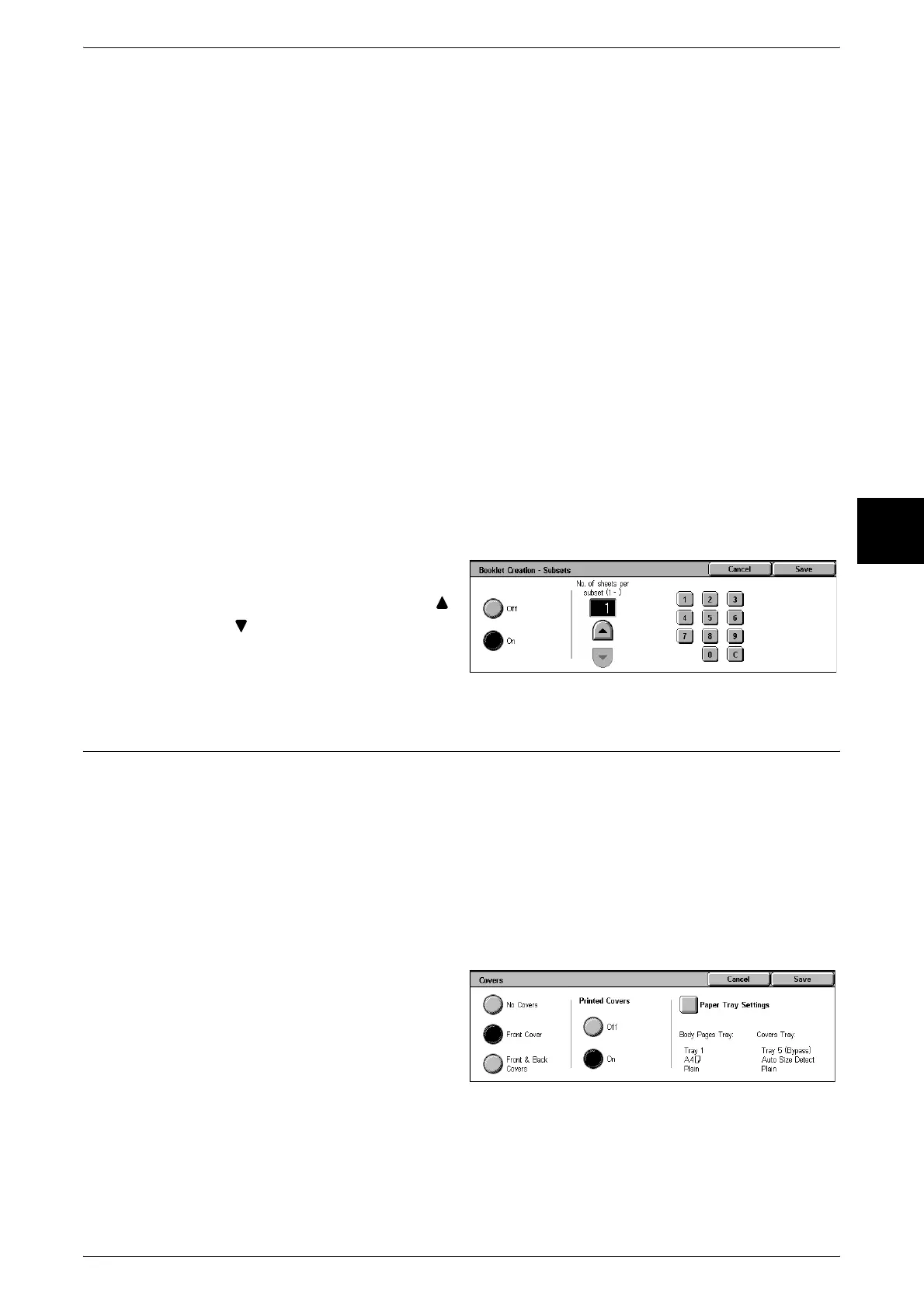
[Booklet Creation -Subsets] screen
When you have a large number of originals, the specified number of sheets can be
divided, folded in half, and overlaid to form a booklet. This feature can be set to from 1
to 50 pages in 1 page increments.
1 Select [On].
2 Set the number of copies using [ ]
and [ ] or with the numeric
keypad.
Covers (Attaching a Cover to Copies)
You can make copies with a cover attached.
The front and back cover can be output before the first page of the document on a
different type of paper (e.g. colored paper or heavyweight paper).
Important • If a memory overflow occurs when making copies with a cover attached, the job needs to be
canceled according to the message that appears.
Note • This feature does not appear for some models. An optional package is necessary. For more
information, contact our Customer Support Center.
• When making 2 sided copies, copies are made on both sides of the top cover/back cover in
accordance with the page order of the document.
1 Select [Covers].
2 Select [Front Cover] or [Front &
Back Covers].
3 Select whether or not to attach a
cover to the copy.
No Covers
A cover is not attached.












 To Next Page