Basic Copying
57
Copy
3
Output Color (Selecting the Color to Copy)
You can set the output color to use when copying.
Note • If output color restrictions have been set, there are restrictions on which colors are available
for copying. For information about output color restrictions, refer to "Account Limit" (P.345).
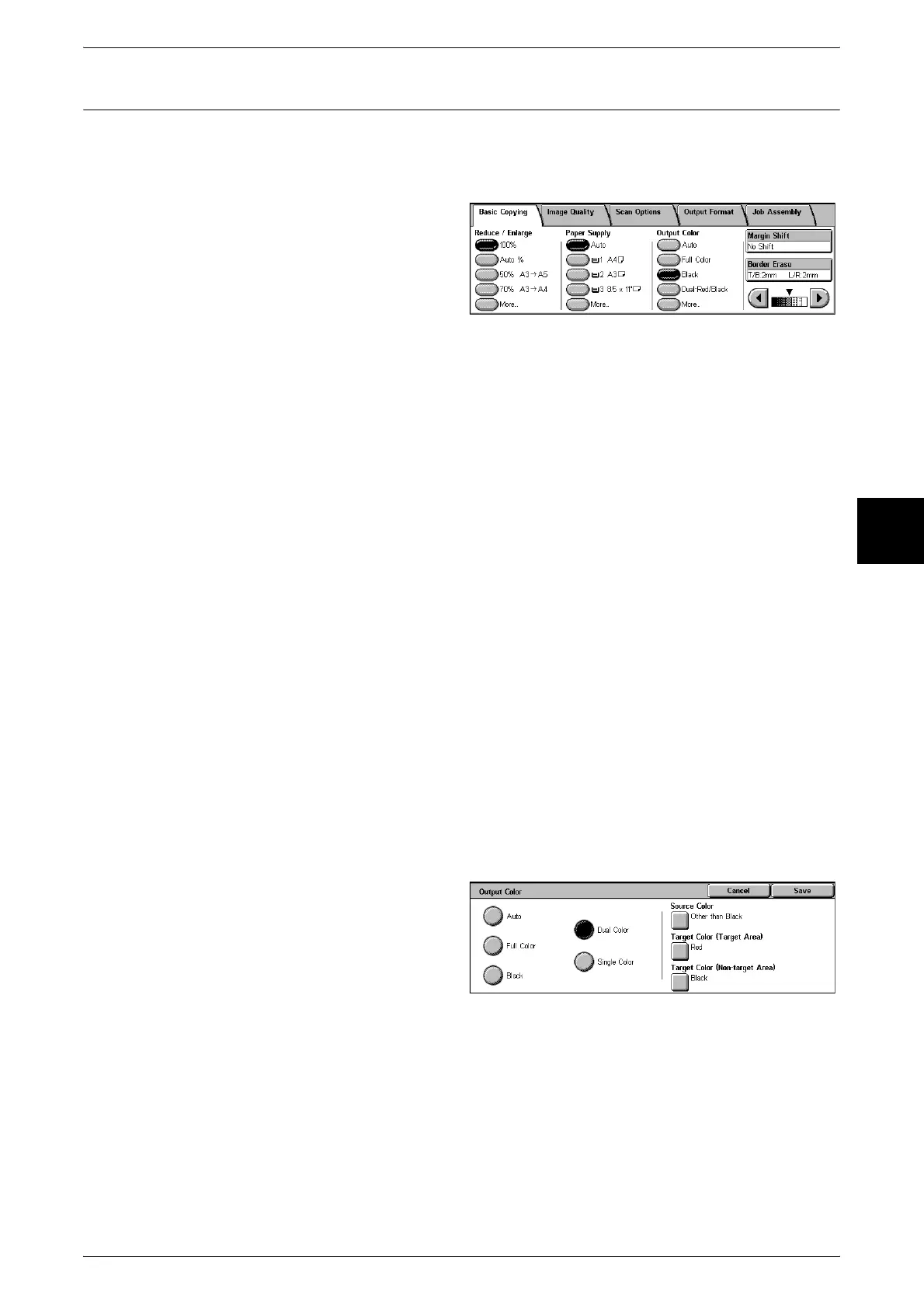
1 Select the output color from
[Output Color].
Auto
The machine automatically determines the color of the original document and makes
copies in full color if the original document is color and in a single color (black) if the
original document is black-and-white.
Full Color
Copies are made in full color using all the four colors of toner: yellow, magenta, cyan,
and black.
Black
The machine makes copies in black and white regardless of the colors in the original
document.
Dual-Red/Black
The machine makes copies of color documents in two preset colors.
You can change the colors to display. For information about the setting procedures, refer to "Dual -
Target Color (Target Area)" (P.278) and "Dual - Target Color (Non-target Area)" (P.278).
[More…...]
Display the [Output Color] screen.
[Output Color] Screen
You can copy in full color, dual color, and single color.
1 Select [More...].
2 Select the desired output color type
for copying.
Auto
The machine automatically determines the color of the original document and makes
copies in full color if the original document is color and in a single color (black) if the
document is black-and-white.
Full Color
Copies are made in full color using all the four colors of toner: yellow, magenta, cyan,
and black.












 To Next Page