Output Format
77
Copy
3
Uncollated
The machine can output the specified number of copies and sort sheets by page.
Stapling
Displays the [Copy Output/Stapling] screen.
Output Destination
Specifies the output destination. You can select from the following trays.
Note • This feature does not appear for some models. An optional package is necessary. For more
information, contact our Customer Support Center.
z
Center Output Tray
z
Side Output Tray
z
Finisher Tray
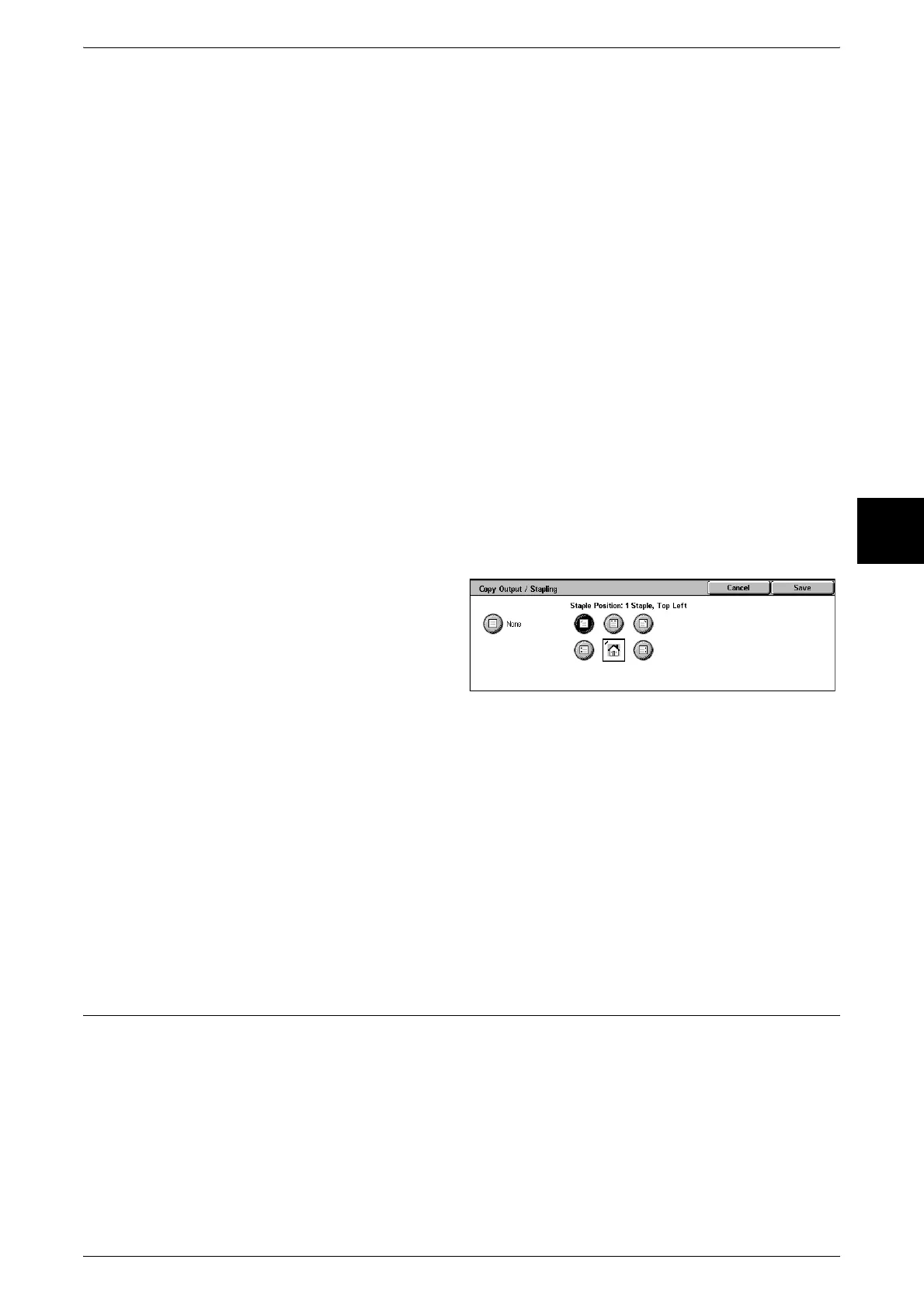
[Copy Output/Stapling] Screen
You can set stapling. The number of pages that can be stapled is 2 to 50 (P paper and
J paper). Bond paper, plain paper, recycled paper, and custom paper 1 to 5 can be
stapled.
Important • Confirm that the orientation of the document and the [Original Orientation] setting of the
[Scan Options] screen are the same.
1 Select [Stapling].
2 Select the stapling position.
None
Stapling is not performed.
Staple Position
Select from five staple positions: One Staple, Top Left; Two Staples, Left; Two Staples,
Top; One Staple, Top Right; and Two Staples, Right.
Important • In the following cases, the staple direction appearing on the screen and the direction in
which staples are actually stapled differ.
When the document is placed in the direction it is read (top side up) and one staple was
stapled on the top left.
When the document is placed in the left direction (left side up) and one staple was stapled
on the top left.
Booklet Creation (Creating a Booklet)
The machine can copy pages laid out so as when multiple-page sheets are overlaid
and folded along the center (gutter), a booklet is created in page order. You can also
set the gutter and attach a cover when making booklets.
Important • Confirm that the orientation of the document and the [Original Orientation] setting of the
[Scan Options] screen are the same.
Note • This feature does not appear for some models. An optional package is necessary. For more
information, contact our Customer Support Center.
• If the number of pages in the booklet is not a multiple of four, the remaining pages will be
output as blank pages.












 To Next Page