Confirming/Changing Job Flow
201
Job Flow Sheets
7
Confirming/Changing Job Flow
You can confirm a Job Flow and temporarily change its parameters. However, only
fields that have been give change permission when the Job Flow was created can be
edited.
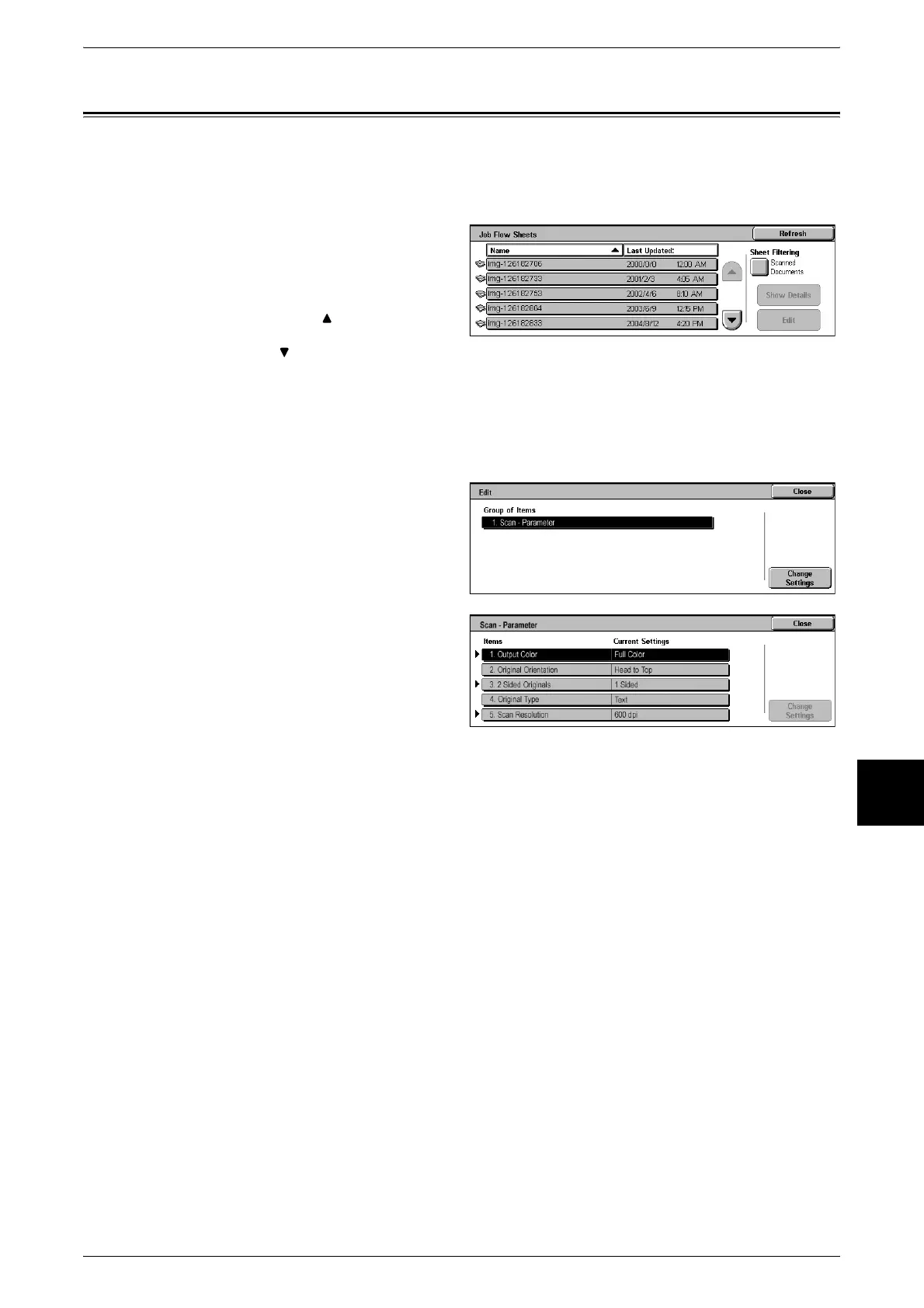
1 Select a Job Flow.
Note • Updated information is
displayed by selecting
[Refresh].
• Select [ ] to display the
previous screen and select
[ ] to display the next screen.
• You can sort documents in ascending or descending order by pressing either [Name] or
[Last Updated].
2 To confirm Job Flow contents, select [Show Details]. To change contents, select
[Edit].
3 Select the group to change from
the [Group of Items], and select
[Change Settings].
Note • Data included in the Job Flow
is displayed in the [Group of
Items].
4 Select the items to change and
select [Change Settings].
Note • A triangle icon appears to the
left of groups that have
mandatory fields.
• Data included in the Job Flow
is displayed in the [Items] and
[Current Settings].
5 Contents of the displayed screen vary to match the data you wish to change. You
make changes on this screen.












 To Next Page