Output Format
87
Copy
3
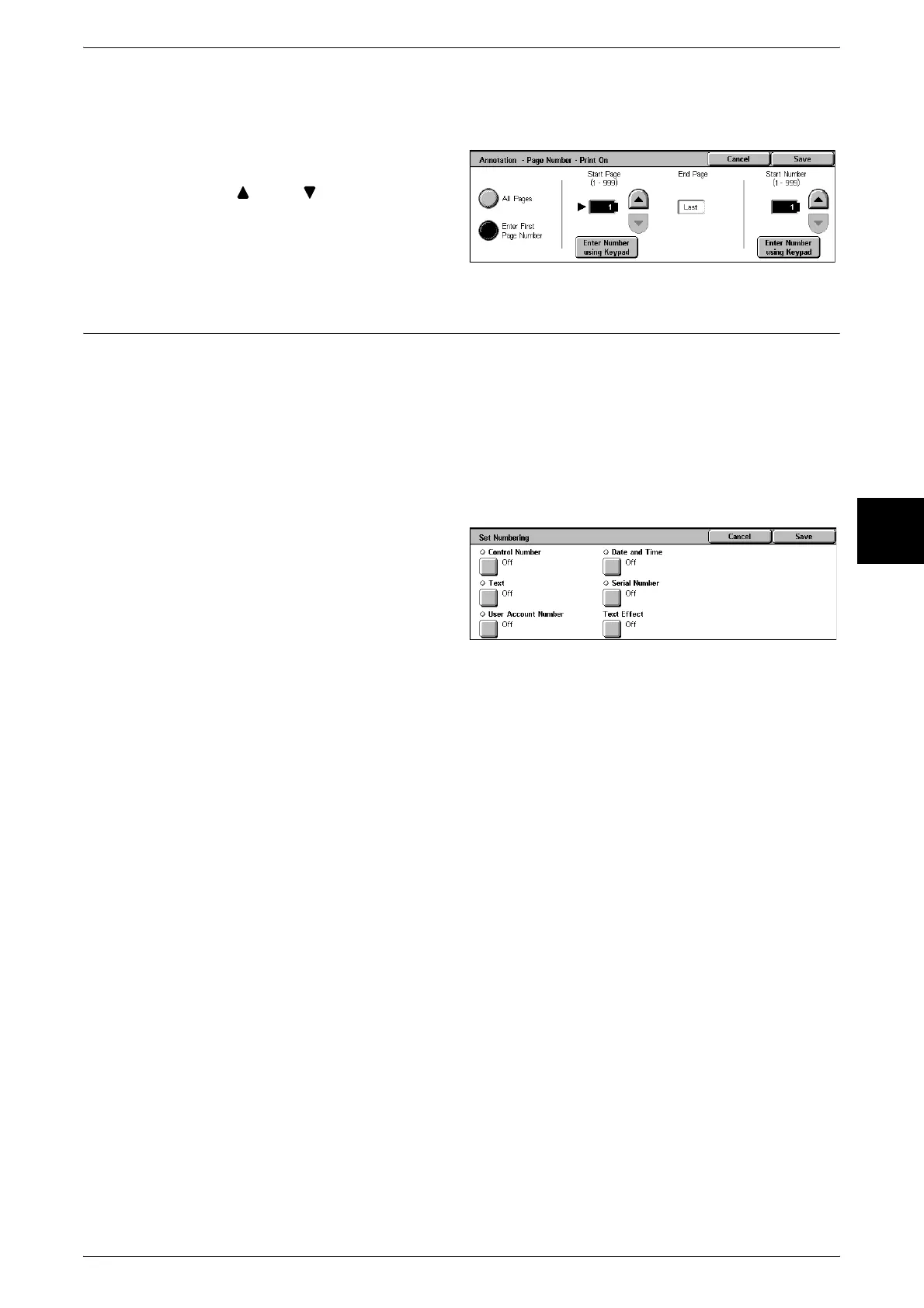
When [Enter First Page Number] is Selected
You can specify the start page for adding page numbers within the range from 1 to 999.
1 Select [Enter First Page Number].
2 Use [ ] and [ ] or select [Enter
Number using Keypad] and enter
the start page number.
Set Numbering (Printing Control Number on the Background)
You can lightly print a sequential control number on the background of each copy set.
For example, if you set "1" for the start number, "1" is printed on all page of the first
copy set and "2" is printed on all pages of the second set.
To prevent, for instance, the duplication of confidential documents for distribution at
conferences, you can use sequential numbering to associate distribution copies to
people.
Note • This feature does not appear for some models. An optional package is necessary. For more
information, contact our Customer Support Center.
1 Select [Set Numbering].
2 Select any item.
Control Number
Displays the [Set Numbering - Control Number] screen.
Text
Displays the [Set Numbering - Text] screen.
User Account Number
Displays the [Set Numbering - User Account Number] screen.
Date and Time
Displays the [Set Numbering - Date and Time] screen.
Serial Number
Displays the [Set Numbering - Serial Number] screen.
Text Effect
Displays the [Set Numbering - Text Effect] screen.












 To Next Page