Cleaning the Machine
421
Maintenance
15
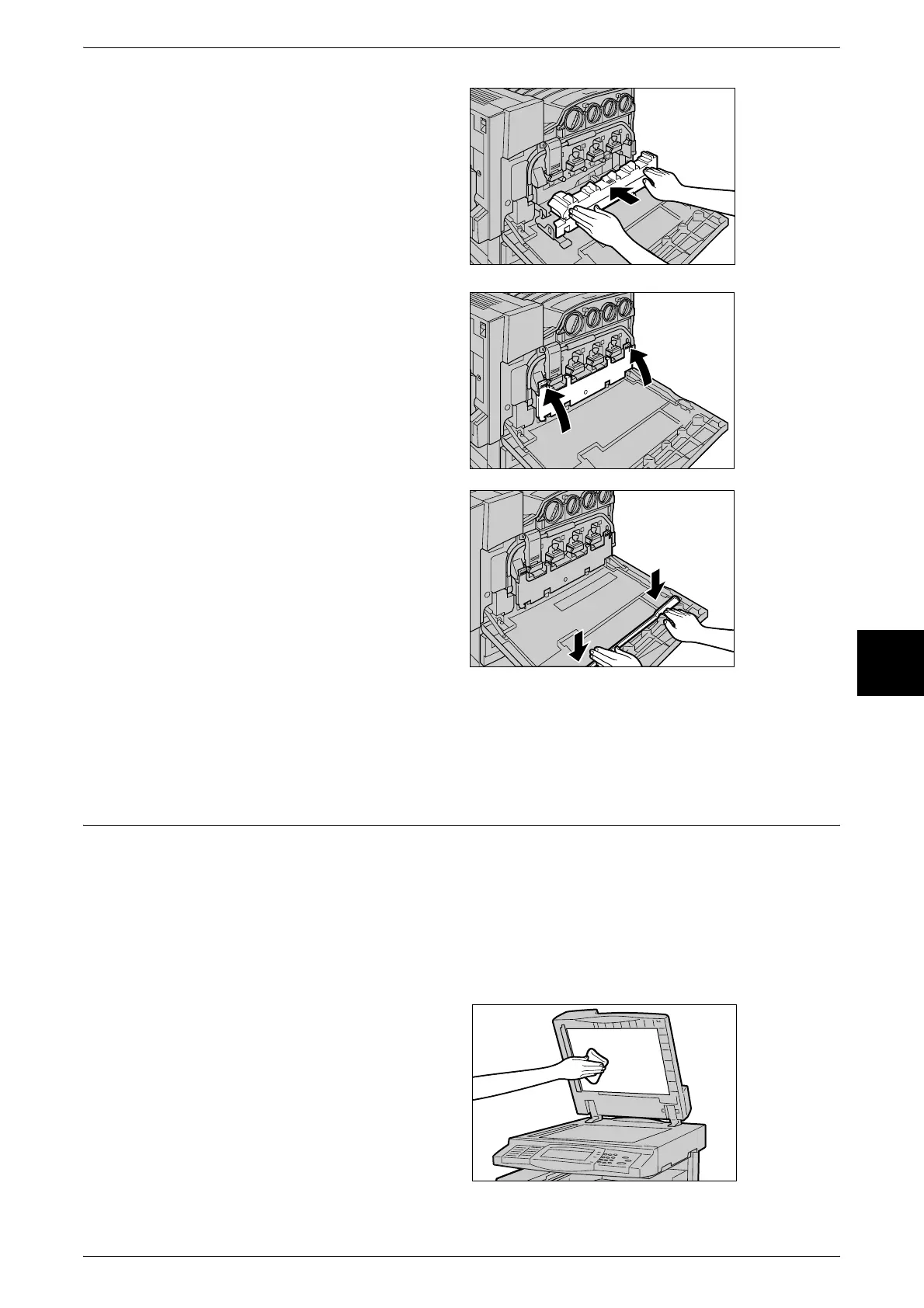
7 Hold the center section of the
waste toner container that you
removed and push the container in
as far as possible while making
sure that the center section is
properly aligned.
8 Close the black cover by pulling up
the left and right orange tabs.
9 Reattach the cleaning rod to the
inside of the front cover.
10 Close the front cover.
Note • A message will be displayed and the machine will not operate if the front cover is even
slightly open.
Cleaning the Document Cover and Document Glass
If the document cover and document glass are dirty, dirt may appear on copies and the
machine may not properly detect document sizes.
To ensure that clean copies are made, clean the machine about once a month.
Important • Do not use benzene, paint thinner, or other organic solvents. Doing so might damage paint
or coating on plastic parts.
• Cleaning the machine with an excessive amount of water may cause the machine to
malfunction or damage documents during copying.
1 Wipe the document cover with a
soft cloth moistened with water to
remove any dirt and then wipe it
with a soft, dry cloth.
Important • Do not use cleaning agents
other than water or neutral
detergent.
Note • If it is difficult to remove dirt,
try gently wiping with a soft
cloth moistened with a small
amount of neutral detergent.












 To Next Page