Changing the Size of Paper in Trays
235
Paper and Other Media
10
Changing the Size of Paper in Trays
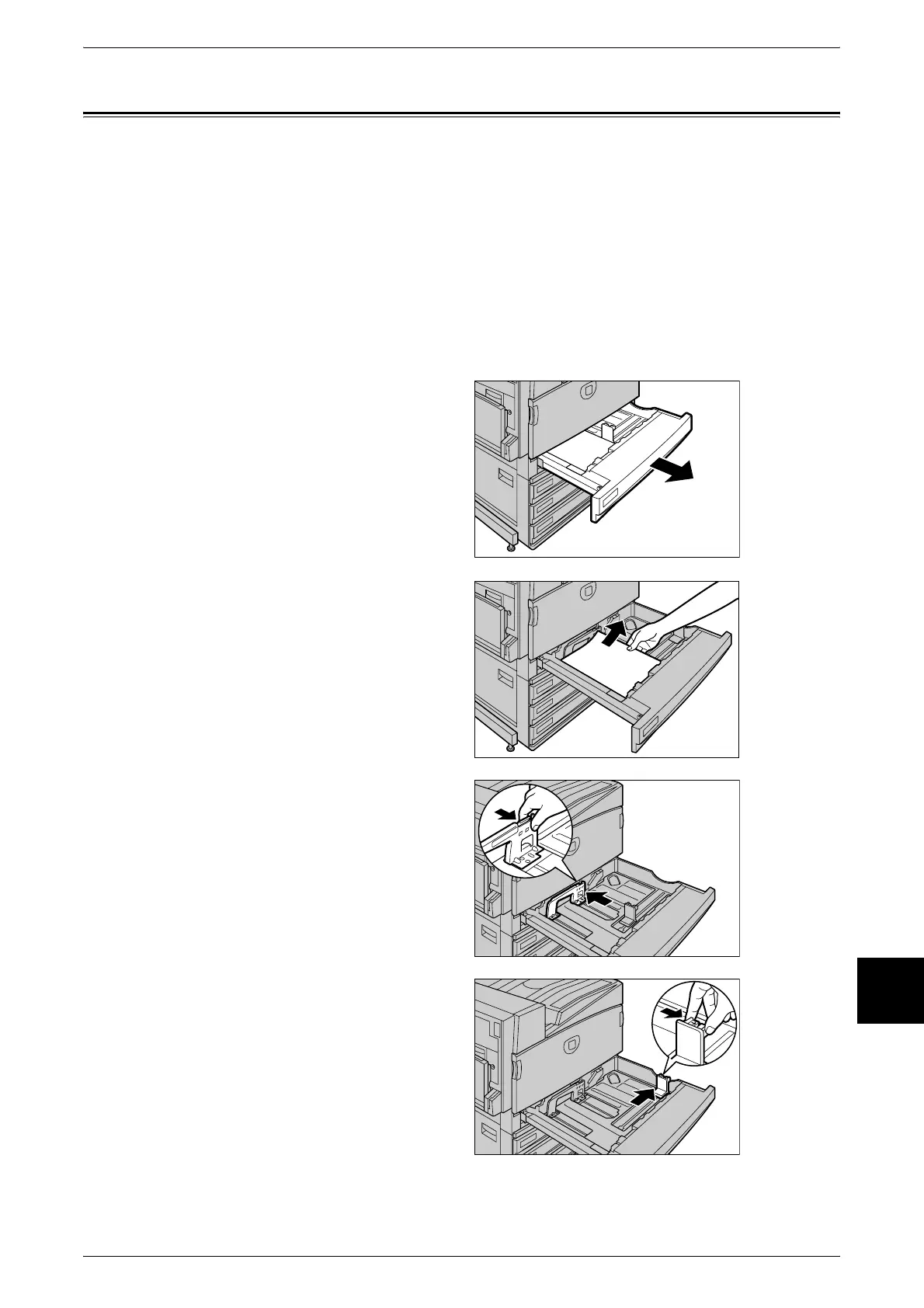
The following describes how to change the paper size on Trays 1 to 4.
Note • The paper quality for Paper Trays 1 to 4 is configured. There are 8 paper qualities: [Plain],
[Bond], [Recycled], and [Custom 1~5]. Paper quality is normally set to [Plain]. When
changing the setting to a different paper quality, change the paper quality settings to match
the type of paper to be loaded to maintain high print quality.
For information about how to set the paper quality, refer to "Paper Type" (P.260).
• When setting a non-standard paper size, you must register the paper size. For information
about registering paper sizes, refer to "Paper Size" (P.260).
For a description of how to make copies on non-standard size paper, refer to "Paper Supply (Selecting
the Paper to Use for Copying)" (P.55). For a description of how to print to non-standard size paper, refer
to the print driver’s online help.
1 Pull out the tray towards you until it
stops.
2 Remove any paper if loaded on the
tray.
3 While holding the grip, move the
inner paper guide lever to the back
of the tray.
4 While holding the grip, move the
right paper guide lever to the right
side of the tray.












 To Next Page