Image Quality
61
Copy
3
Image Quality
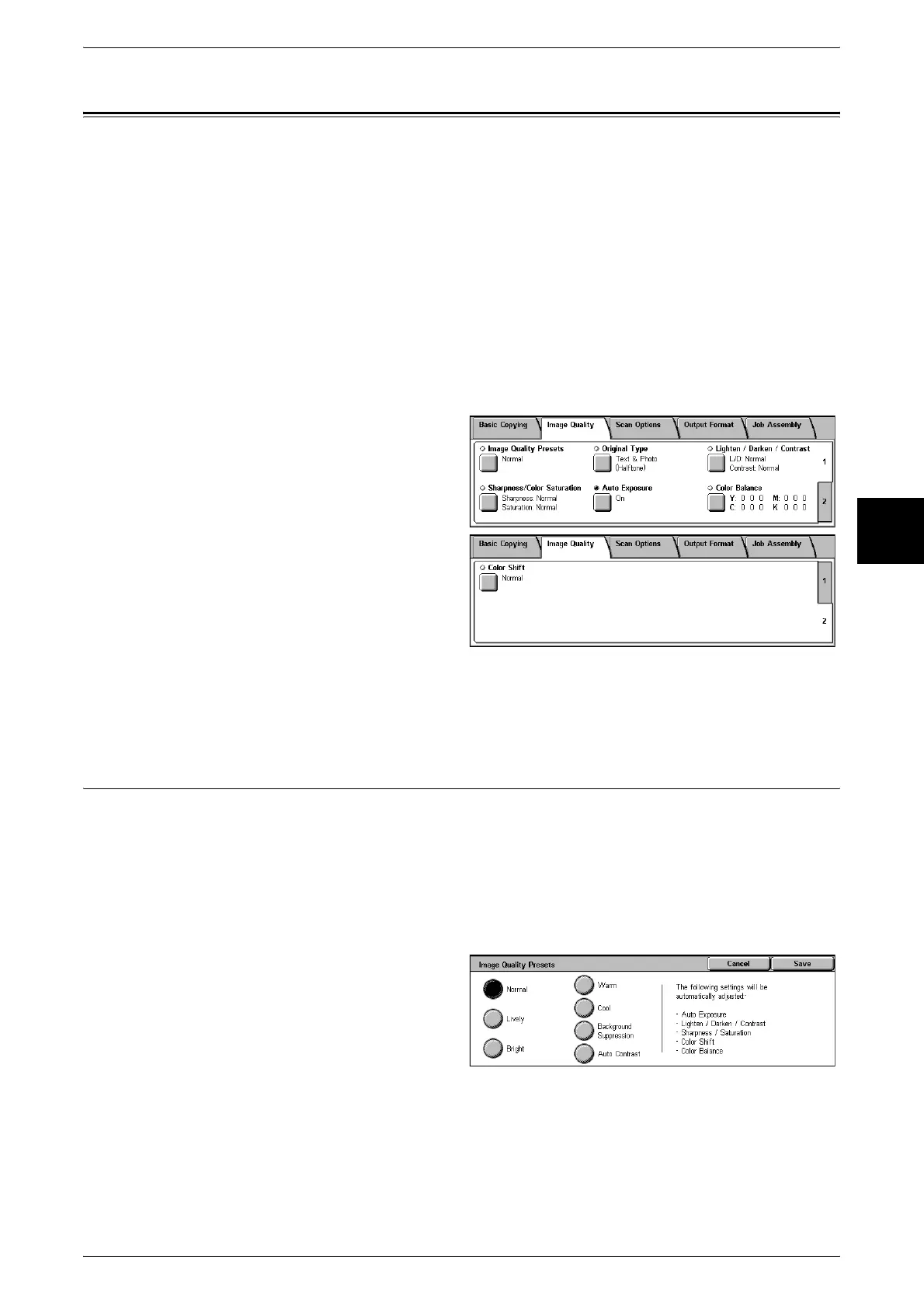
On the [Image Quality] screen, you can configure the document image quality features.
The following shows the reference section for each feature.
Image Quality Presets (Selecting Image Quality)...................................................................... 61
Original Type (Selecting the Image Quality Type for the Document) ...................................... 62
Lighten/Darken /Contrast (Adjusting the Copy Density and Contrast)..................................... 63
Sharpness/Color Saturation (Adjusting the Sharpness and Color Saturation of Images) .......... 64
Auto Exposure (Erasing the Background Color of Documents)................................................ 64
Color Balance (Adjusting Color Balance) ................................................................................. 65
Color Shift (Adjusting Color Tone) ........................................................................................... 65
1 On the [All Services] screen, select
[Copy].
2 Select the [Image Quality] tab and
then select a feature on the [Image
Quality] screen that appears.
If color reproducibility is poor, perform
auto gradation adjustment. For information about auto gradation adjustment, refer to "Executing Auto
Gradation Adjustment" (P.424).
Image Quality Presets (Selecting Image Quality)
If you select an image quality of Image Quality Preset, the [Auto Exposure], [Lighten /
Darken / Contrast], [Sharpness/Color Saturation], [Color Shift], and [Color Balance]
settings are automatically adjusted and copies are made at a quality that matches the
images.
Note • If the settings of other image quality preset features are changed after selecting an image
quality in [Image Quality Preset], the Image Quality Presets setting will return to its default
(state of nothing being selected).
1 Select [Image Quality Presets].
2 Select the image quality
Normal
Copies are made with the [Auto Exposure], [Lighten / Darken / Contrast], [Sharpness/
Color Saturation], [Color Shift], and [Color Balance] settings at their defaults.
Lively
The color saturation is raised to reproduce images that appear fresher and livelier.












 To Next Page