3 Copy
82
Copy
3
Poster (Making Enlarged Copies Spread over Multiple Sheets)
An enlarged copy of a document can be made spread over multiple sheets.
This feature allows you to create a large poster by pasting together the copies spread
over multiple sheets. Copied sheets are provided with a paste margin so that they can
be pasted together. This paste margin is fixed to 10 mm.
Important • Confirm that the orientation of the document and the [Original Orientation] setting of the
[Scan Options] screen are the same.
Note • You can only make one set of copies for a poster.
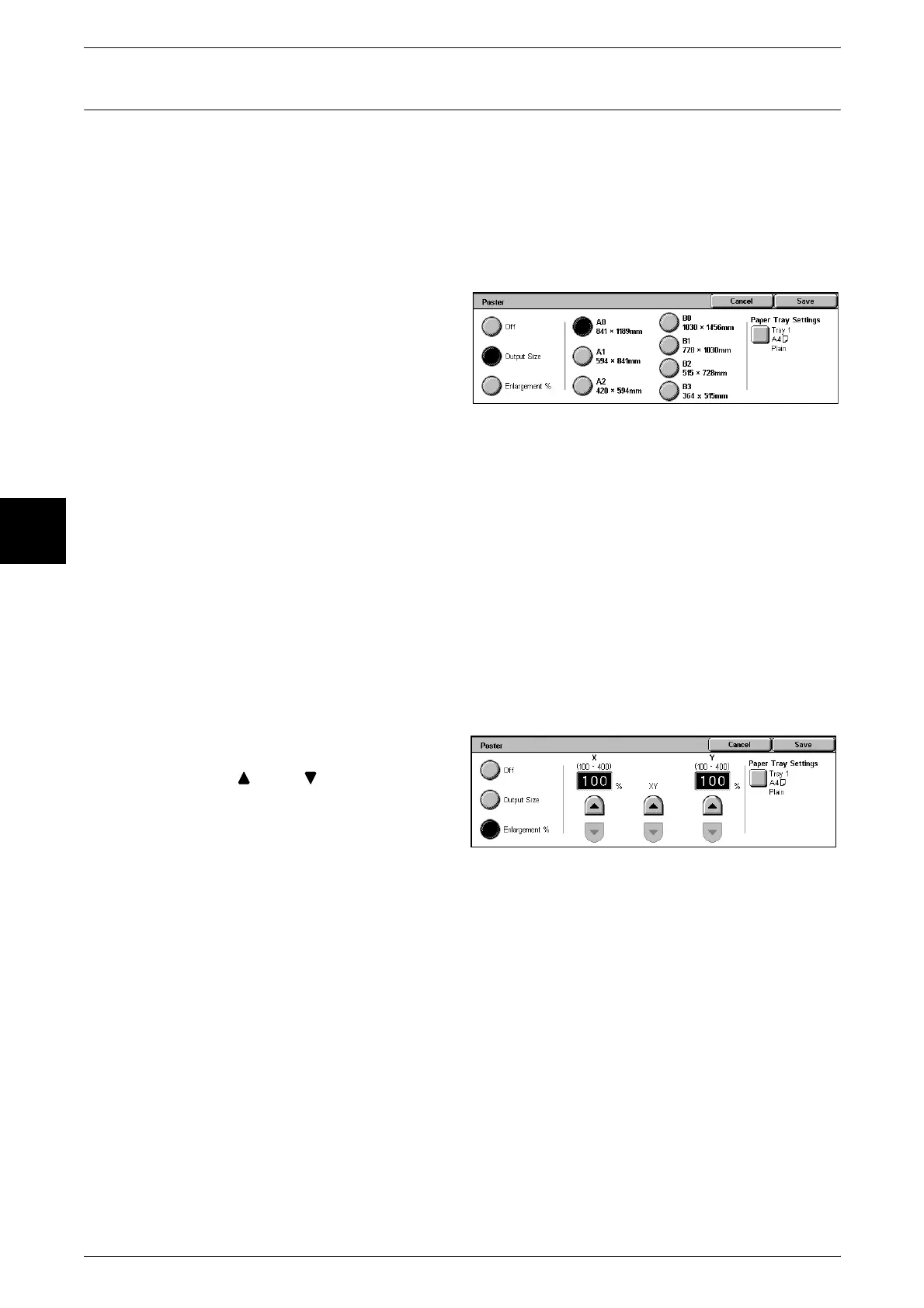
1 Select [Poster].
2 Select [Output Size] or
[Enlargement %].
Off
Poster is not applied to copies.
Output Size
You can select from seven paper sizes.
Paper Tray Settings
Displays the [Poster - Paper Tray Settings] screen. Select the paper tray to use.
When [Bypass…] is selected, the [Tray 5 (Bypass)] screen appears. For more information, refer to
"[Tray 5 (Bypass)] Screen" (P.56).
When [Enlargement %] is Selected
You can specify a different ratio for the height and width.
1 Select [Enlargement %].
2 Use [ ] and [ ] to specify the
height and width ratios.
X (width) Y (height)
Set the height and width ratios within the range from 100 to 400% in 1% increments.
Simultaneous
You can simultaneously change the numerical values of the height and width by the
same amount.












 To Next Page