5 Scan
176
Scan
5
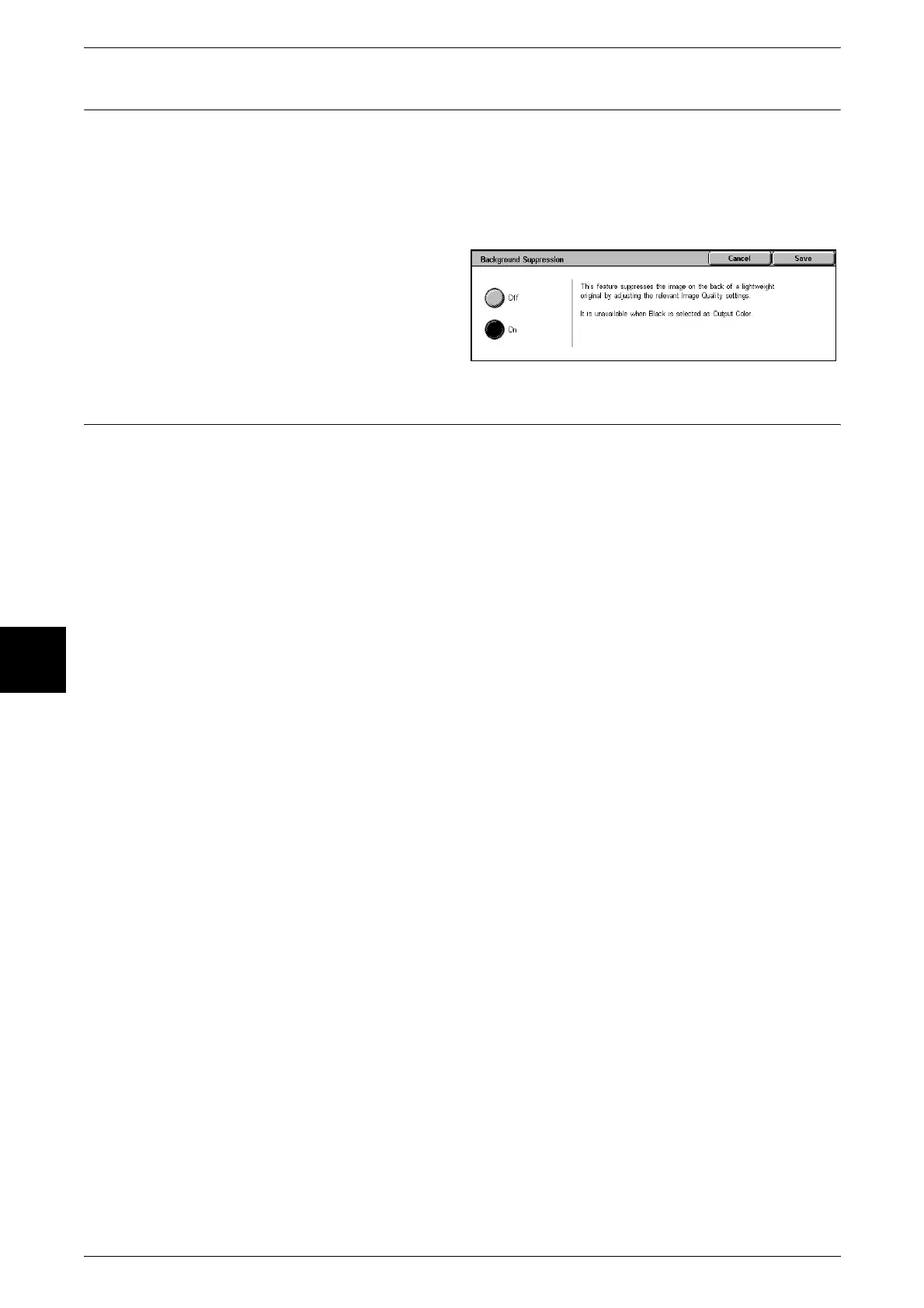
Background Suppression (Suppressing the Document Background)
When scanning a 2 sided document printed on both sides, you can suppress the image
on the reverse side.
Only enabled when [Output Color] is set to [Full Color] or [Grayscale] in the [Basic
Scanning] screen.
Important • This feature cannot be used with [Photograph Scanning].
1 Select [Background Suppression].
2 Select [On].
Color Space (Specifying Color Space)
You can specify color space for scans.
Important • Color Space is available when [Output Color] is set to [Full Color].
Note • This feature is not available for some models. An optional package is necessary. For more
information, contact our Customer Support Center. A setting must be made in the System
Administration mode to activate [Color Space]. For information about how to set features,
refer to "Color Space" (P.297).
1 Select [Color Space].
2 Select either [Standard Color Space] or [Device].
Standard Color Space
Color space for scanned data conforms to sYCC.
Device Color Space
Used to perform advanced color processing.
Note • You can find profile data in the CentreWare Utilities CD-ROM.
• When [Device Color Space] is selected, the below image quality features are set to their
defaults.
Lighten / Darken, Sharpness, Background Suppression, Contrast, Auto Exposure












 To Next Page