3 Copy
52
Copy
3
Basic Copying
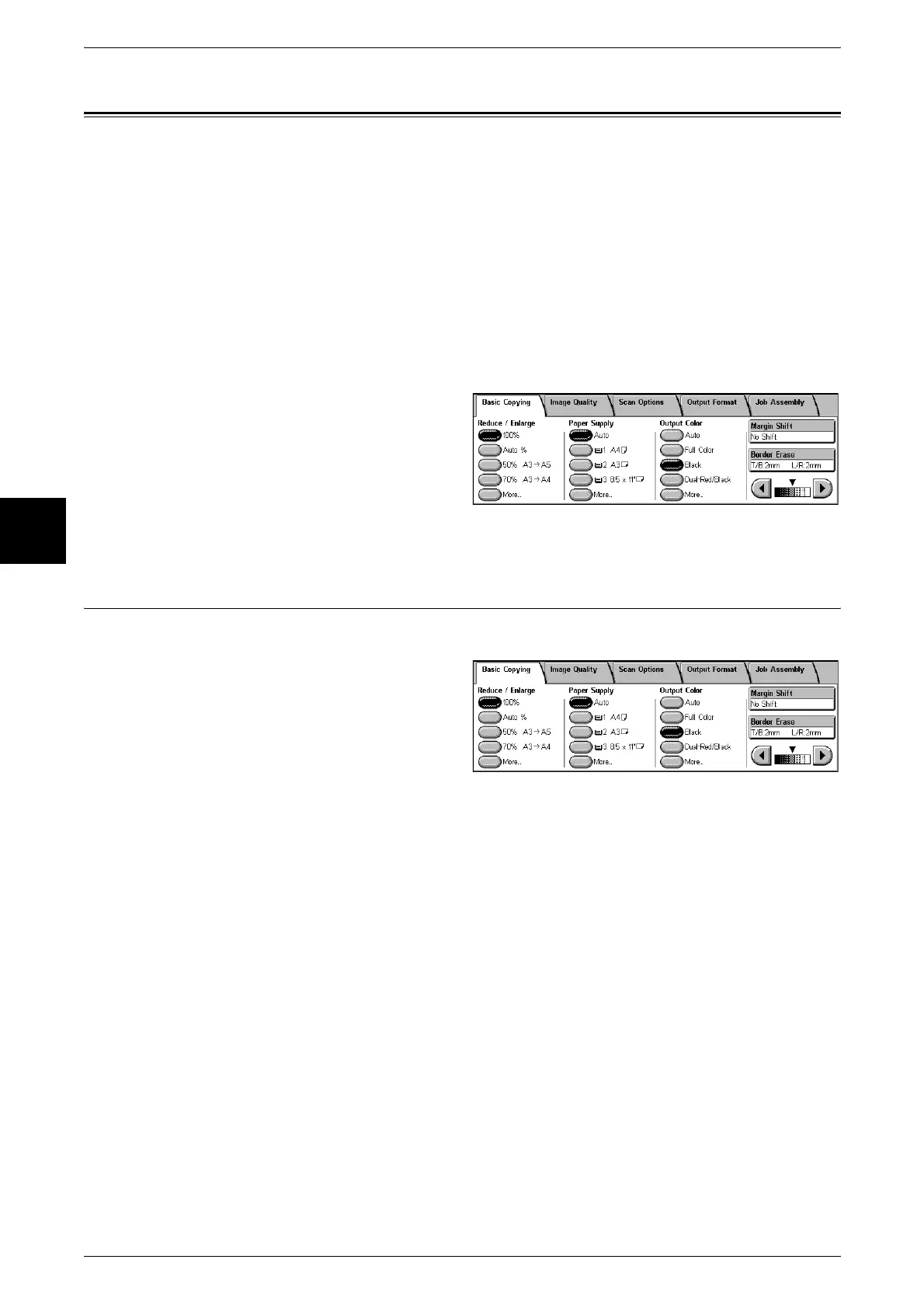
You can set the basic features on the [Basic Copying] screen. The following shows the
reference section for each feature.
Reduce/Enlarge (Making Enlarged/Reduced Copies) ................................................................52
Paper Supply (Selecting the Paper to Use for Copying).............................................................55
Output Color (Selecting the Color to Copy)...............................................................................57
Copy Position/Margin Shift (Shifting the Image Copy Position)...............................................59
Border Erase (Erasing Edges and Margin Shadows in the document).......................................59
Copy Density (Adjusting the Copy Density)..............................................................................60
1 On the [All Services] screen, select
[Copy].
2 Select features on the [Basic
Copying] screen that appears first.
Reduce/Enlarge (Making Enlarged/Reduced Copies)
You can select a ratio to make enlarged or reduced copies.
1 Select the copy ratio.
100%
Copies are made at the same size as the original.
Auto%
The copy ratio is automatically set based on the original size and paper sizes, and the
document is copied to fit in the selected paper.
Note • If you select [Auto%], specify a value other than [Auto] for [Paper Supply].
Ratio (3rd to 4th Buttons)
Select from preset ratios.
You can change the indicated ratios. For information about the setting procedures, refer to "Reduce/
Enlarge - 3rd Button" (P.277) and "Reduce/Enlarge - 4th Button" (P.277).
[More...]
Display the [Reduce/Enlarge] screen.
Refer to "When [Preset %] is Selected", "When [Variable %] is Selected", "When
[Independent X-Y%] is Selected", and "When [Calculator %] is Selected".












 To Next Page