Scan Options
69
Copy
3
Start Page & End Page
Displays the [2 Sided Book Copy - Start Page & End Page] screen.
Center Erase
Erases the shadow from the center section of the document. You can set the width for
Center Erase in the range from 0 to 50 mm in increments of 1 mm.
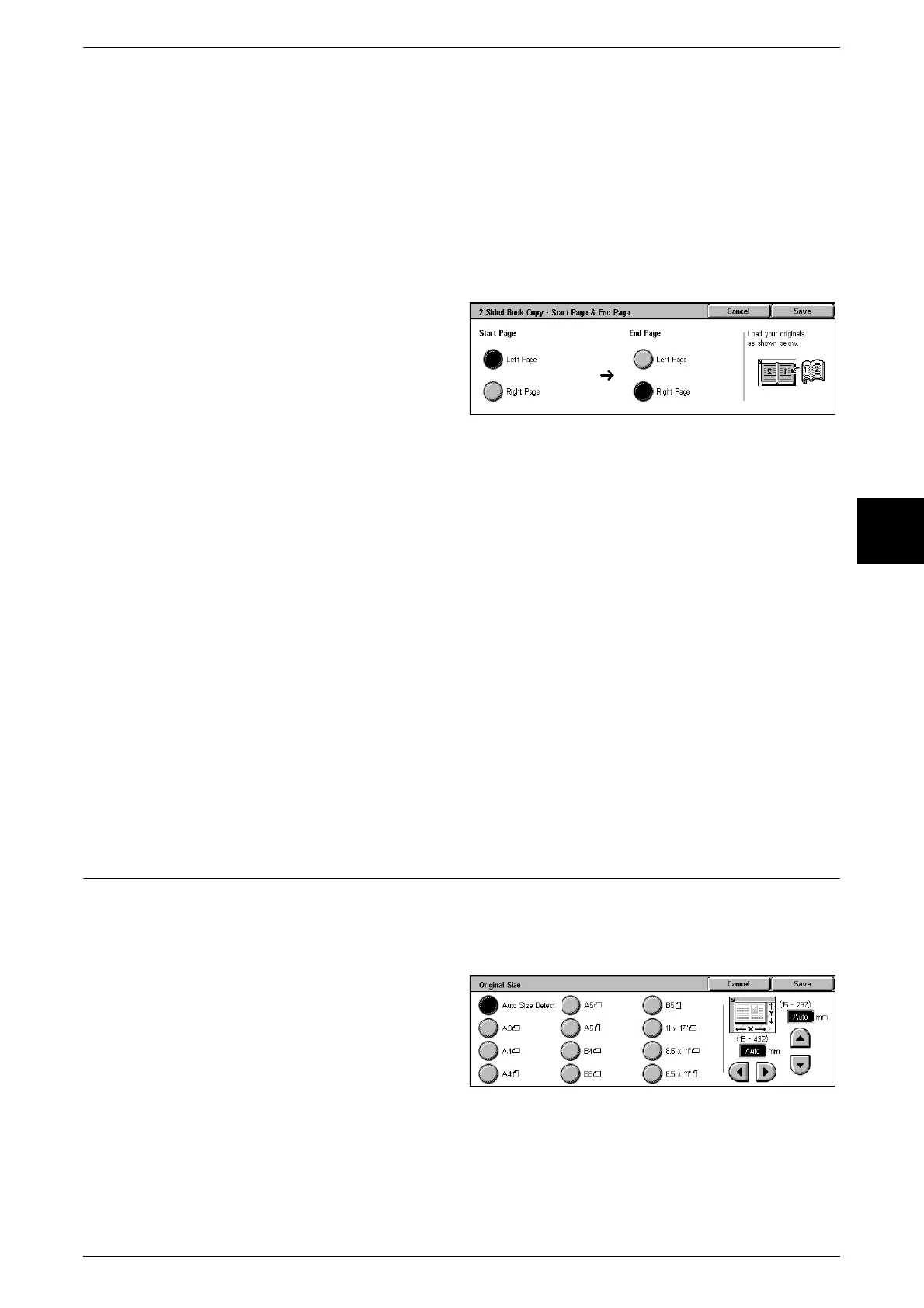
[2 Sided Book Copy - Start Page & End Page] Screen
You can set the copy start page and end page.
1 Select [Start Page & End Page].
2 Set the start page and end page.
Start Page
Select the copy start page from the following items.
z
[Left Page]/[Right Page]
You can select these items when [Left Page then Right] or [Right Page then Left] is
selected.
z
[Top Page]/[Bottom Page]
You can select these items when [Top Page then Bottom] is selected.
End Page
Select the copy end page from the following items.
z
[Left Page]/[Right Page]
You can select these items when [Left Page then Right] or [Right Page then Left] is
selected.
z
[Top Page]/[Bottom Page]
You can select these items when [Top Page then Bottom] is selected.
Original Size (Specifying the Scan Size for the Document)
You can set the scan size for the document.
Specify the size of the document when scanning non-standard size documents or when
making copies at a size different from that of the currently loaded document.
1 Select [Original Size].
2 Select the size of the document.
If you select a non-standard size,
specify values for the X and Y
directions.
Auto Size Detect
Scan sizes are detected automatically.
Note • If the document size cannot be detected, a screen to input the document size appears.












 To Next Page