Scan to Mailbox
165
Scan
5
Scan to Mailbox
You can scan documents on the machine and save the scanned data to the copier's
mailbox.
To use the Scanner to Mailbox feature, select [Scan to Mailbox].
1 Select [Scan to Mailbox] from the
[All Services] screen.
Note • If the [All Services] screen is
not shown, press the <All
Services> button.
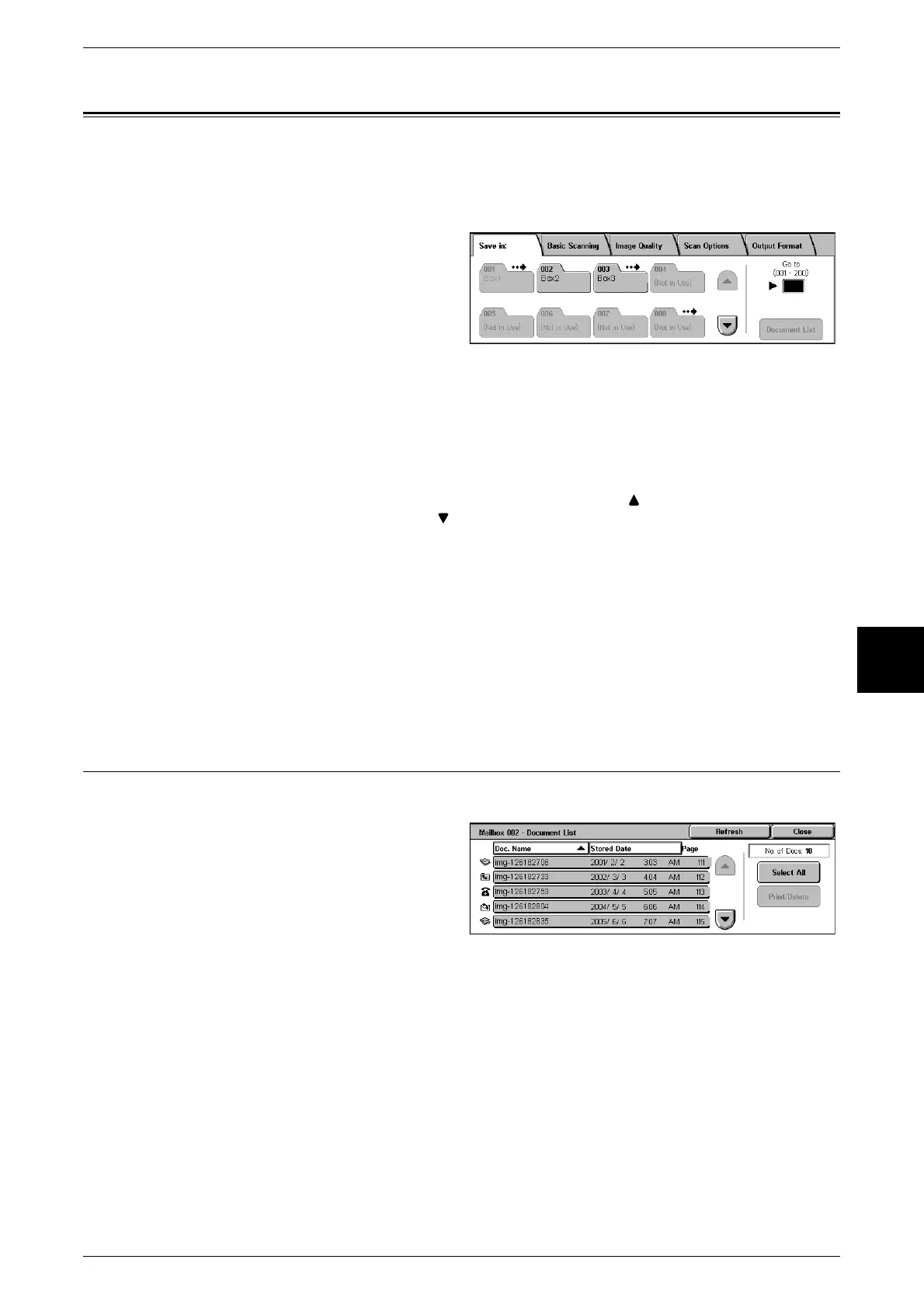
2 In the [Save in] screen, specify a mailbox to save the scanned data.
Note • If a password is set for the mailbox, the password entry screen appears. Enter the password
and select [Confirm]. If you have forgotten the password, reconfigure the mailbox password
in System Administration mode.
Mailbox
Select the mailbox to store the scanned data. Select the [
] button to display the
previous screen and select the [ ] button to display the next screen.
Go to
Use the numeric keypad to enter a 3 digit mailbox number. That mailbox then appears
at the top of the list.
Document List
Select a mailbox and press this button to check or delete documents stored within.
Document List
You can confirm or delete documents stored inside the mailbox.
1 Select [Document List].
2 Select the document to confirm or
delete.
Note • If the scanned data is not
displayed, select [Refresh].
No. of Docs
When a mailbox is selected, and it contains documents, the number of stored
documents is displayed.
Select All
Selected when deleting or printing all documents in the mailbox.
Print/Delete
Used to Print/Delete selected documents. You can also rename documents.
Note • Scanned documents cannot be printed.












 To Next Page