Importing Scanned Data
219
Computer Operations
9
Configure the Import Method for Scanned Documents
You can change the display method
and import method for documents
when importing them from a
mailbox.
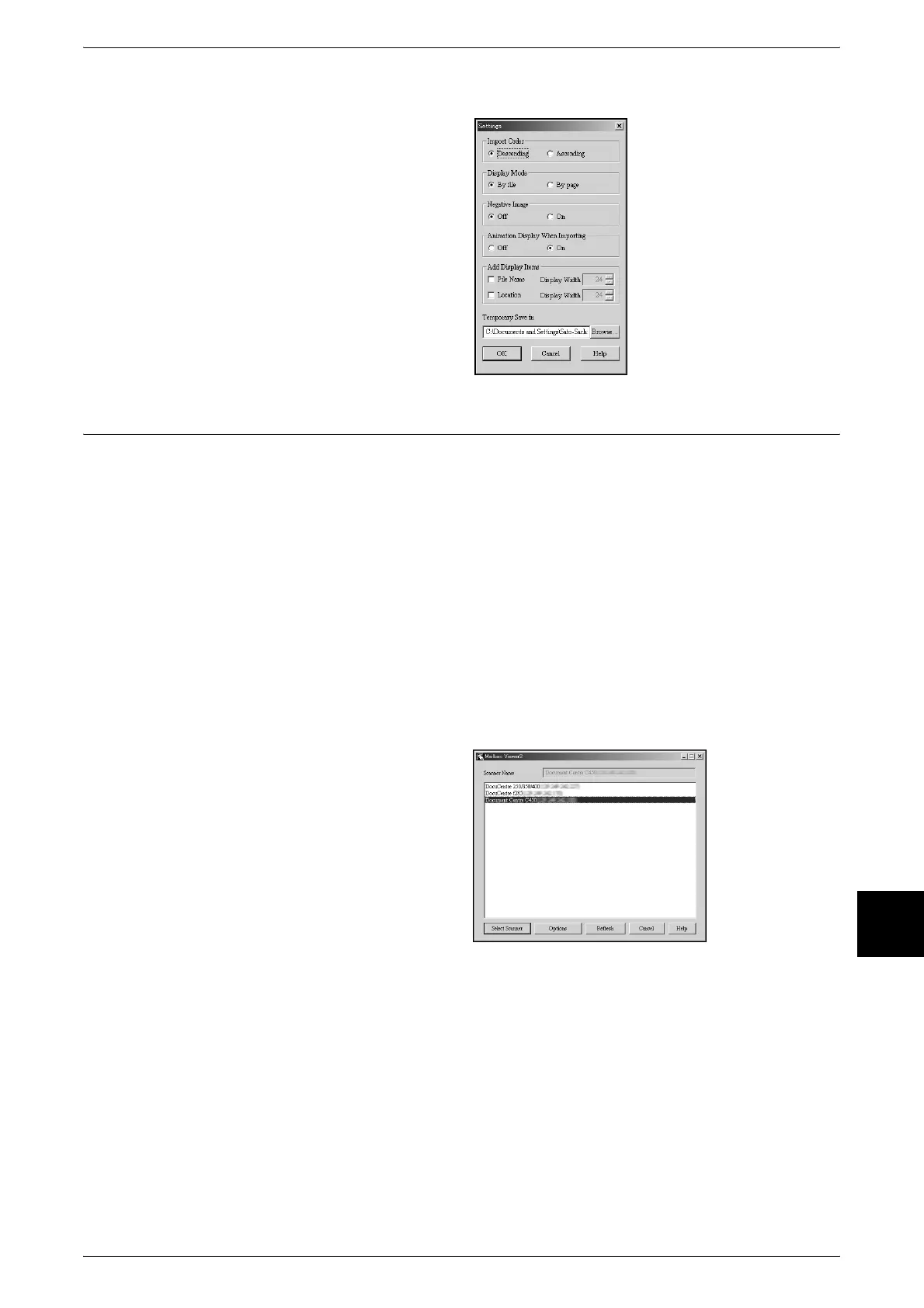
To change the import method, click
[Settings] in the document select
dialog box, and configure the
settings in the dialog box that
appears.
Importing from Mailbox Viewer 2
The following describes methods for using Mailbox Viewer 2 to import a document
stored on the machine's mailbox.
Using Mailbox Viewer 2, you can import documents stored in the machine's mailbox
without using any application software.
Important • Mailbox Viewer 2 does not support importing one document at a time. All documents stored
on the selected mailbox are imported.
For instructions on installing Mailbox Viewer 2, refer to the manual contained in the CentreWare
Utilities CD-ROM.
To learn about fields in the displayed dialog box, click on [Help] and refer to the Mailbox Viewer 2
online help.
1 Click [Start] > [Programs] > [FujiXerox] > [Utilities] > [Mailbox Viewer 2].
Note • When a different program folder was specified during installation, choose the specified name
instead of [Utilities].
2 From the displayed list, click the
scanner name of the machine, and
click the [Select Scanner] button.
Note • If no items are shown in the
list, click [Refresh]. The
application searches for
scanners.
• Click on [Options] to change
the way scanner names are
displayed.
• Only DocuCentre Color
devices connected to a
uniform network are
automatically shown in the list.
To view DocuCentre Color
devices from other networks,
click on [Options] and register
an IP address and scanner
name.












 To Next Page