Basic Copying
59
Copy
3
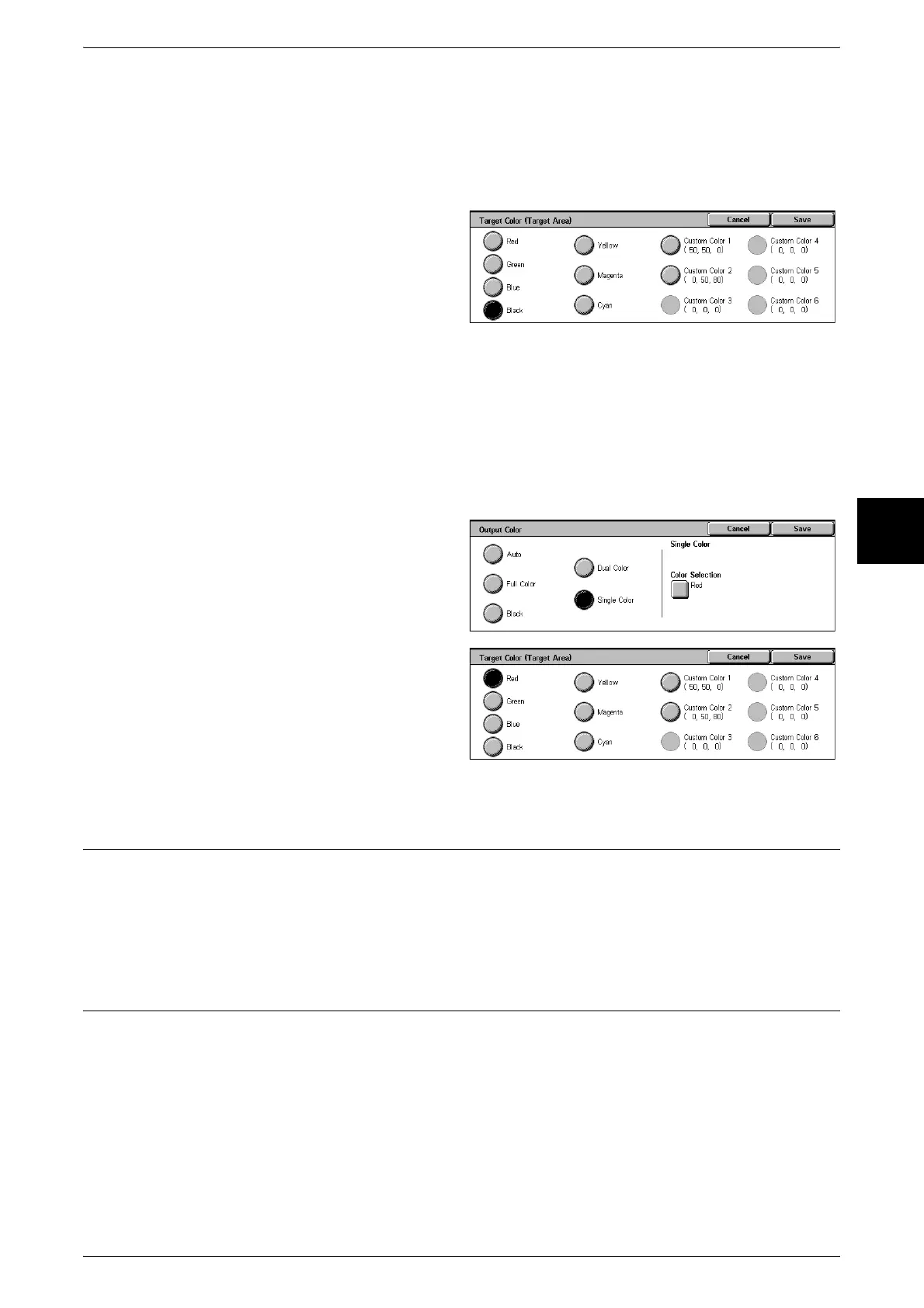
[Target Color (Non-target Area)] Screen
You can change a color that was not extracted to one of the seven fixed colors or six
custom colors. From the displayed [Target Color (Non-target Area)] screen, select one
color.
For information about how to set custom colors, refer to "Custom Colors" (P.285).
1 Select [Dual Color].
2 Select [Target Color (Non-target
Area)].
3 Select a color.
[Output Color] Screen
The machine makes copies in the single specified color regardless of the colors in the
document.
You can select a color from six fixed colors and six custom colors. From the displayed
[Color Selection] screen, select one color.
For information about how to set custom colors, refer to "Custom Colors" (P.285).
1 Select [Single Color].
2 Select [Color Selection].
3 Select a color.
Copy Position/Margin Shift (Shifting the Image Copy Position)
Copies can be made with the document image position shifted to the left, right, top, or
bottom of the paper or with the document center shifted to the center of the paper.
This feature is the same as [Margin Shift] of the [Scan Options] screen. For more information, refer to
"Copy Position/Margin Shift (Shifting the Image Copy Position)" (P.59).
Border Erase (Erasing Edges and Margin Shadows in the document)
When you make copies with the document cover open or make copies from a book,
black shadows sometimes appear along the edges and center margin of the paper. If
this happens, you can make copies with the shadows erased.
This feature is the same as [Border Erase] of the [Scan Options] screen. For more information, refer to
"Border Erase (Erasing Edges and Margin Shadows in the document)" (P.59).












 To Next Page