3 Copy
58
Copy
3
Black
The machine makes copies in black and white regardless of the colors in the original
document.
Dual Color
The document is separated into specified source colors and unspecified colors and
then copied in the specified dual colors. If you select [Dual Color], you can set the
following items.
z
Source Color
The [Source Color] screen is displayed.
z
Target Color (Target Area)
The [Target Color (Target Area)] screen is displayed.
z
Target Color (Non-target Area)
The [Target Color (Non-target Area)] screen is displayed.
Single color
The [Color Selection] screen is displayed.
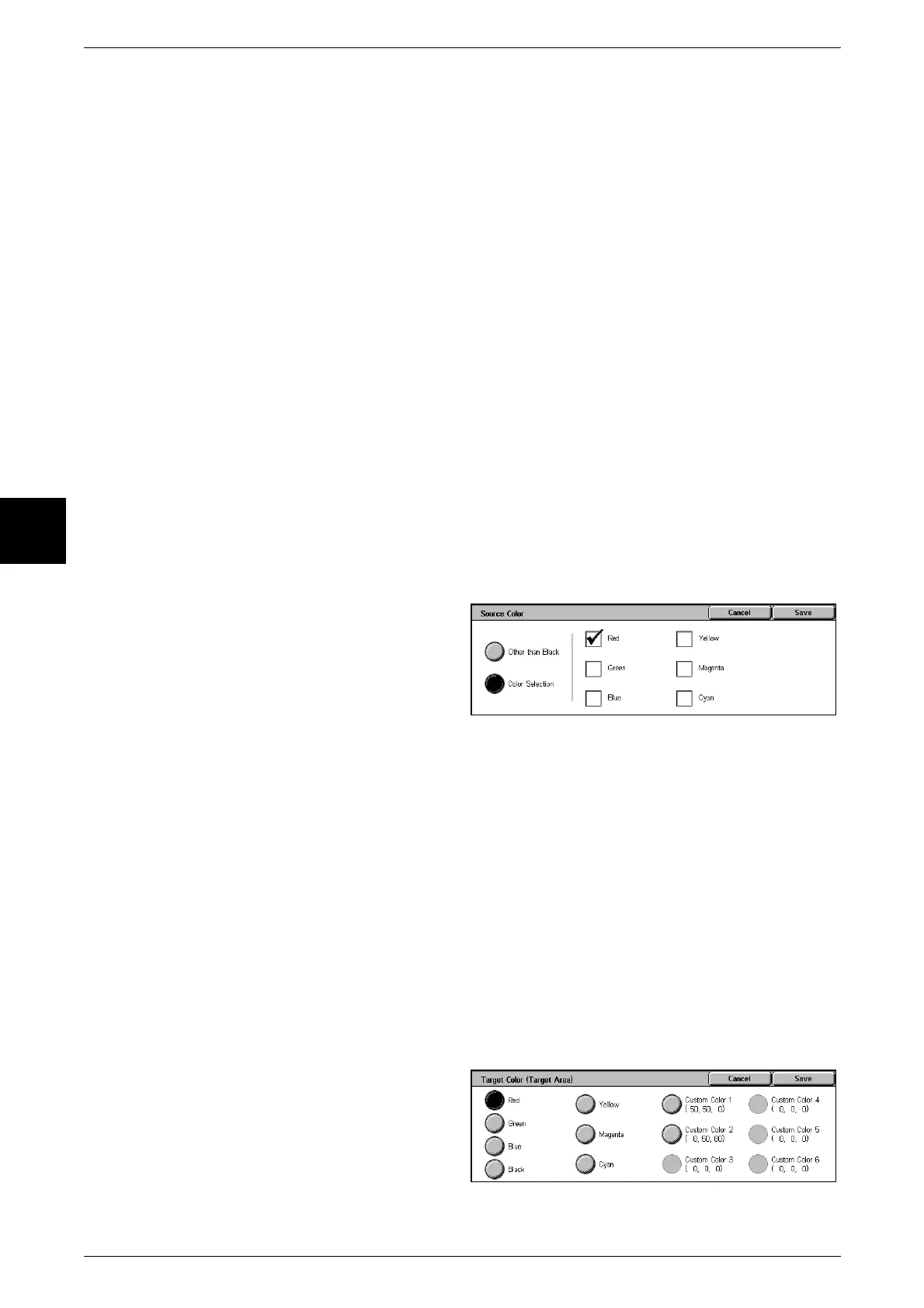
[Source Color] Screen
Select the color to scan (extract) from the document.
1 Select [Dual Color].
2 Select [Source Color].
3 Select [Other than Black] or [Color
Selection].
4 If you selected [Color Selection],
select the color to scan.
Other than Black
Colors other than black are scanned.
Color Selection
From six fixed colors, you can specify one color or multiple colors to scan.
[Target Color (Target Area)] Screen
You can change the color that was extracted by [Source Color] to one of the seven fixed
colors or six custom colors. From the displayed [Target Color (Target Area)] screen,
select one color.
For information about how to set custom colors, refer to "Custom Colors" (P.285).
1 Select [Dual Color].
2 Select [Target Color (Target Area)].
3 Select a color.












 To Next Page