Common Settings
259
Setups
11
Custom Buttons 1 to 3
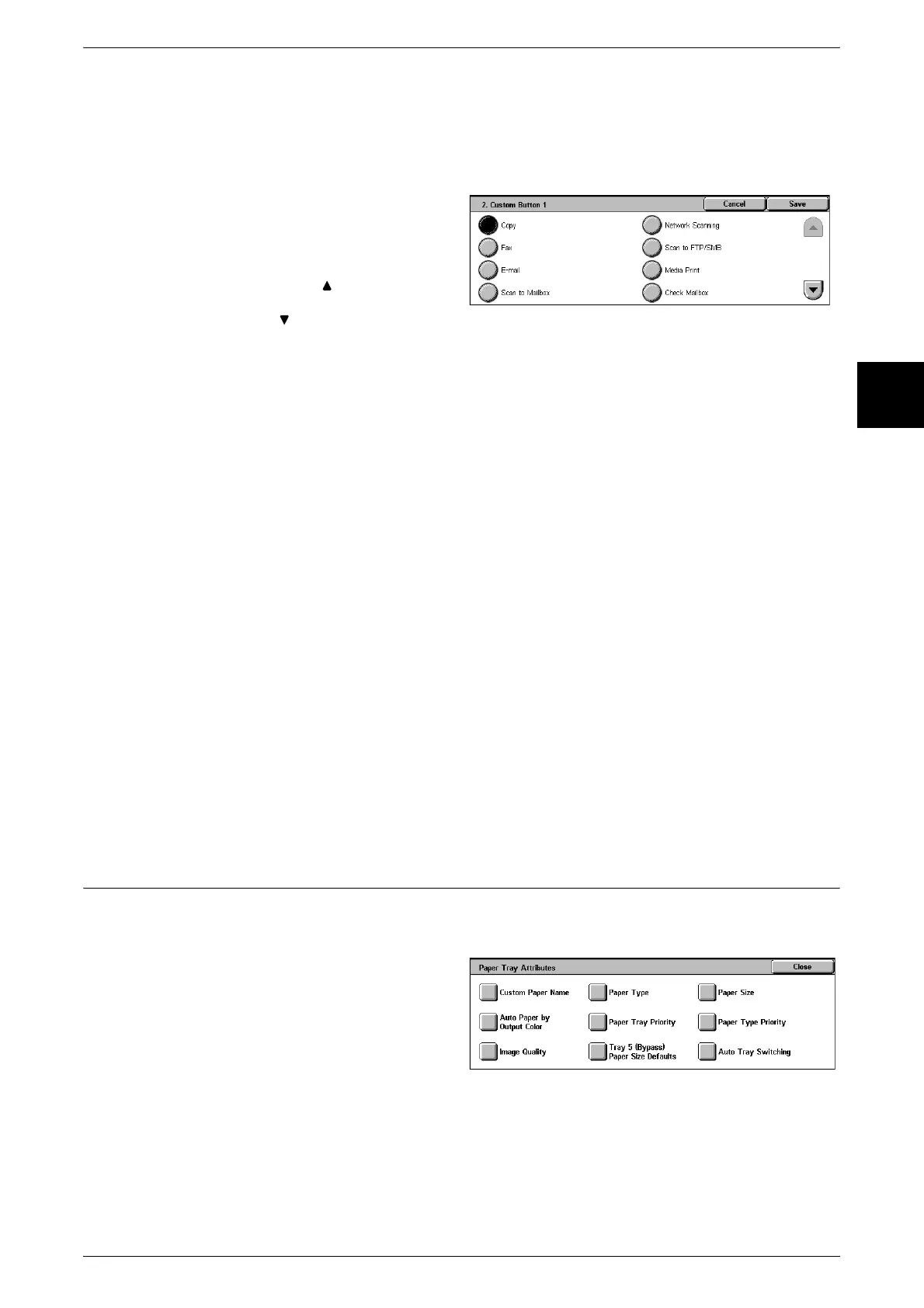
You can assign features to the custom buttons on the control panel: Custom 1 to
Custom 3.
To leave a feature unassigned, select [Not Set].
1 Select [Custom Button 1], and
select [Change Settings].
2 Select the feature to be assigned.
Note • Select [ ] to display the
previous screen and select
[ ] to display the next screen.
Job Type on Job Status screen
Select the job types to be shown on the [Completion Status] screen of the [Job Status]
screen when the <Job Status> button on the control panel is pressed.
Select from [All], [Fax/Mail/Scanner], [Auto Transfer Jobs], and [Print].
Default Language
You can select the language displayed on the machine. Select [Japanese] or [English].
There are two ways of selecting the language: a method used from System
Administration mode, and a method for ordinary users to use.
z
Setting from System Administration mode
This sets the standard language when the machine is powered on, and it maintained
when powered off and on again.
z
Ordinary user setting
The language setting in [Language] in the [Menu] screen is lost when the machine is
powered off.
Important • When set to [English], it is only possible to enter ASCII characters.
Note • This feature does not appear for some models. An optional package is necessary. For more
information, contact our Customer Support Center.
• If you select a language that is not installed, or select a language with use restrictions, the
display appears in Japanese.
Paper Tray Attributes
Set the items relating to the paper and trays, including the types of paper loaded in the
trays, precedence, and image processing settings for each paper.
1 Select [Paper Tray Attributes].
2 Select the item to be set.
3 Select the item to be set or
changed, and select [Change
Settings].
4 Set the setting value.
5 Select [Save].












 To Next Page