3 Copy
56
Copy
3
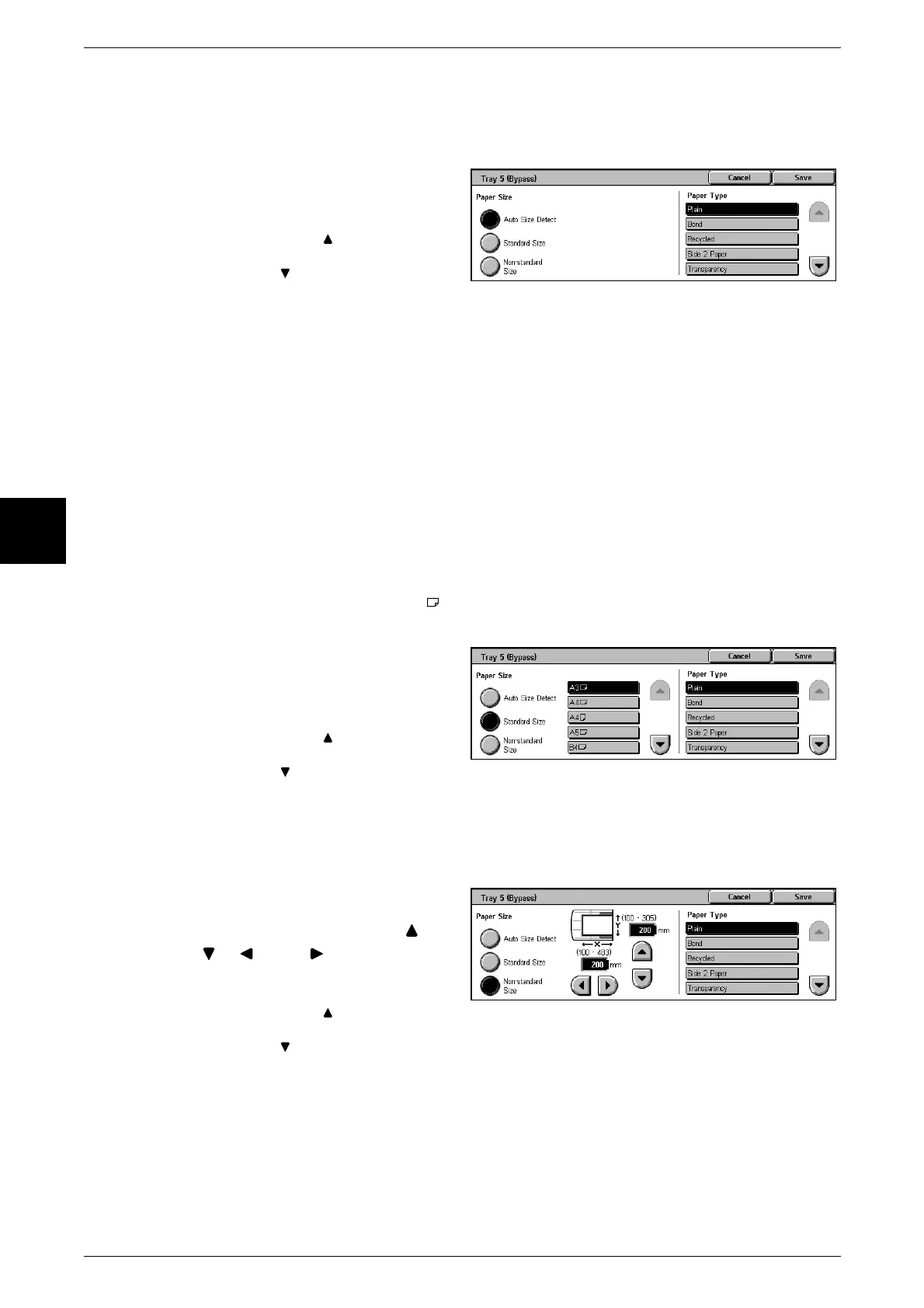
[Tray 5 (Bypass)] Screen
If you want to make copies on paper that cannot be loaded in Trays 1 to 4, use Tray 5
(bypass).
1 Select [More...].
2 Select the paper type.
Note • Select [ ] to display the
previous screen and select
[ ] to display the next screen.
Paper Size
Select from [Auto Size Detect], [Standard Size], and [Non-standard Size].
When [Auto Size Detect] is selected, the paper size is identified automatically.
Note • [Auto Size Detect] can only detect standard sizes.
Paper Type
Select the paper type.
When [Standard Size] is Selected
Select the paper size from standard sizes and select the paper type.
Note • When copying on [SRA3 ], select a paper type other than [Side 2 Paper], [Transparency],
[Lightweight], and [Labels].
1 Select [Standard Size].
2 Select the paper size and paper
type.
Note • Select [ ] to display the
previous screen and select
[ ] to display the next screen.
When [Non-standard Size] is Selected
Set the width (X) within the range from 100 to 483 mm and the height (Y) within the
range from 100 to 305 mm in increments of 1 mm.
1 Select [Non-standard Size].
2 Enter the paper size using [ ],
[ ], [ ], and [ ].
3 Select the paper type.
Note • Select [ ] to display the
previous screen and select
[ ] to display the next screen.
Important • Copying may not be performed correctly when the X (horizontal) direction of a non-standard
size paper is less than 140 mm.
• When copying both sides on a non-standard size paper, specify the size within the range
from 148 to 432 mm for the X (horizontal) direction and from 140 to 297 mm for the Y
(vertical) direction.












 To Next Page