3 Copy
86
Copy
3
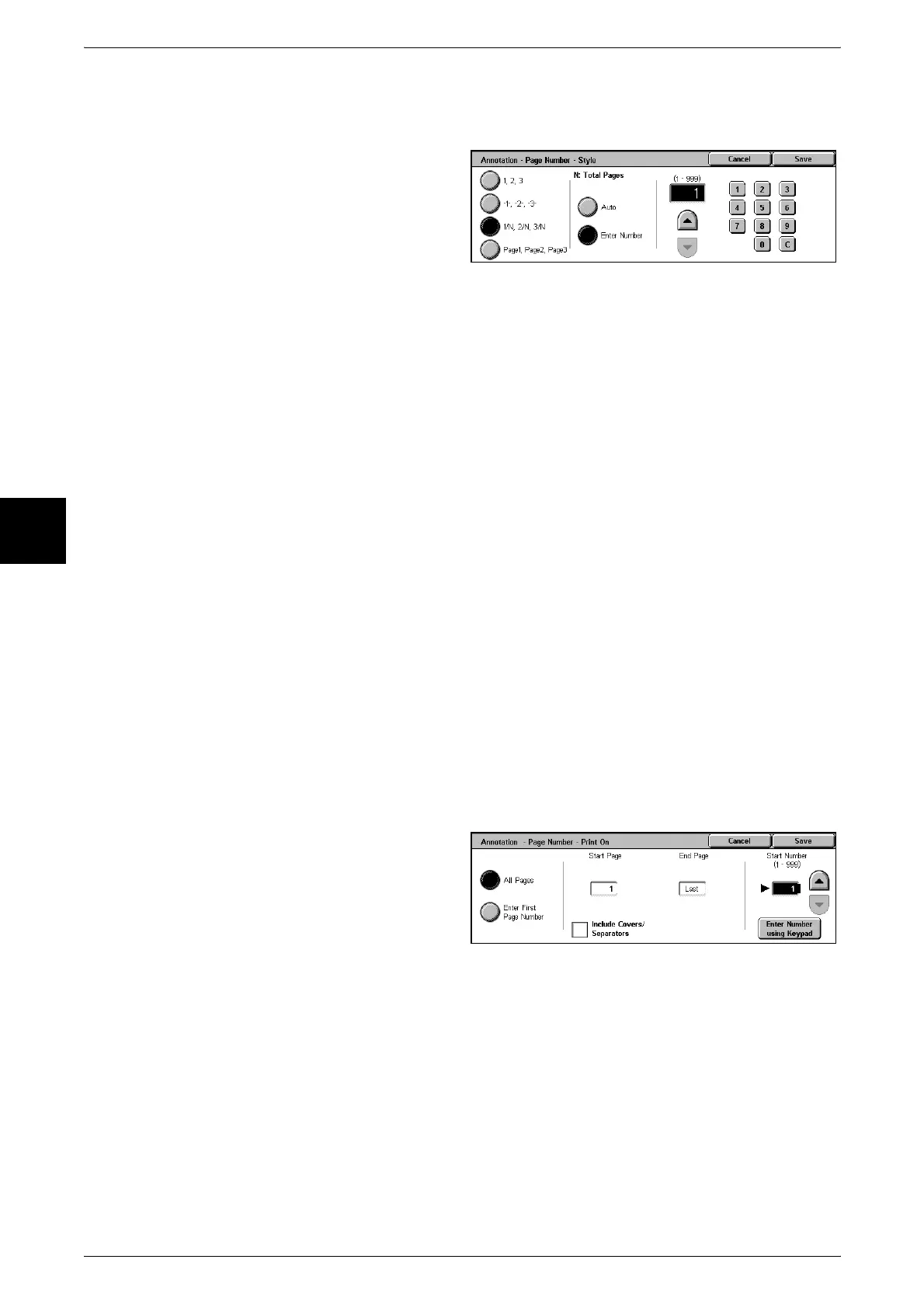
[Annotation - Page Number - Style] Screen
You can set the page number style.
1 Select [Style].
2 Select the page number style.
1,2,3
A page number is added.
-1-,-2-,-3-
A hyphen is added to the left and right of the page number. (Example: -1-)
1/N,2/N,3/N
The total number of pages is added to the right side of the page number. (Example: 1/
50, 2/50)
If [1/N,2/N,3/N] is selected, you can select the following items.
z
Auto
The number of pages of the document is automatically counted as the total number
of pages.
z
Enter Number
You can specify the total number of pages within the range from 1 to 999.
Page1, Page2, Page3
"Page" is added in front of the page number. (Example: Page1, Page2)
[Annotation - Page Number - Print On] Screen
You can specify the page(s) to add a page number.
1 Select [Print On].
All Pages
A page number is added to all pages.
Include Covers/Separators
Add a check to include a cover or separators.
Start Number
Specify the start page for adding page numbers within the range from 1 to 999. To enter
the number with the numeric keypad, select [Enter Number Using Keypad] and then
enter the number.












 To Next Page