11 Setups
270
Setups
11
Offset per set
Output paper in the number of copy sets being made.
Offset per job
Output paper with each job offset.
Offset Stacking (Finisher Tray)
Set the offset feature for the finisher tray.
For information about setting items, refer to "Offset Stacking (Center Output Tray)" (P.269).
Note • This feature does not appear for some models. An optional package is necessary. For more
information, contact our Customer Support Center.
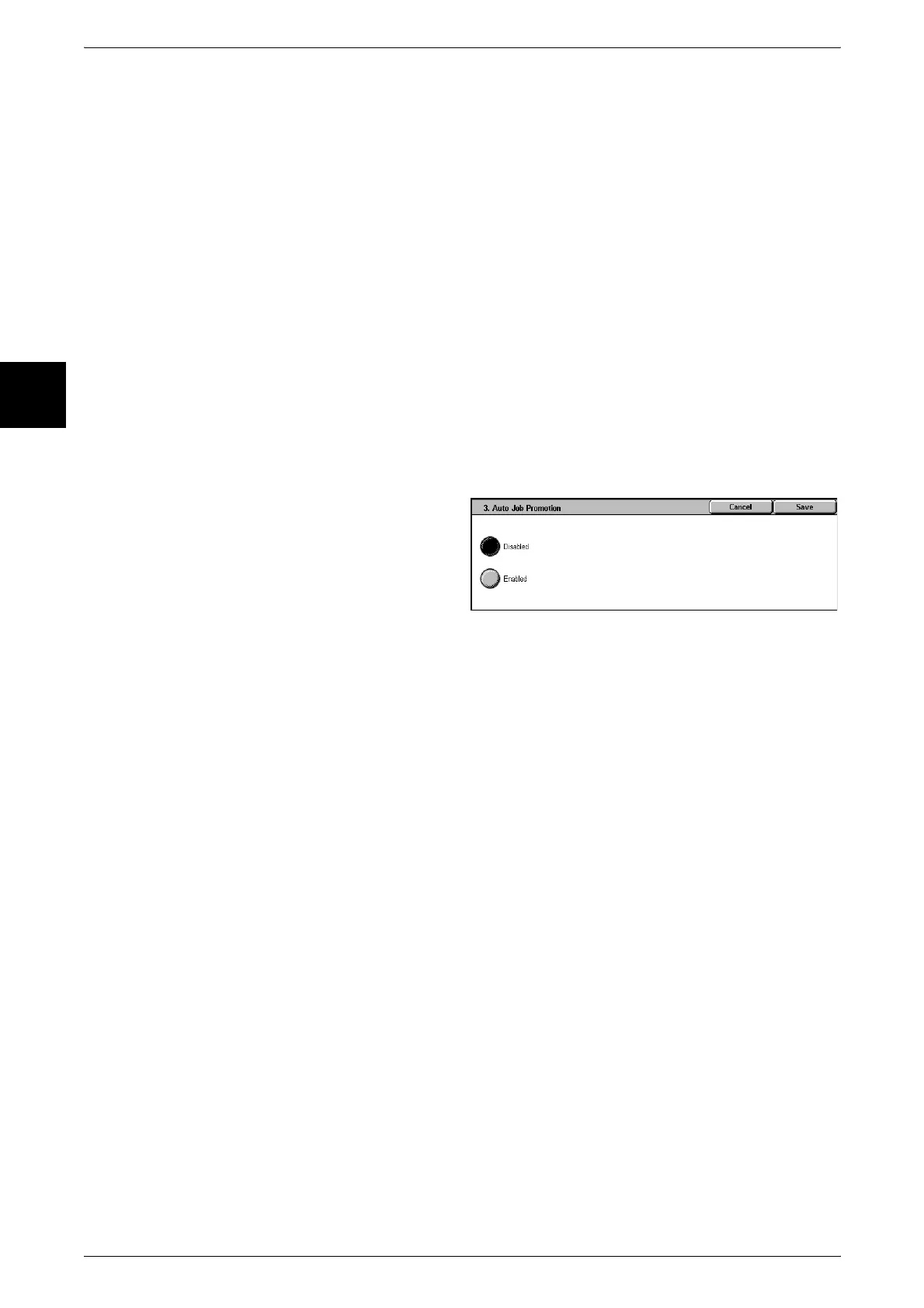
Auto Job Promotion
If the machine is unable to start an operation for any reason, (for example if there is no
paper in the tray at the start of a copy or print operation), then select whether to allow
other jobs that can be started to automatically bypass the job.
Note • Stored documents such as secure prints and sample prints are excluded from bypassing
permission.
1 Select [Change Settings].
2 Select [Disabled] or [Enabled].
3 Select [Save].
Default Print Paper Size
Set the paper size normally used when printing a report/list.
You can select from two sizes: A4, or 8.5 × 11".
Odd Page 2 Sided
When 2 sided printing is specified for an original with an odd number of pages, the
paper-feed system treats those sheets printed on both sides differently from those
printed on one side only.
Since odd-numbered pages are printed on the reverse side of the paper, sheets printed
on both sides are ejected to the tray the opposite way up from sheets printed on only
one side.
For example, when printing on punched forms, or stock with the front and rear sides of
different colors, to prevent the printing from being back to front, you can set forced 2
sided printing.
Off
Do not treat as 2 sided.
On
For a page printed on one side only, a blank page is added, and treated by the system
as an even-numbered page, thus being handled as in 2 sided printing.
Note • This feature does not appear for some models. An optional package is necessary. For more
information, contact our Customer Support Center.












 To Next Page