15 Maintenance
426
Maintenance
15
Note • The message "Printing the
Gradation Adjustment Chart.
[Copy Job-Text]" appears and
the document for gradation
adjustment (Gradation
Adjustment Chart) is printed.
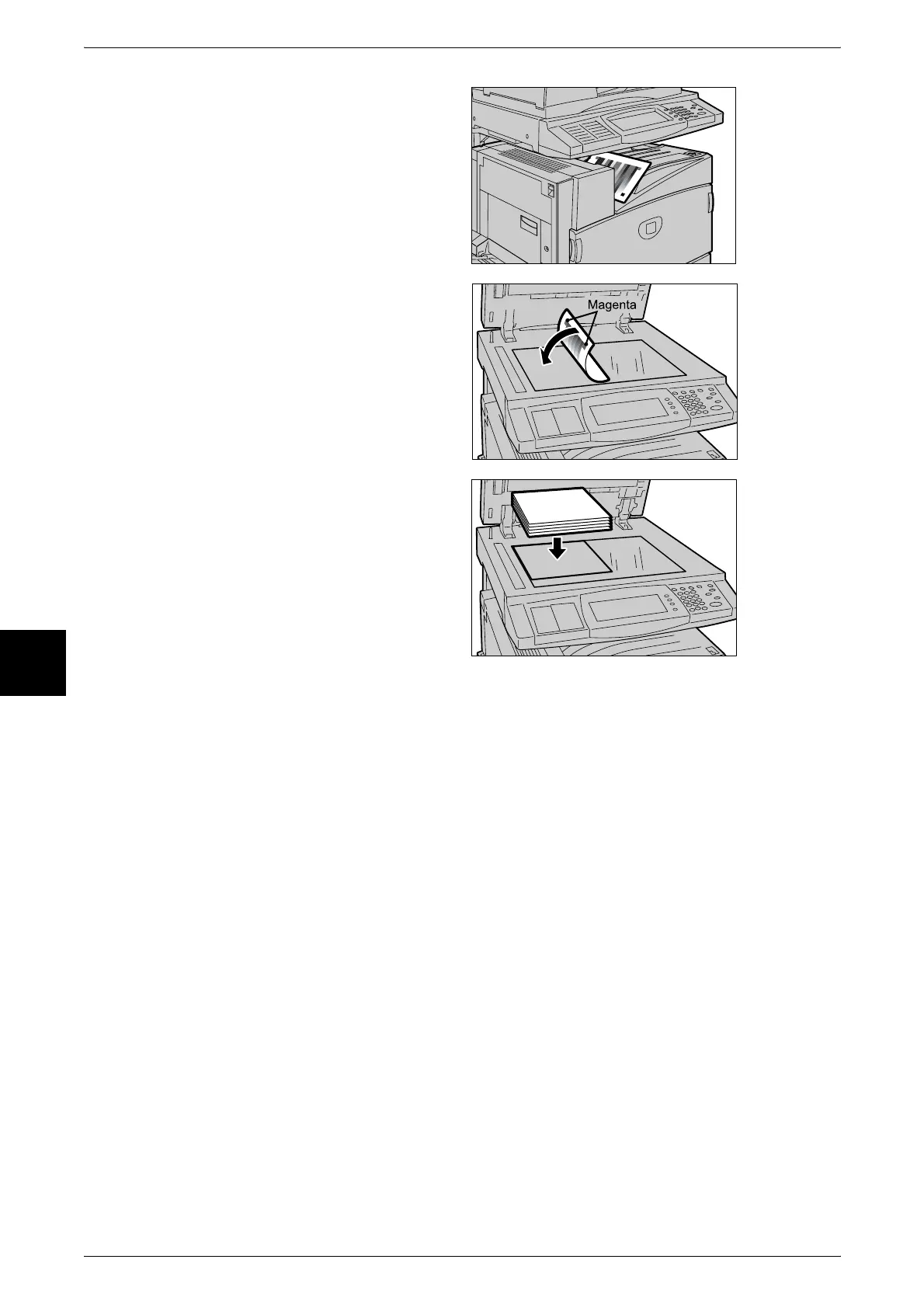
10 Align the magenta color patch of
the Gradation Adjustment Chart
that was printed against the left
side of the document glass.
Note • Place the Gradation
Adjustment Chart on the
document glass.
11 Place at least five sheets of white
paper on top of the Gradation
Adjustment Chart and close the
document cover.
12 Select [Start].
The message "Gradation adjustment is in progress. [Copy Job Text]" appears and the
machine automatically adjusts the gradation. It takes about 20 seconds to execute
gradation adjustment.
If the adjustment ends successfully, the [Auto Gradation Adjustment] screen (for setting
the screen type) is redisplayed. If there is a problem, the machine stops adjustment and
displays an error message. Solve the problem in accordance with the displayed error
message.
13 To continue automatic gradation adjustment for other screen types, repeat steps 6 to
10.
14 Select [Close] until the [System Settings] screen is displayed.
15 Select [Exit] to end the System Administration mode.
16 Make a copy and confirm the image quality.












 To Next Page