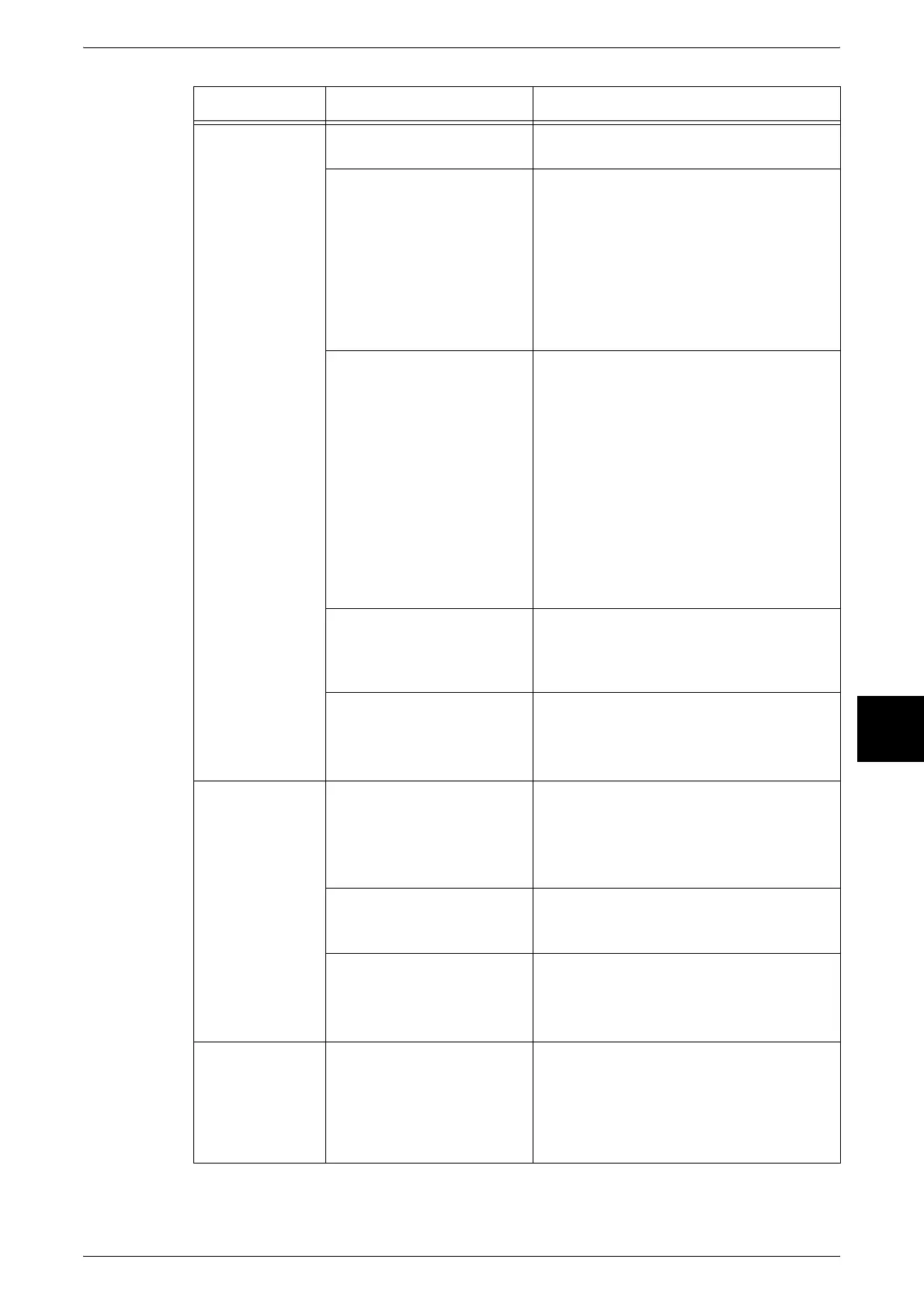
Machine Trouble
433
Problem Solving
16
Unable to print,
or
unable to copy.
Is a message displayed on
the touch screen?
Follow the instructions displayed to solve
the problem.
When the machine is
connected to a personal
computer by a parallel
interface, the personal
computer does not support
bi-directional
communications.
The default setting for bi-directional
communications on the machine is
[Enabled]. Printing is possible when the
personal computer supports bi-directional
communications. In this instance, set bi-
directional communications to Disabled on
the touch screen and print again.
For information about Network Settings, refer
to Network Administrator Guide.
Insufficient memory? Set the [Print Mode] to [Speed Priority], try
printing again using [Ensure Printing],
decrease the number of open ports,
increase the print page buffer, or increase
by adding on 128 MB memory.
Refer to "Allocate Memory" (P.290).
Note • When there is insufficient memory,
the port setting is automatically
reset to [Stop] and the machine is
restarted.
• For information about adding on
memory, contact our Customer
Support Center.
Is the printer mode [Offline]? Press the <Machine Status> button and
confirm the [Printer Mode] in the [Machine
Status] screen. If [Printer Mode] is [Offline],
select [Online] in the [Printer Mode] screen.
Is the power cord
disconnected from the
machine or the rear of the
rack?
Turn the power switch off and then firmly
plug in the power cord. Then turn the
power switch on.
Refer to "Power On / Off" (P.36).
<Online>
indicator does
not light even
though you
instructed it to
print.
Is the interface cable
disconnected?
Turn the power switch off, unplug the
power cord from the power outlet, and
check the interface cable connection.
For information about Network Settings, refer
to Network Administrator Guide.
Is the personal computer's
environment correctly set?
Check the print driver and other
environment settings on the personal
computer.
Is the required interface
set?
Check the status of the interface port in
use.
For information about Network Settings, refer
to Network Administrator Guide.
Printing is not
performed even
though printing
was instructed
on Tray 5
(bypass).
Is paper of the size
specified for printing loaded
on the tray?
Follow the instructions displayed to load
paper of correct size and instruct it to print
again.
Refer to "Loading Paper in Tray 5 (Bypass)"
(P.233).
Symptoms Check Remedy












 To Next Page