Document Jams
487
Problem Solving
16
7 If the document cannot be found, pick up the document feeder slowly, and remove the
document if it is there, then close the document feeder.
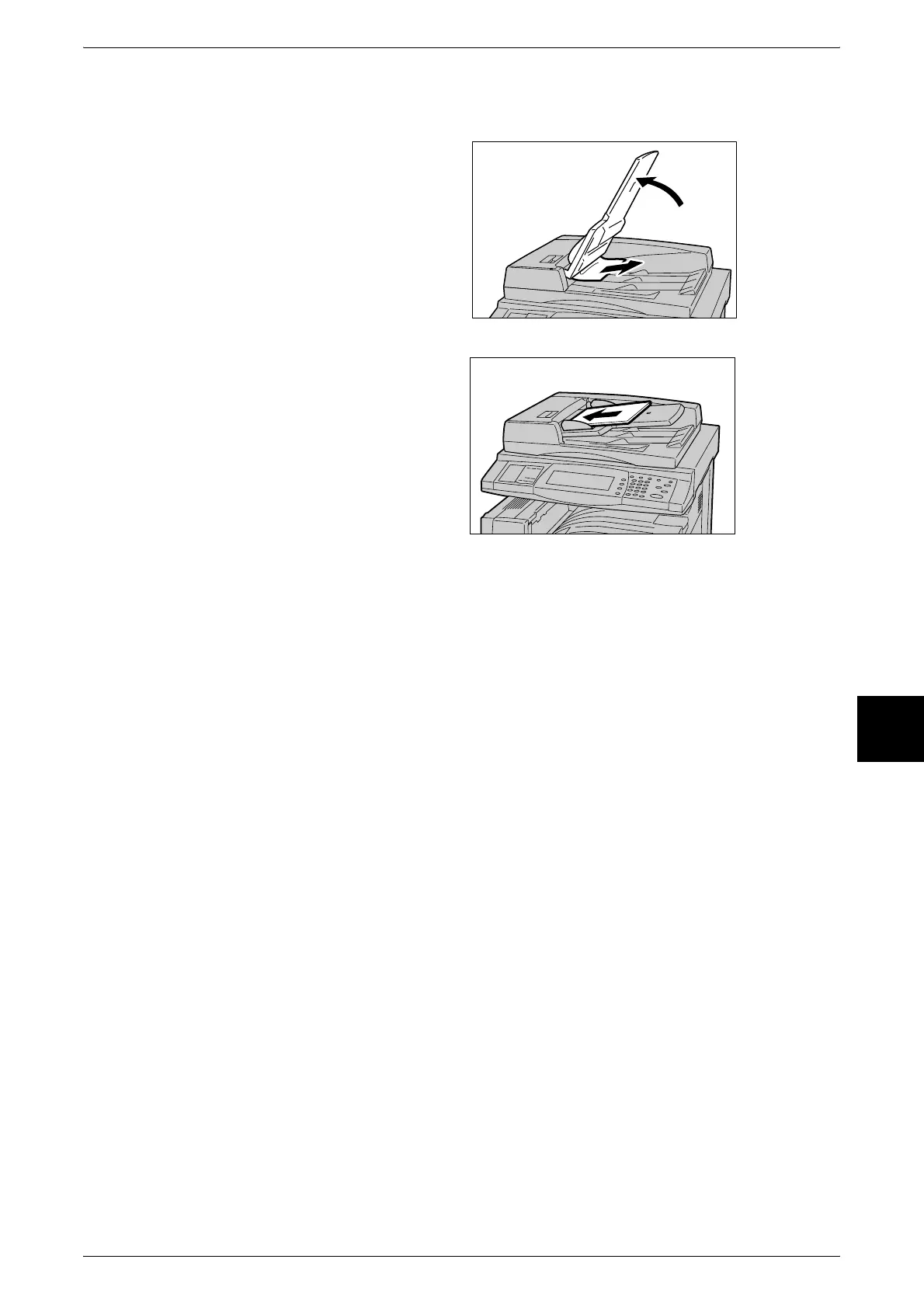
8 If the document is not found in step
7, then pick up the document
feeder tray and remove the
document.
9 Gently return the document feeder
tray.
10 Make sure that the document is not
torn, wrinkled or folded, and load
the document again following the
instructions displayed on the touch
screen.
Note • After removing the jammed
document, load the entire
document again including
delivered document sheets.
Already scanned document
sheets will automatically be
skipped, and scanning will
resume from the unscanned
document sheet.
• Torn, wrinkled or folded documents may cause document jams and damage. To scan such
documents, directly place the document on the document glass to make copies.












 To Next Page