3 Copy
92
Copy
3
Change Settings...
The Copy screen appears and you can change the settings for the loaded document.
After setting the features, press the <Start> button on the control panel to start
scanning of the document.
Stop
The document data stored by the Build Job feature is cleared and the build job is
canceled.
Note • The same operation is performed if you press the <C> button or <Clear All> button on the
control panel.
Last Original
Select this to end scanning of documents. The build job starts.
Next Original
Select this when you have another document. This is on when using the Build Job
feature.
Start
You can load the next document and configure the settings for the document.
Note • The same operation is performed if you press the <Start> button on the control panel.
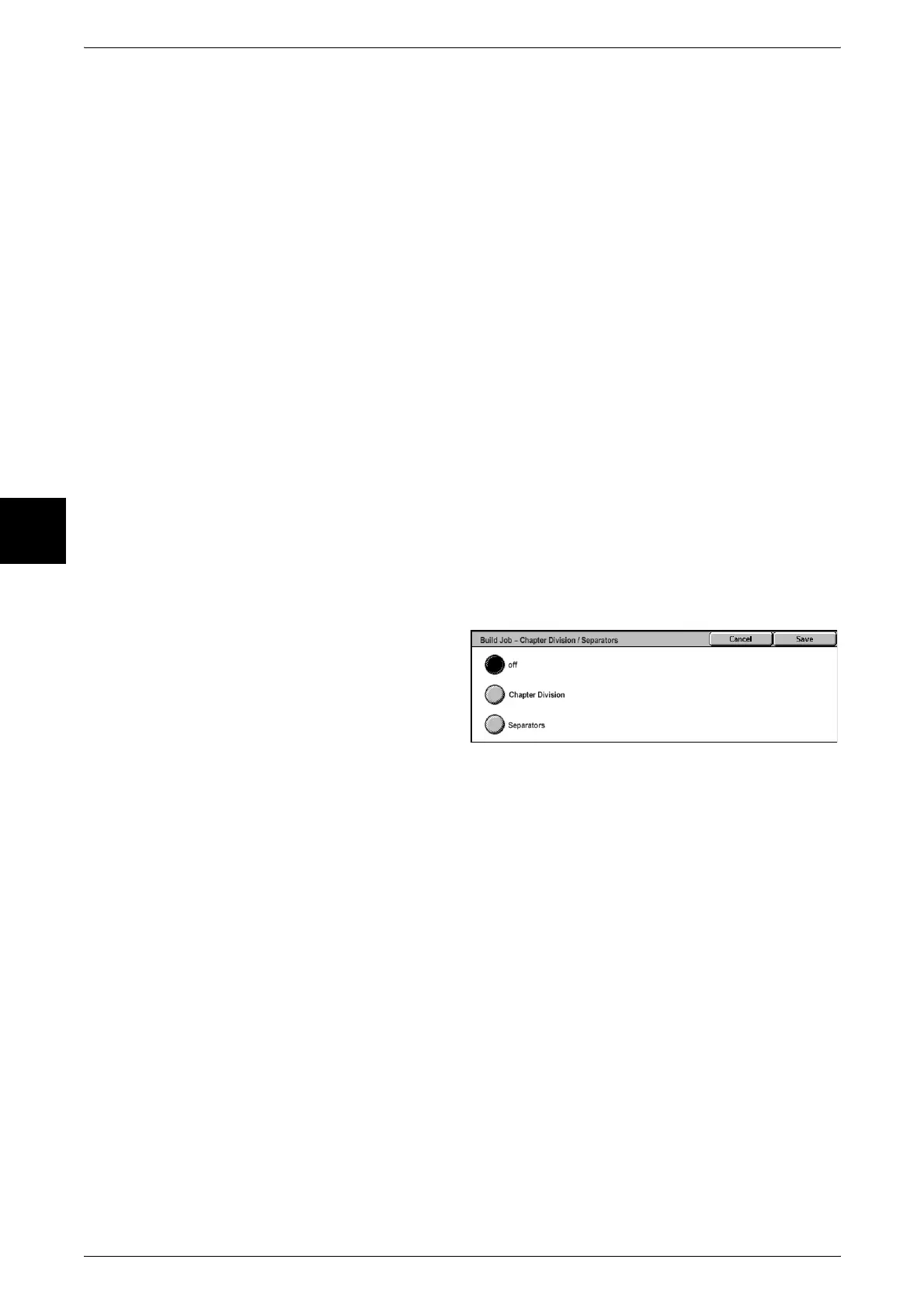
[Build Job - Chapter Division/Separators] Screen
You can set the chapter division and separators.
Off
The next stack of documents is copied after the previous stack.
Chapter Division
The next stack of documents is copied from Side 1 of a new sheet of paper.
If [Chapter Division] is not selected and copying of the first loaded document ends on
Side 1, copying for the next document will begin on Side 2 of the last page of the first
document.
Separators
Separators are inserted. Select the paper tray to use for the separators from
[Separators Tray].












 To Next Page