Job Assembly
95
Copy
3
Originals
For 2 sided originals, specify the side of the area you would like to delete outside of or
inside of.
z
Both Sides
The setting is applied to both sides of the document.
z
Side 1 Only
The setting is applied to only to Side 1 of the document.
z
Side 2 Only
The setting is applied to only to Side 2 of the document.
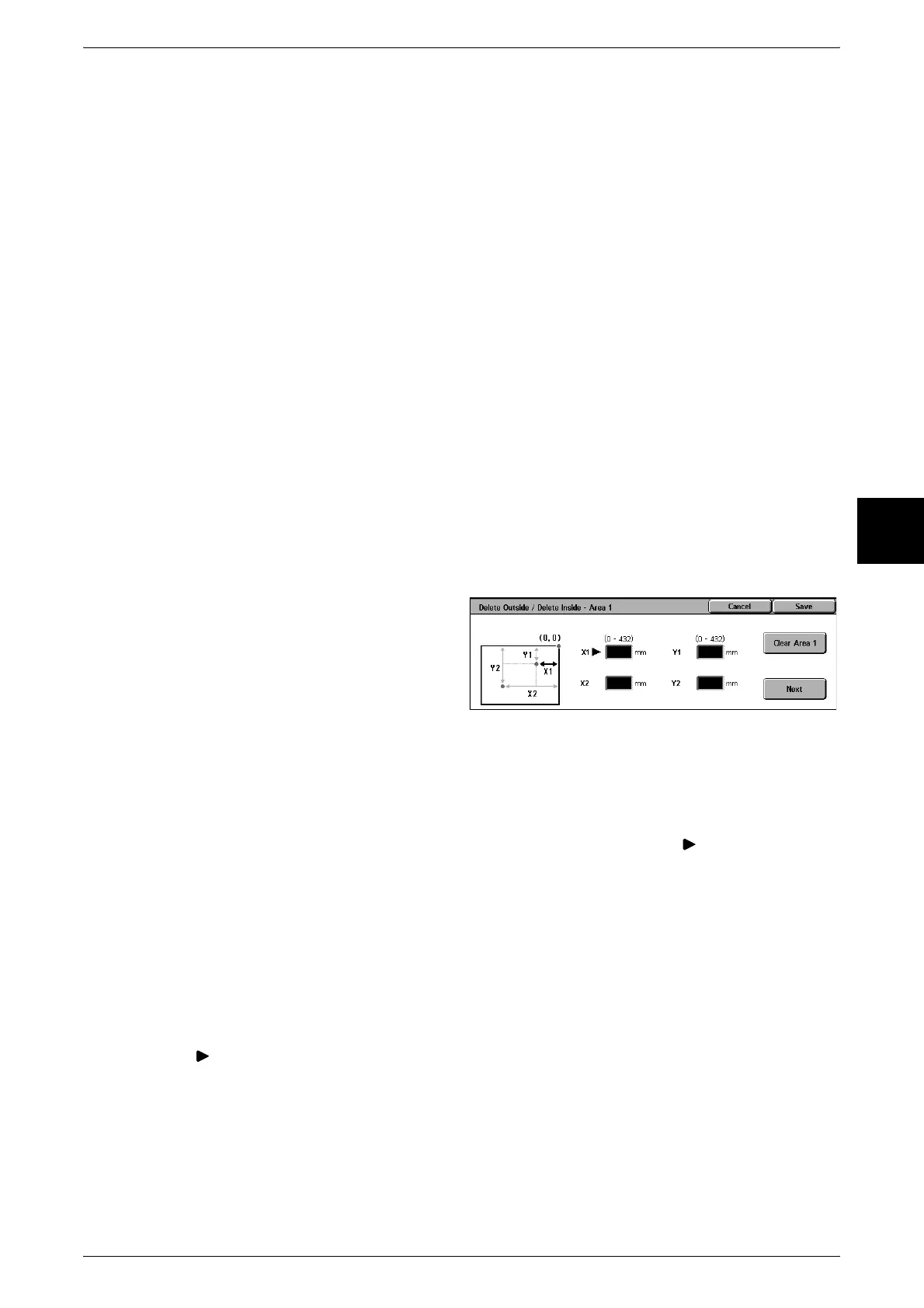
The [Delete Outside/Delete Inside – Area X] screen
Set the area to delete outside of or inside of. The upper right corner of the document is
the origin. The width is the x-axis and the height is the y-axis. The area to be used is
the rectangular area whose diagonal connects the points X1, Y1 and X2, Y2.
Set the coordinates within the range from 0 to 432 mm in 1 mm increments.
Note • Set the coordinates with the upper right corner as the origin as though you were looking at
the document.
• When specifying multiple areas, the specified areas may overlap.
• When [Reduce/Enlarge] is enabled, the specified area will be reduced/enlarged accordingly.
• The setting can be changed from delete outside to delete inside without changing the
specified area.
1 Select [Area X].
Note • X represents the number of
the area displayed.
2 Enter the value for X1 in [X1] using
the numeric keypad, and select
[Next].
3 Enter the value for Y1 in [Y1] using the numeric keypad, and select [Next].
4 Enter the value for X 2 in [X2] using the numeric keypad, and select [Next].
5 Enter the value for Y 1 in [Y1] using the numeric keypad, and select [Next].
Note • To change the coordinates you have entered, select [Next], move , and enter the
numerical values again.
• [X1],[Y1],[X2] and [Y2] for an area are all set to 0, this area becomes invalid. If no other area
is specified, the delete outside/inside function cannot be used.
Clear Area X
Clear all the specified areas.
Note • X represents the number of the area displayed.
Next
moves to the next coordinate.












 To Next Page