4.3.3 Required Environment 190
4.3 Working with MUTOH Service Assistance Software VJ628XE-M-00
(9) Confirming Startup of the "MUTOH Service Assistance"
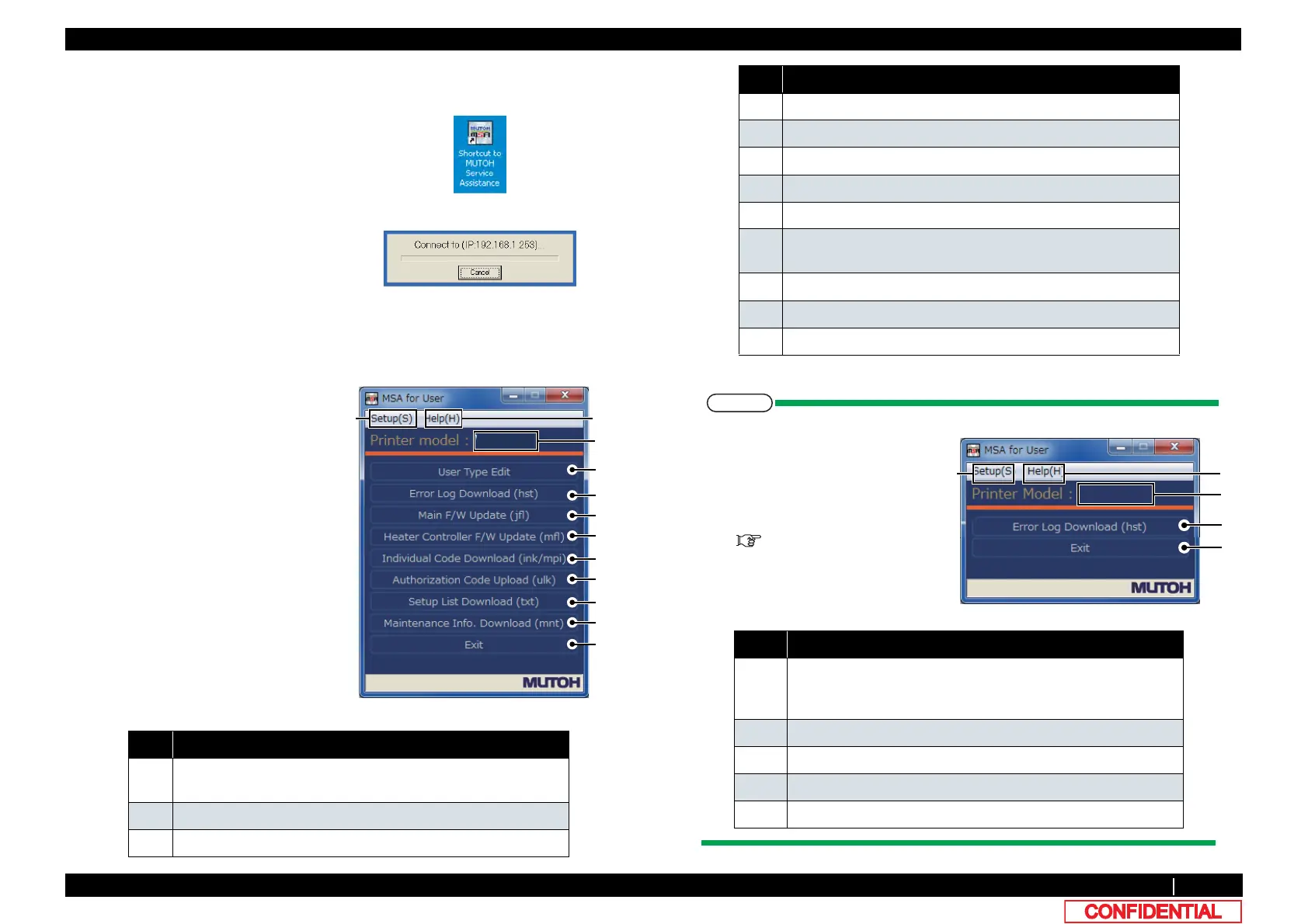
1 Double-click the [Shortcut to MUTOH
Service Assistance.exe], and check
that the application starts correctly.
At the first startup, it shall be started
in English mode.
2 Automatic printer model selection is
started.
(It displays IP address set by MSA.)
• When [Cancel] is clicked, it
appears the main window at the
time of communication indefinite.
• At the first startup, it shall be
started in English mode.
3 After having chosen printer model,
main window appears.
No. Contents
1 Setting IP address, Selecting language, Automatic printer
model selection
2 Confirming version of MSA.
3 Displaying chosen printer model name.
4 Editing Use type
5 Acquring or Saving “ Error Log”.
6 Updating “Main F/W”.
7 Updating Blower Heater F/W”.
8 Acquring “Individual Code”(ink / mpi files).
9 Sending authorization code (.ulk file) sent by MUTOH Industries
authorized dealer to a printer.
10 Acquiring Setup information from a printer by a text file.
11 Acquiring Maintenance information (.mnt file) from a printer.
12 Terminating the MSA.
• Following main window is
displayed when it cannot
communicate with a printer.
When [connection error] is
displayed, refer
to
"2.3.7Problems in Using
MUTOH Service Assistance
No. Contents
1 Setting IP address.
Changing language.
Selecting printer model automatically.
2 Confirming MSA version.
3 Displaying “disconnect”.
4 Browsing “Error Log”.(It cannot be acquired from a printer.)
5 Terminating the MSA.
No. Contents



 To Next Page