Page | 96
Transition directly to it with a single click – and just as easy to transition from one
M/E to another.
Of course, this is just one way to use the basic M/E features. The creative possibilities
are endless.
4.11.3 LIVESET™
We’ve saved the best for last in connection with M/E’s, however.
This is also where we gain access to TriCaster’s virtual set
technology called LiveSet.
Note that ‘LiveSets’ need not necessarily be ‘virtual sets’. They
include other effects too. If you’ve been following along, you have
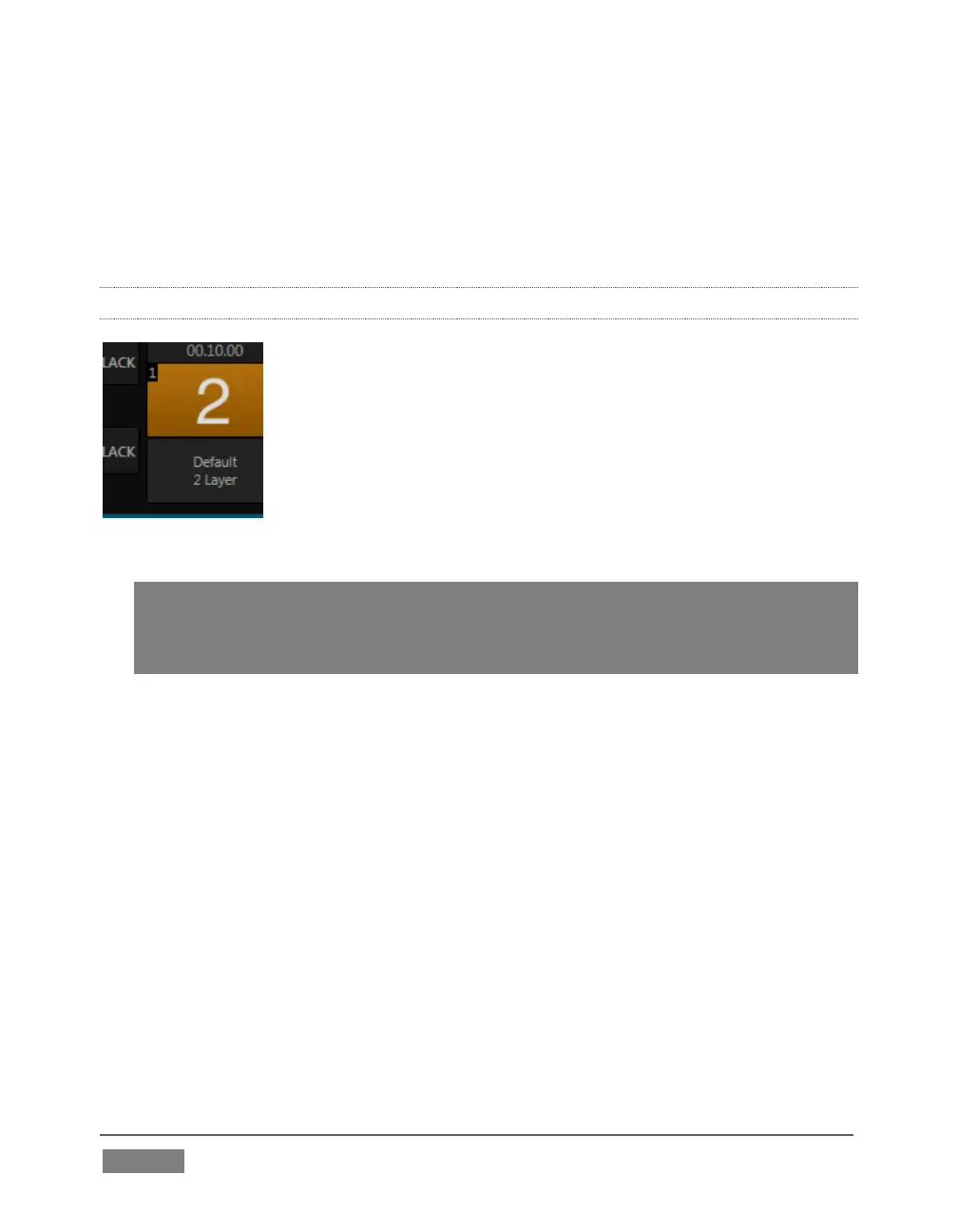
already used a LiveSet – a simple one, named Default (2 Layer).
This effect produces a composite of the video source you select as
input A displayed over input B.
Hint: In cases where LiveMatte is active for input A, or perhaps is a 32bit image file
(with an embedded alpha channel), or for that matter if input A is scaled or repositioned,
input B will automatically show through any transparent areas above it in the
composition.
Let’s try something more sophisticated now:
1. Click Take in the Transitions section of the Switcher, to show M/E 1 on the
Preview monitor.
2. Add the file TriCaster Spin Logo.mov from the NewTek > Logos group to the
playlist for DDR 2. Enable the Single and Autoplay switches for both DDR 1
and DDR 2.
3. Click the current LiveSet name (above the effect icon) in the M/E 1 tab to
display a Media Browser.
4. Select NewTek in the left-hand column under the heading LiveSets.









 To Next Page