Page | 76
4.8.1 RECORD
FIGURE 62
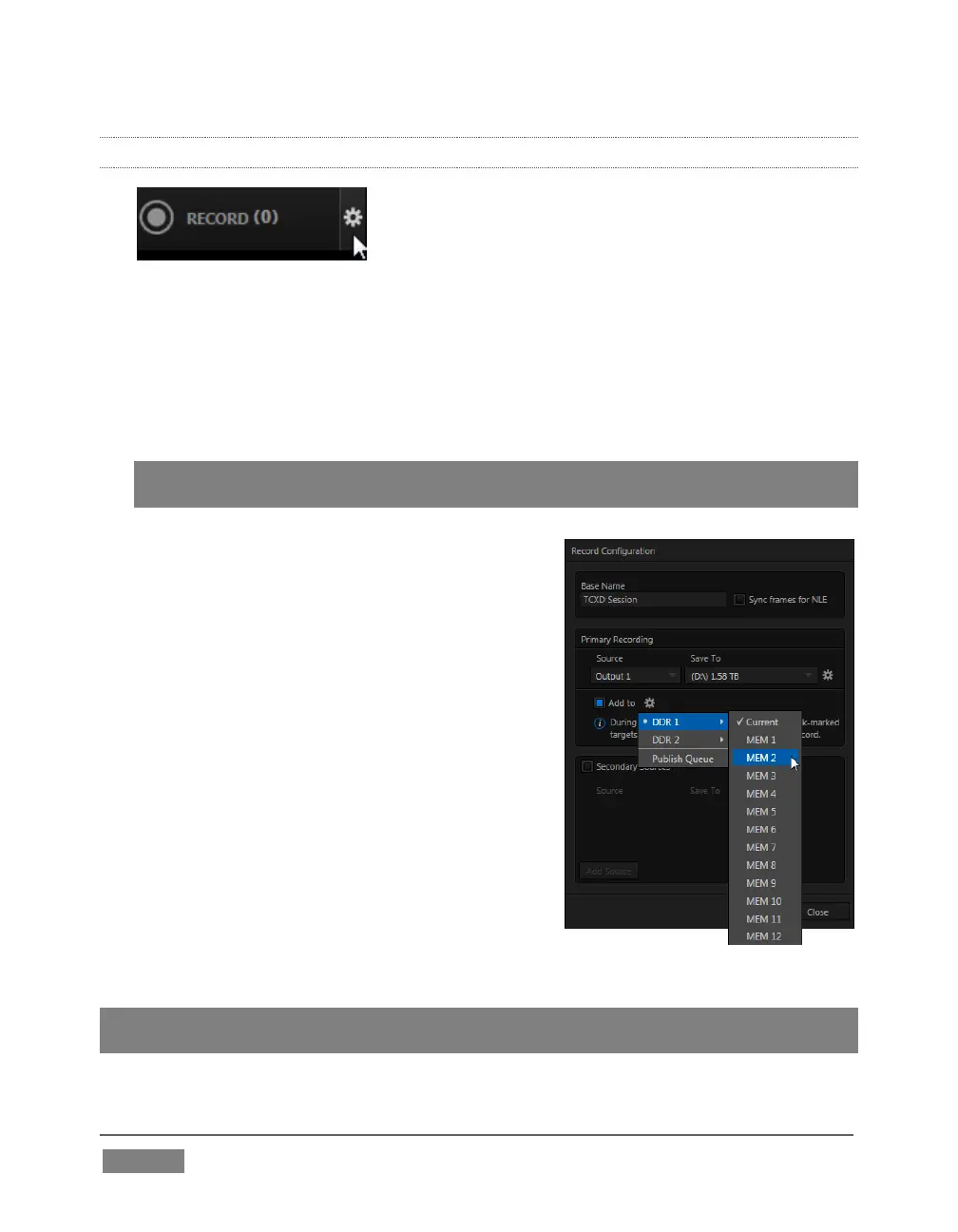
1. Roll the mouse pointer over the Record control in the Dashboard and click the
Configuration button (gear) that appears to open the Record Configuration panel
(Figure 63).
2. Click in the Base Name field, and enter a unique name for the captured file(s).
Hint: TriCaster stores recordings at (drive):\Media\Clips\sessionname\Capture (where
“drive” and “sessionname” are appropriate for your system and session).
TriCaster’s IsoCorder™ technology can capture
multiple a/v sources simultaneously. The first of
these sources is referred to as the Primary source.
Additional sources in many combinations can be
added in a Secondary recording group shown
below.
(Recording options are discussed in more depth in
Chapter 20, Record and Grab.)
The default capture options will work just fine for
our purposes, so let’s continue:
3. By default, Output 1 (the primary Program
output) is the selected Source in the Primary
Recording area of the Record Configuration
panel.
Hint: You could optionally select DDR 1 or DDR 2 in the nearby Add to Playlist menu,
automatically adding newly recorded clips to a playlist – but let’s not do that yet.









 To Next Page