Page | 190
Note: Certain Overlay menu options are not suitable for all monitor sources, hence are not
listed when innapropriate.
Two final items complete the monitor viewport options:
Rename – allows you to supply a custom name to be shown for the monitor
viewport (as well as the associated Switcher row button) for sources.
Configure –opens the Input Configuration panel for the corresponding source.
Hint: Double-click a monitor to open the same Input Configuration panel, without having to
hunt for the gear or open the menu.
10.1.2 VIEWPORT TOOLS
Media Player and Network viewports provide additional features when you move
your mouse pointer over them.
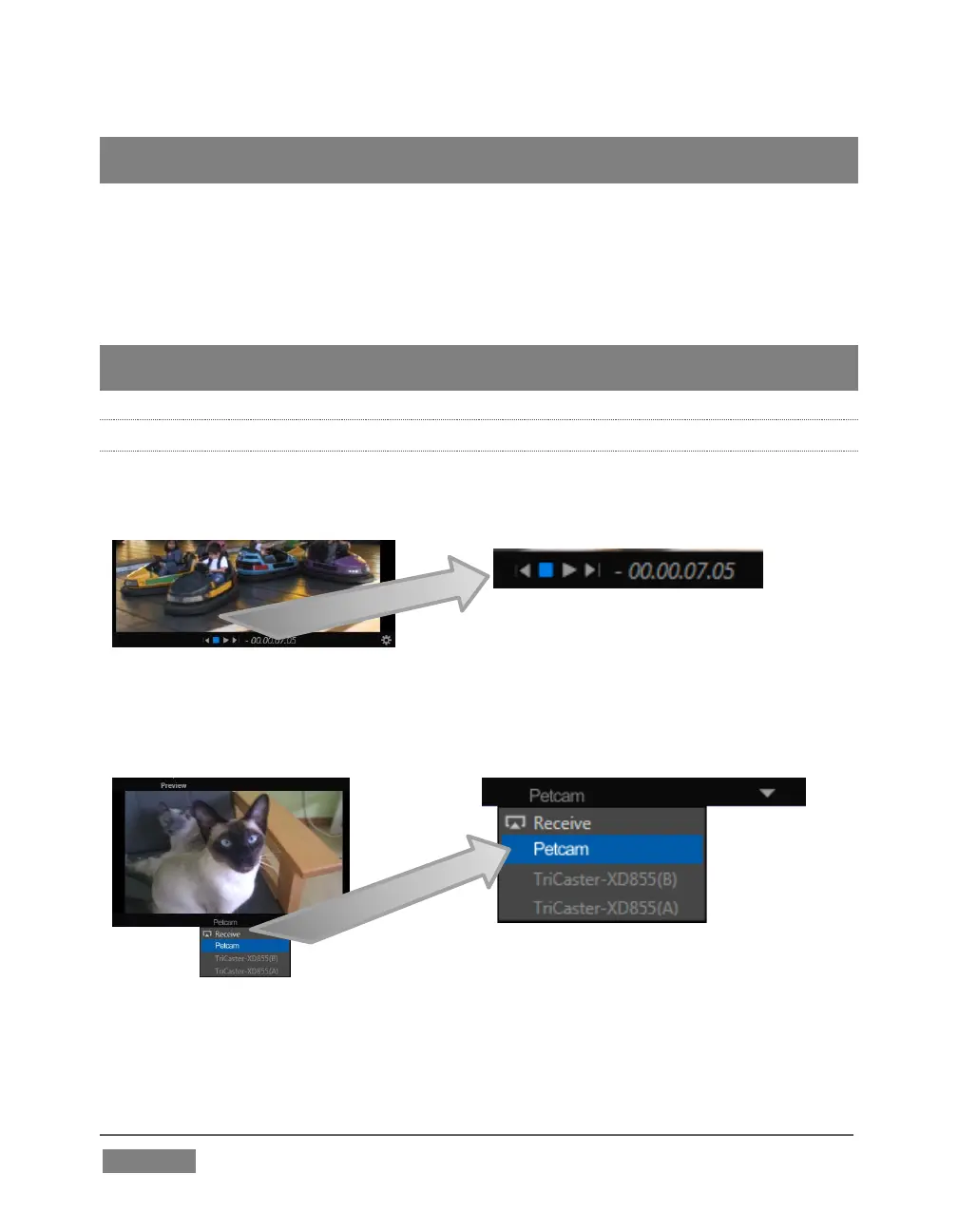
Media Player monitors (Figure 175) display
handy transport controls – Previous, Play, Stop,
and Next As well, a timecode field is shown.
Right-click the time field to open a menu allowing you to Reverse Direction, toggle
Warning Colors, or use Playlist Duration.
Click the triangle button that appears in the titlebar for Network input monitors
(Figure 176) to select the active source from a menu listing all those detected.









 To Next Page