Page | 58
SECTION 4.5 AUDIO MIXER
Having previously connected and configured your audio inputs, let’s explore a few of
the standard features in TriCaster’s Audio Mixer.
Hint: You will need to have speakers connected to (at least) the first two connectors
(channel 1 and 2) in the Output 1 (upper) row of TriCaster’s Audio Out section (even better,
if you have them handy, connect a pair of stereo headphones and put them on).
4.5.1 MUTE, MONO AND PAN
1. Click the DDR 1 tab below the Switcher area of the Live Desktop.
2. Click the + (Add Media) button at lower left in the DDR pane.
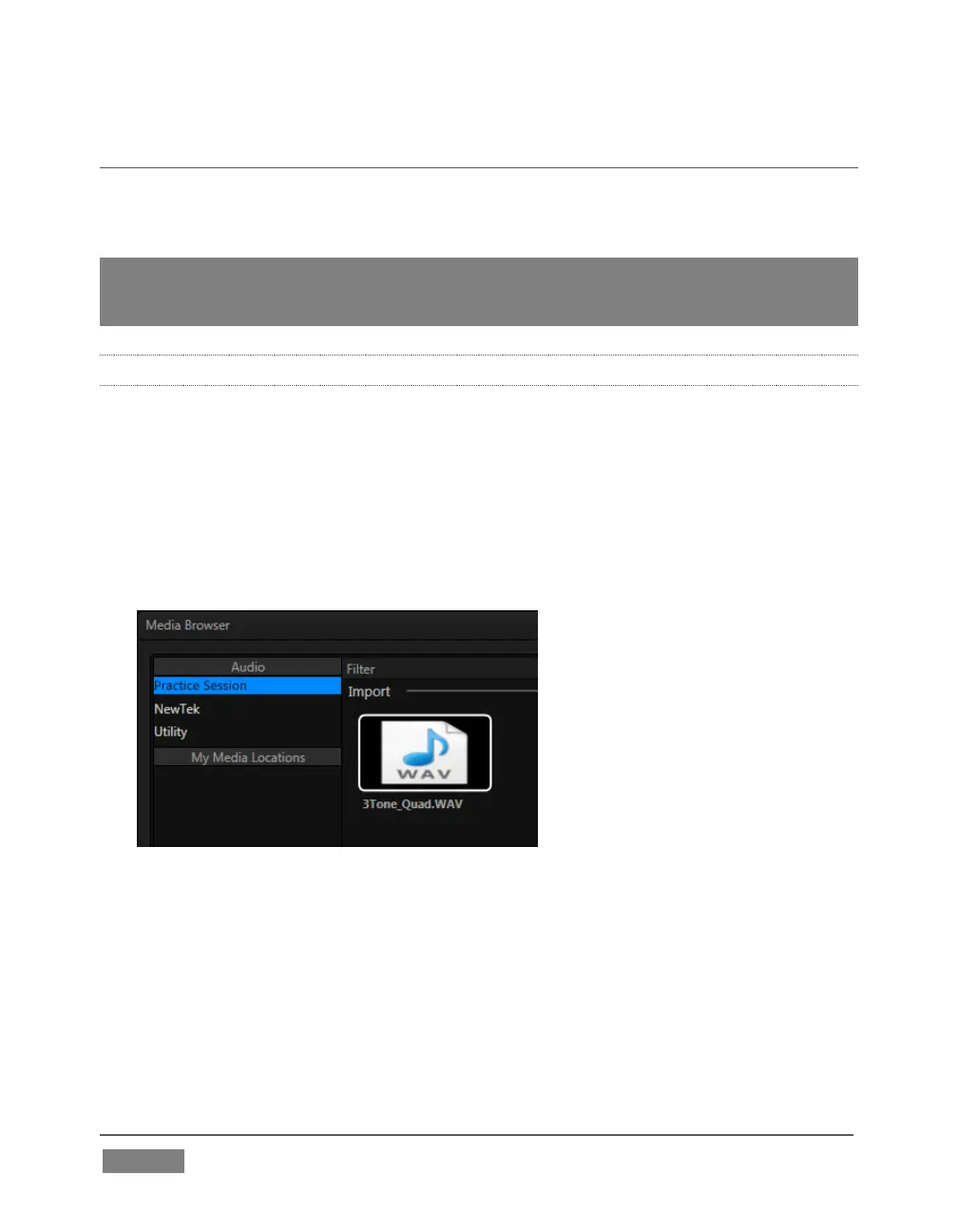
3. Click the Practice Session entry under the heading Audio in the Location list at
left (this Location entry was created automatically when we imported files
back in Section 4.2, Importing Content).
FIGURE 46
4. Find the icon named “3tone_quad.WAV” in the file pane. This is a four channel
audio file, with a mid-range tone on channel 1, a higher tone on channel 2,
while both channels 3 and 4 both carry a lower tone.
5. Select the icon for this file, and click OK to add this audio file to the playlist.
6. Turn on the Single and Loop switches below the DDR 1 playlist.









 To Next Page