Page | 432
Devices”. This opens the audio
device control applet, allowing you
to choose among those available. (It
is sometimes useful to right-click in
this pane and enable “Show Disabled
Devices”, as well.)
o Other third-party software solutions
exist as well. An Internet search for
terms like “audio loopback software”
or “virtual audio cable” will turn up
relevant links.
A.1.15 ENABLE TERMINATION FOR VIDEO INPUTS?
TriCaster has full-time video termination. If you need to loop through (or t-off from)
other video devices (such as an external monitor) prior to TriCaster in your video
pipeline, you should ensure termination is OFF for earlier devices.
A.1.16 CONFIGURE WIRECAST® TO RECEIVE TRICASTER’S NETWORK
OUTPUT?
To set up Telestream’s Wirecast
®
software to recognize TriCaster’s Network output
as a source, follow these steps:
1. Double-click the main Program monitor to open TriCaster’s Output
Configuration panel.
2. Select the desired audio and video sources for Network output, and enable it.
3. At the time of writing, Wirecast
®
does not fully support interlaced video, so
you must also checkmark De-Interlace at the bottom of the Network video
source menu.
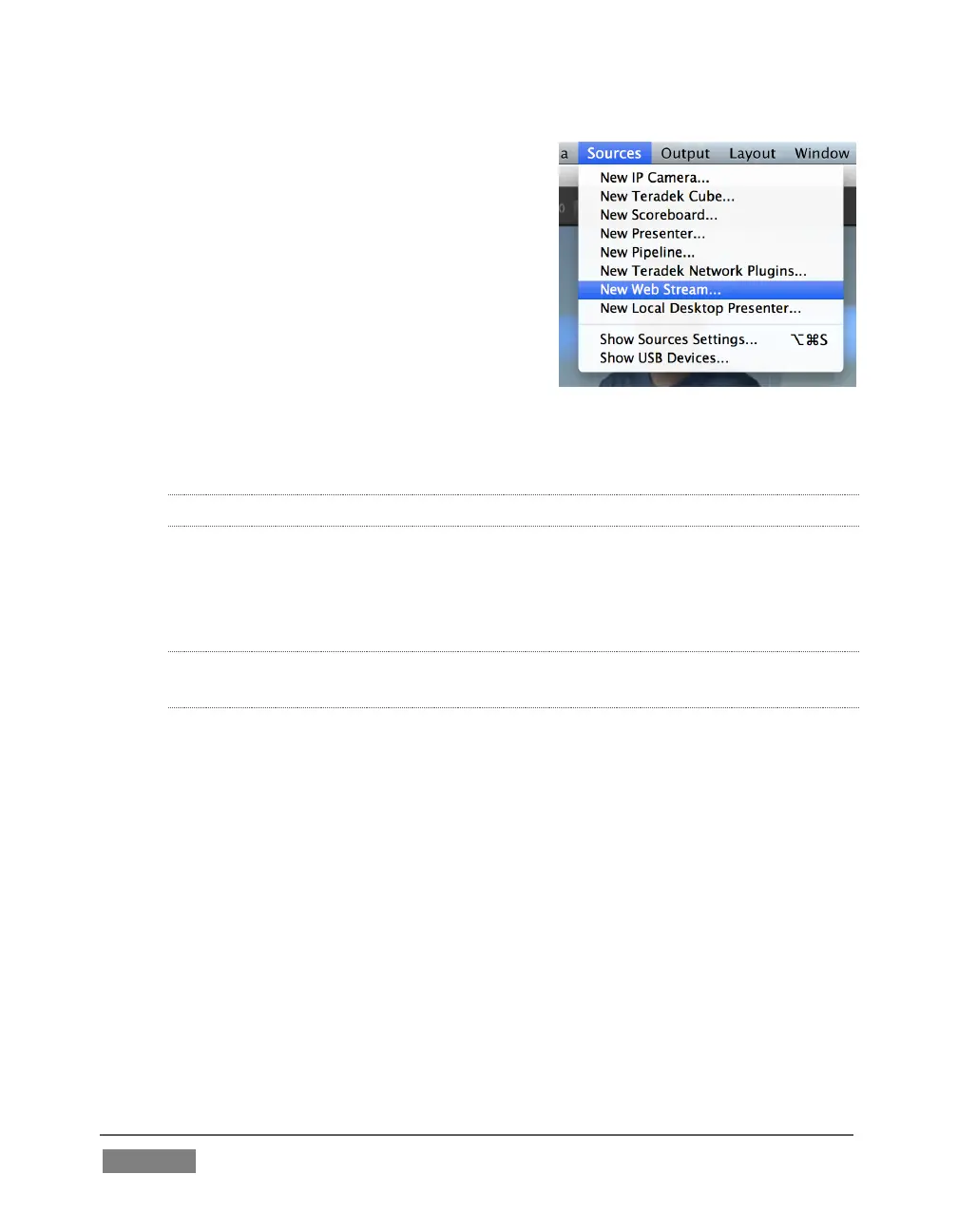
4. Next, open the Sources menu in the Wirecast
®
interface (Figure 394), and
select the “New Web Stream” option.









 To Next Page