Page | 334
Note: It is not necessary to interrupt recording to add
a clip that is being captured to a DDR playlist or the
Publish Queue.
Add the last 5 seconds of the Primary recording to a
DDR simply by holding Shift and clicking Record.
Alternatively, you can use the Media Browser to do so.
Clip icons show a red ‘recording’ indicator on clips
currently being captured (see Section 11.2.2 for more
details).
20.2.1 RECORD CONFIGURATION
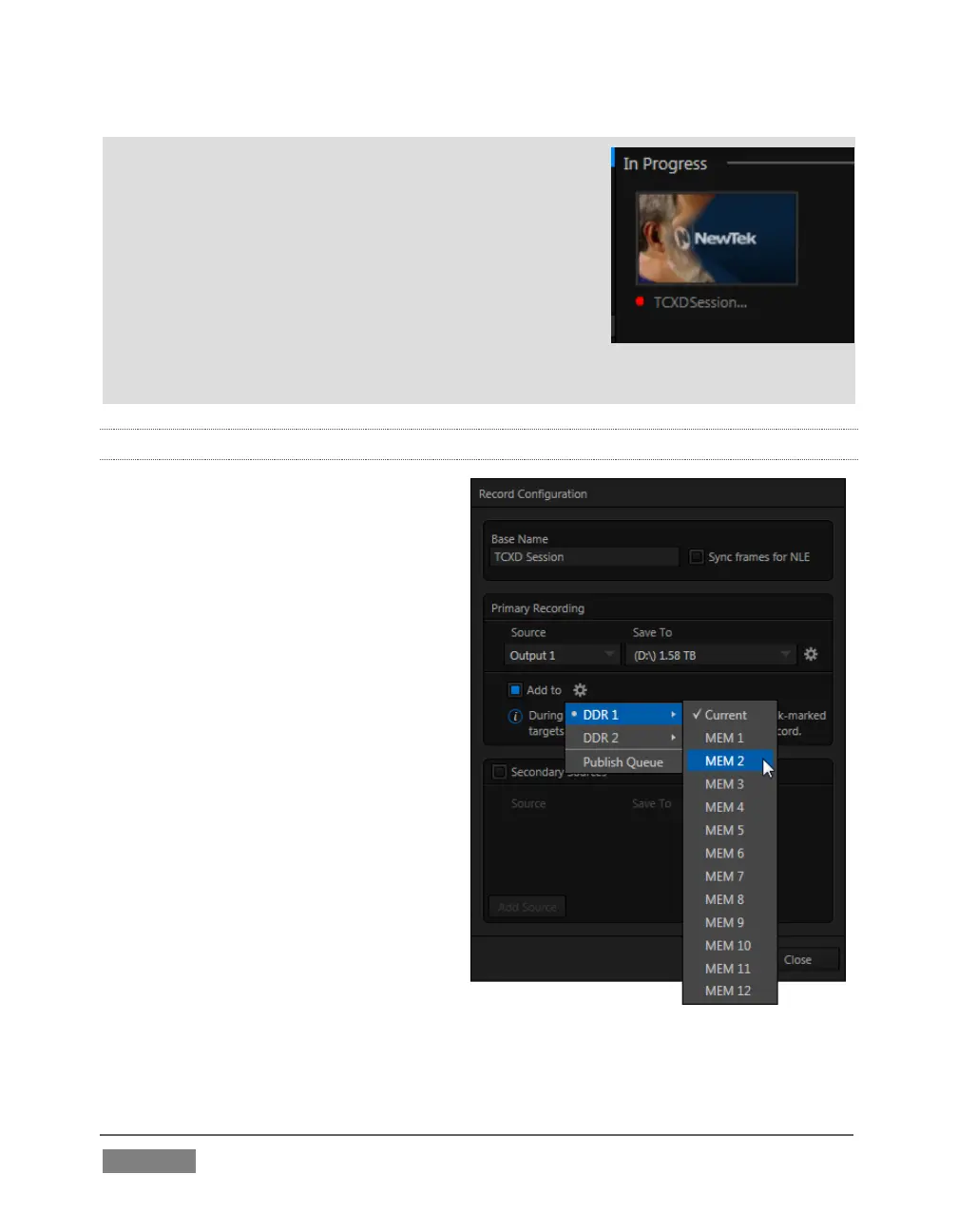
Of course, before you begin
recording, you’ll want to determine
what to record, where to record it to,
and so on. Settings and controls for
recording are grouped in the Record
Configuration panel.
Click the popup Configure button
(gear) in the Record control to open
the Record Configuration panel.
First off, the Record Configuration
panel allows you to configure a
Primary recording source. TriCaster
models featuring IsoCorder™ also
allow as many as seven additional
(Secondary) sources to be captured at
the same time.
Let’s review the features and settings
found in the Record Configuration
panel, starting from the top.









 To Next Page