Page | 42
SECTION 3.12 CONFIGURE VIDEO INPUTS
Control over settings for video sources is
provided in TriCaster’s monitoring
section. The individual monitor viewports
on the Live Desktop can be flexibly
assigned to show different video sources.
Complete monitor layouts can be
prepared, stored and recalled using tools
located in the Workspace menu in the
Dashboard.
We’ll look into that in depth in the
Reference Section of this manual, but for
now let’s configure the video sources you
connected earlier (Section 3.5.1).
1. Click Workspace in the Dashboard
(at the top of TriCaster’s Live
Desktop).
2. Four monitoring layout presets are
listed at the top of the menu as
Interface A through D. Select Interface A, if it isn’t already check-marked.
3. Otherwise (all other models), select All in this menu.
4. The monitoring pane will no show individual monitors for each camera, with
Camera 1 at upper left.
5. To continue, you could select Configure from the monitor’s context menu, but
let’s take a different approach.
6. Move your mouse back and forth over the Camera 1 monitor and notice that a
Configure button (gear icon) appears beneath it at right.
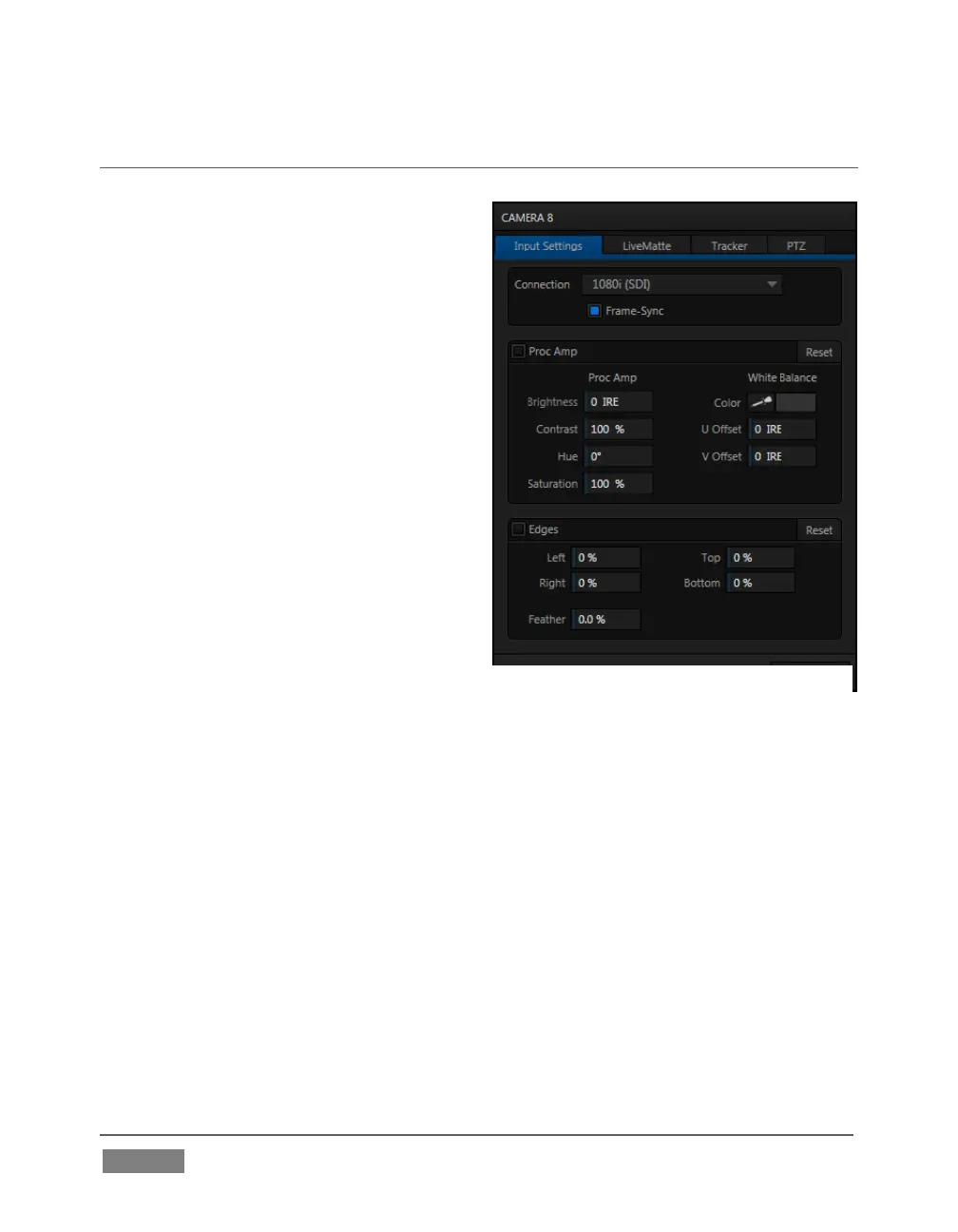
7. Click this Configuration button to open a tabbed settings panel for Camera 1
(Figure 26).
FIGURE 26 (TriCaster 8000 shown)









 To Next Page