Page | 23
2. Choose your time zone.
3. Accept the license agreement.
4. Enter your 25-digit key (generally, the sticker is affixed inside the front door
of the case).
5. Decline automatic updates (by clicking “not right now”).
6. Give TriCaster a distinct computer name for networking.
You can authorize your Windows® installation by network or by telephone.
Assuming you have an Internet connection available, and have connected TriCaster
to it with an Ethernet cable, the Internet is the fastest method of activation. (See
Section 3.15 and Chapter 16 Network for more detail.)
1. Click ‘Obtain IP and DNS automatically’.
2. Agree to activate Windows®. This activation is permanent, and you won’t see
these screens again. (Registration with Microsoft is optional).
3. Assign a name to the administrator account. You may type your name,
company, or perhaps simply “TriCaster”.
4. Click Finish, and TriCaster will re-start.
After restarting and accepting NewTek’s User Agreement, the interface will load
automatically.
SECTION 3.3 LICENSE AND REGISTRATION
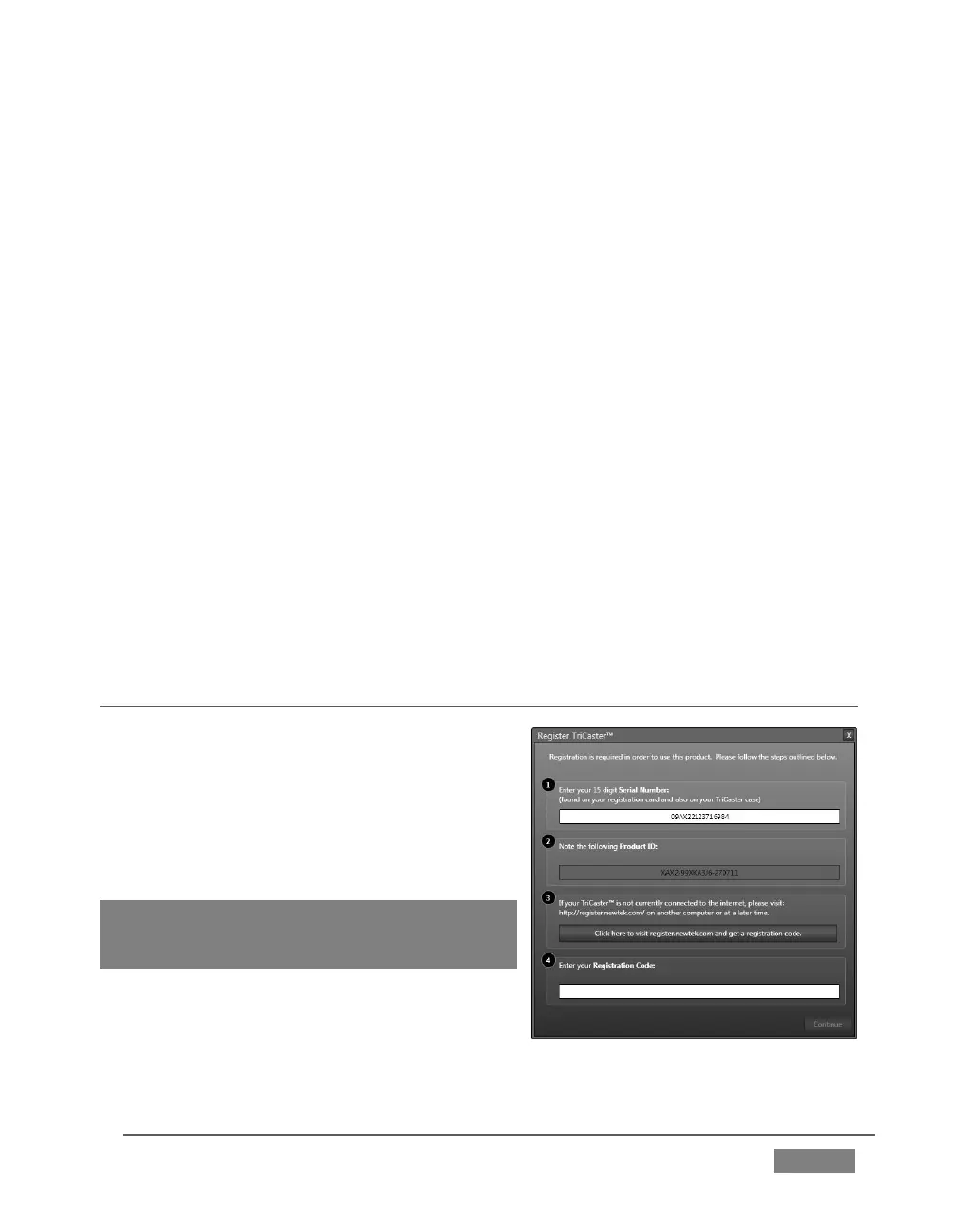
On launch, TriCaster presents an End User
License Agreement dialog. After you accept
this, the Registration dialog shown in Figure 12
is presented. If necessary, enter the unique
TriCaster Serial Number and Product ID for
your system.
Important note: TriCaster’s video output displays
a watermark until the system is registered and
unlocked.









 To Next Page