Page | 328
SECTION 19.3 THE PUBLISH
QUEUE
Having discussed configuration of
publishing accounts, let’s move on to look
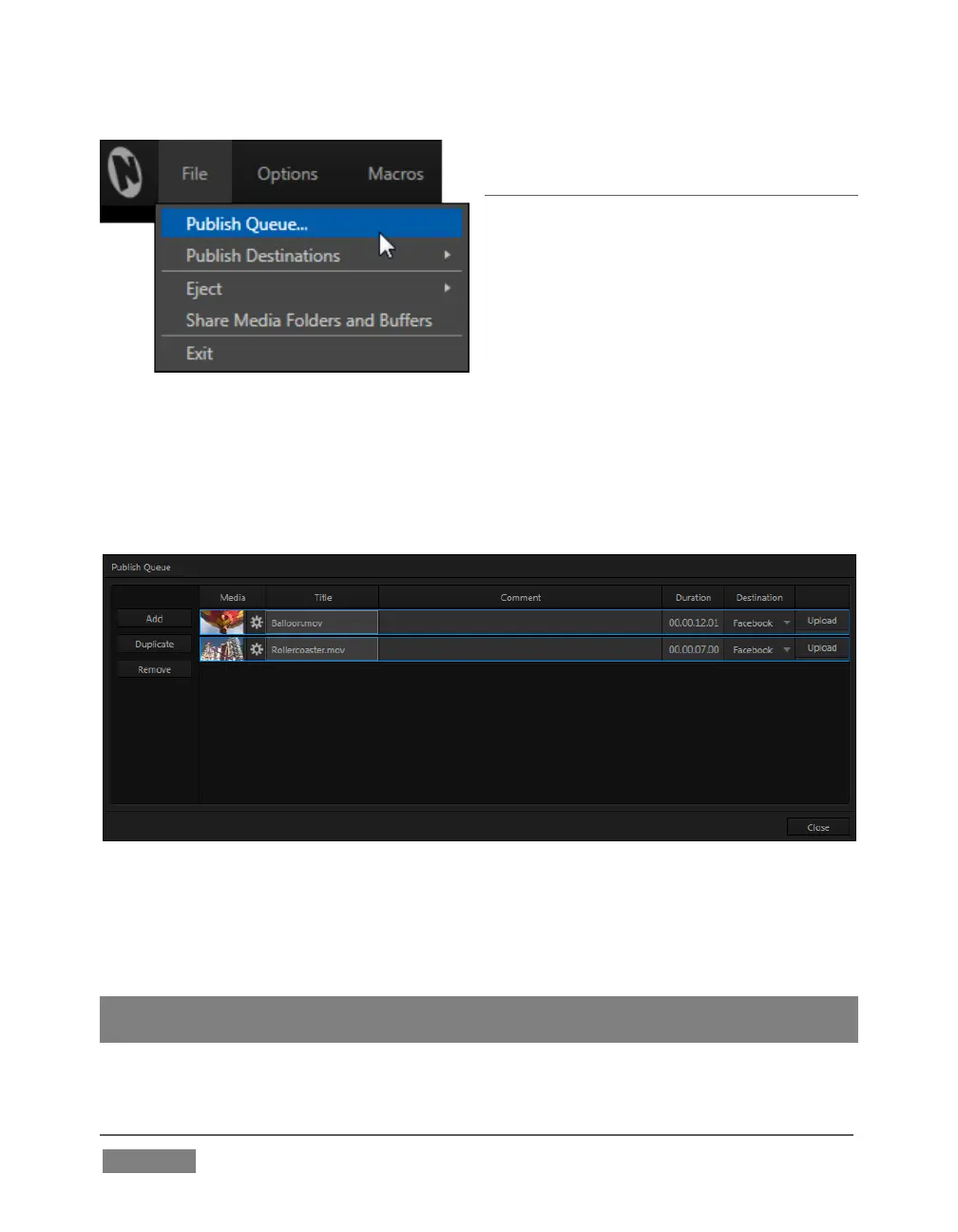
at live operations. In the Dashboard’s File
menu, select the Publish Queue … (Figure
311) to open the Publish Queue panel
(Figure 312).
This is where you will create and manage
the Publish Queue – that is, the list of clips
and still images you wish to publish.
The features of the Publish Queue are easy to comprehend.
FIGURE 312
Click the Add button in the tool panel at left in this pane to open a Media Browser
which you can use to select (and multi-select) content you wish to publish. You can
choose items from your current session or another location.
Hint: You can Add and even Upload files that you are currently recording, even before
pressing Stop. These files will be found in Clips/Capture folder for the current session.









 To Next Page