Page | 225
LIVEMATTE
Although its controls are deceptively simple, TriCaster’s
LiveMatte™ employs powerful chromakeying technology capable
of extremely high quality results. Used alone or in conjunction
with TriCaster’s DSKs, M/E Overlays and LiveSet features, you
will find LiveMatte can play a ‘key’ role in your live productions.
As we mentioned earlier, chromakeying – or simply “keying” – is used to combine
images by eliminating a portion of a foreground image (effectively cutting a digital
‘keyhole’ in it) to reveal another background. TriCaster™ also relies on this method
to insert talent seamlessly into virtual sets via LiveSet™.
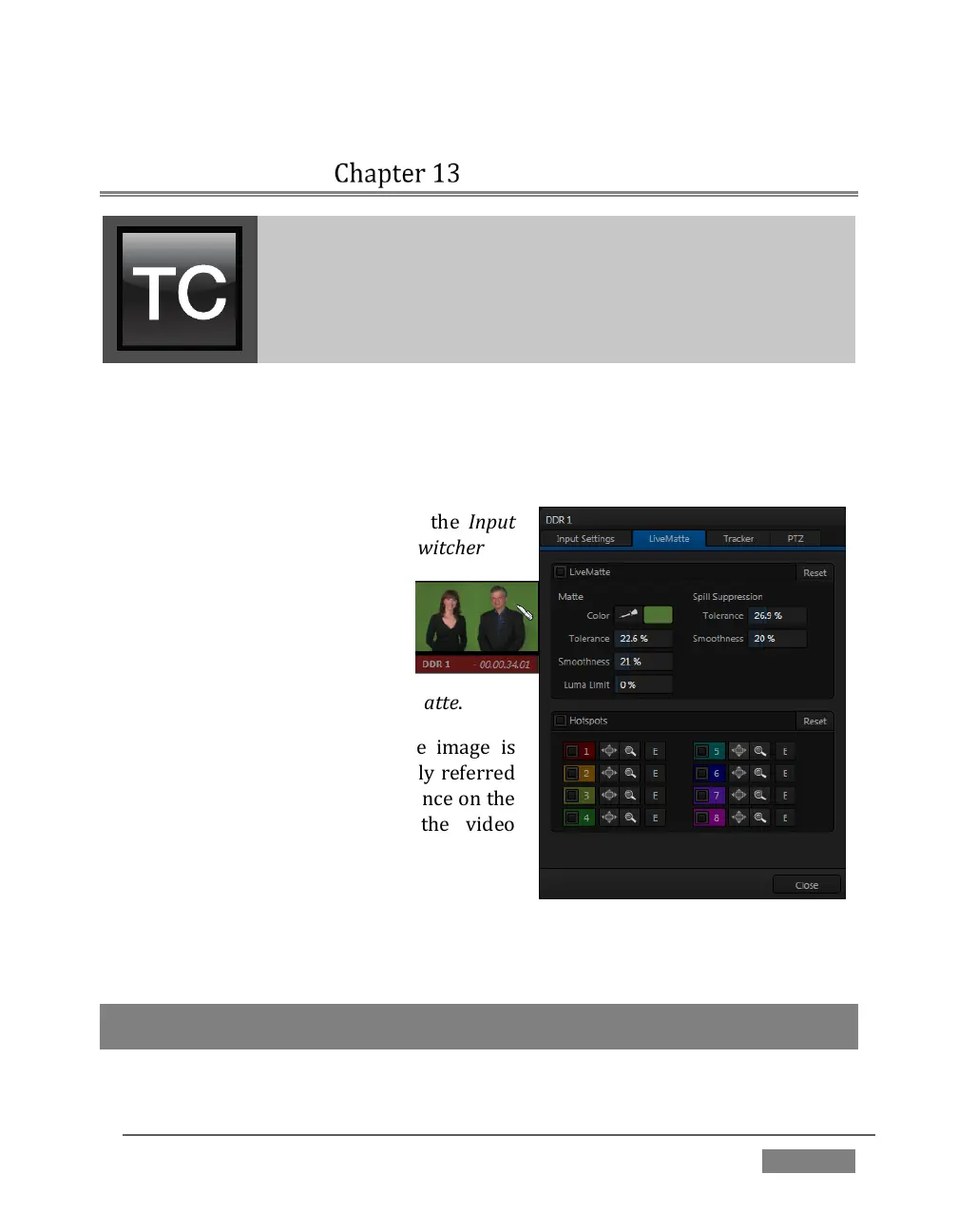
LiveMatte™ controls are located in the Input
Configuration panels for every Switcher
source. To access them, click the
Configure button (gear) that
appears above an onscreen
monitor in the All Monitors tab.
The second tab in the (source)
Configuration panel is labeled LiveMatte.
The method by which part of the image is
defined as transparent is generically referred
to as chromakeying, for its dependence on the
color values (chrominance) of the video
stream.
(LiveMatte algorithms actually go well beyond
simple chromakeying techniques to provide support realtime
results, but for our discussion it’s not necessary to get into all of the
details; suffice to say it works very well, and is easy to configure.)
Hint: Crop controls in the Input Settings tab can serve as a ‘garbage matte’ tool for
chromakey sources.









 To Next Page