Page | 54
4.4.2 WORKSPACES
The options provided in the Workspace menu include different Desktop and
Multiview monitoring layouts.
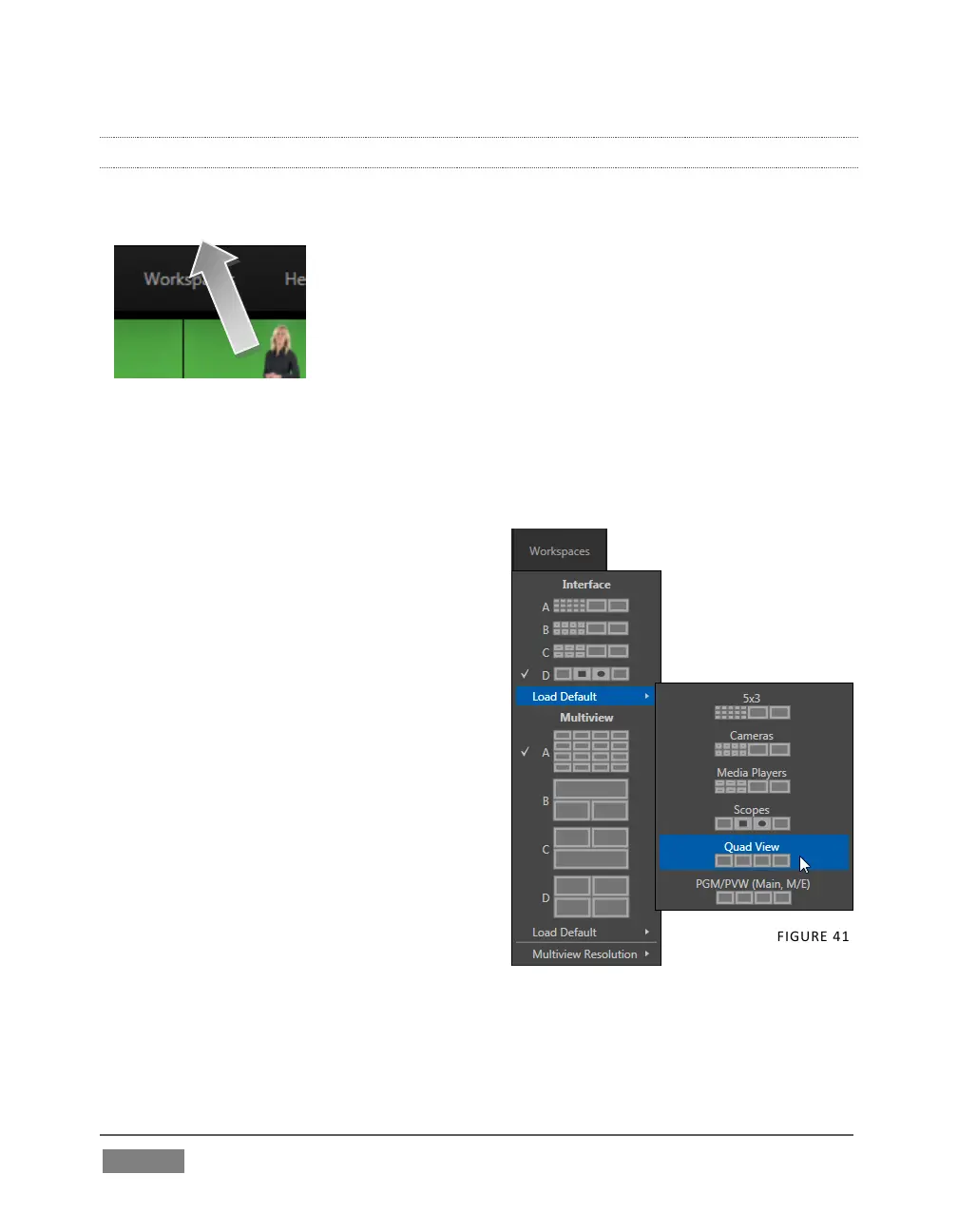
Click the Workspace menu to view a drop down pane
allowing you to select and configure Workspace presets.
At the top of this pane are four Interface presets, labeled A-
D, with accompanying graphics depicting the current layout
assigned to each preset.
1. Notice that, by default, the Interface A preset displays all camera inputs along
network inputs and a number of other internal sources.
2. One by one, select successive presets
in the Interface group, and note the
effect on the Live Desktop monitors.
3. Select Interface D, making it the
active preset.
4. Click Workspace again, re-opening
the preset controls. Slide the mouse
down to the Load Default entry,
revealing a sub-menu showing
different monitor layouts. Select
Quad View.
5. Glance at the monitor display, and
you’ll notice that it has updated.
Switch to the Interface A preset, then
back to D.
Presets recall their last setting, so D continues to show the ‘quadview’ layout.
Workspaces can be modified beyond simply changing their monitor layout, too.









 To Next Page