Page | 220
o Key channels – choose a buffer for any Key channel using its drop-
down source menu.
Buffers allow abundant use of animation throughout your productions – as virtual set
elements, layered graphics overlays, etc., all without tying up precious Media Players.
(Consider that, for TriCaster 8000, in addition to the buffer cross-points in the main
Switcher, each M/E supports up to eight animated buffers. Since all of TriCaster
8000’s M/Es are re-entrant, layering possibilities are nearly endless.)
11.4.8 KEYING, PROC AMPS AND MORE
It’s worth noting that you can apply LiveMatte, Proc Amp and Edge (cropping and
feathering) settings to individual buffers by assigning a desktop or Multiview monitor
to the Buffer (or choosing a Workspace option that includes Buffers) and opening its
Input Configuration panel. Of course you can also apply Position settings, including
Rotation and Scale, in DSK, M/E and Key channels.
11.4.9 EDITING TITLES
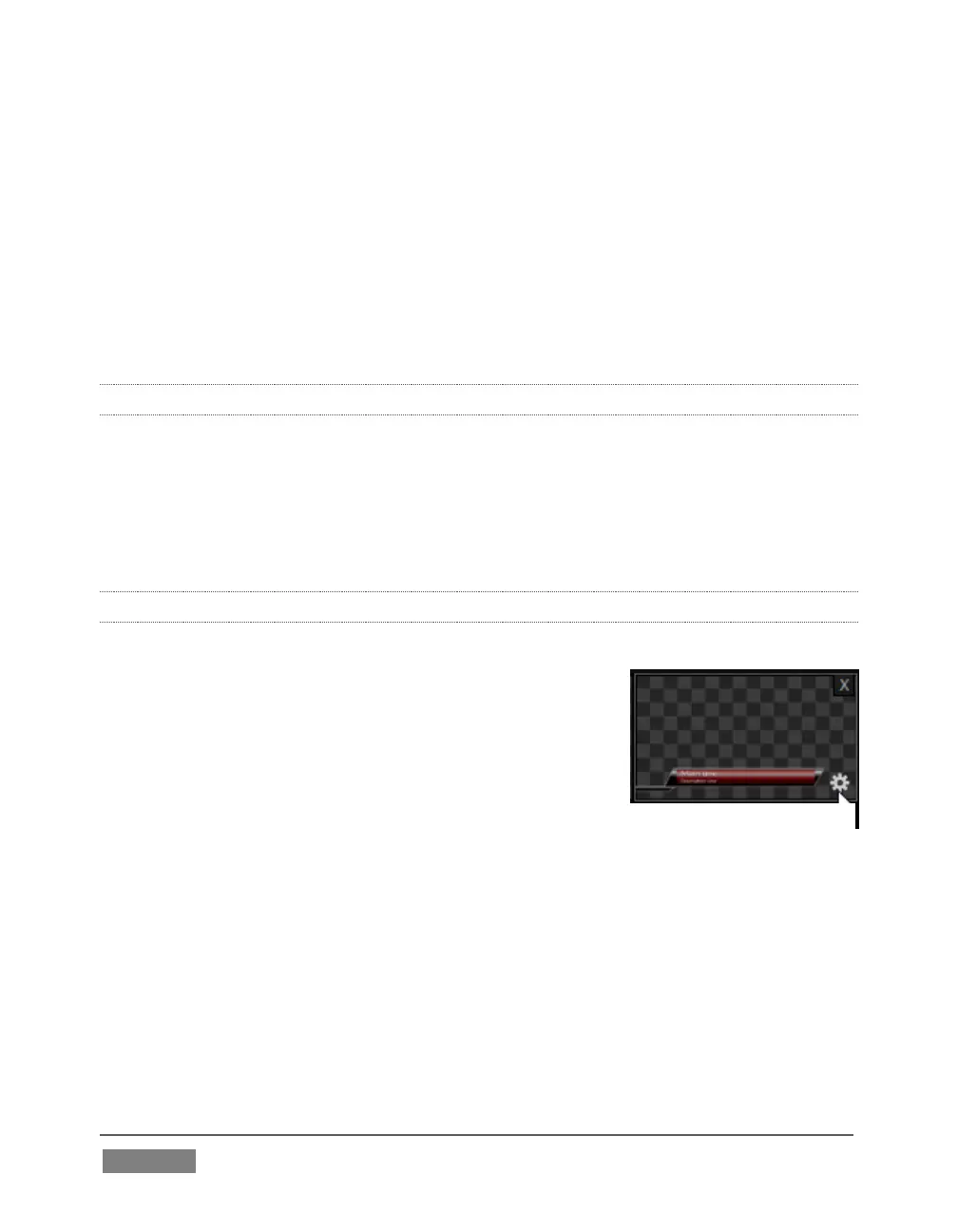
When a title page (.cgxml file) is loaded into a buffer, TriCaster’s live Edit Title panel
(see Section 11.3) can be opened by clicking the gear icon
that appears at lower-right when you move the mouse
over the icon (Figure 209).
Changes made in this panel take effect immediately. If the
buffer is displayed, the new title will appear as soon as
your modifications are complete.









 To Next Page