Page | 98
Both DDRs will begin running their currently selected clips simultaneously
thanks to Autoplay (of course normally your foreground shot would be
supplied by a camera).
8. Now, click the effect thumbnail icon in the M/E panel, to display the popup
LiveSet Shot bin.
9. With one eye on the Program monitor, click the third preset (#3) in the Shot
bin.
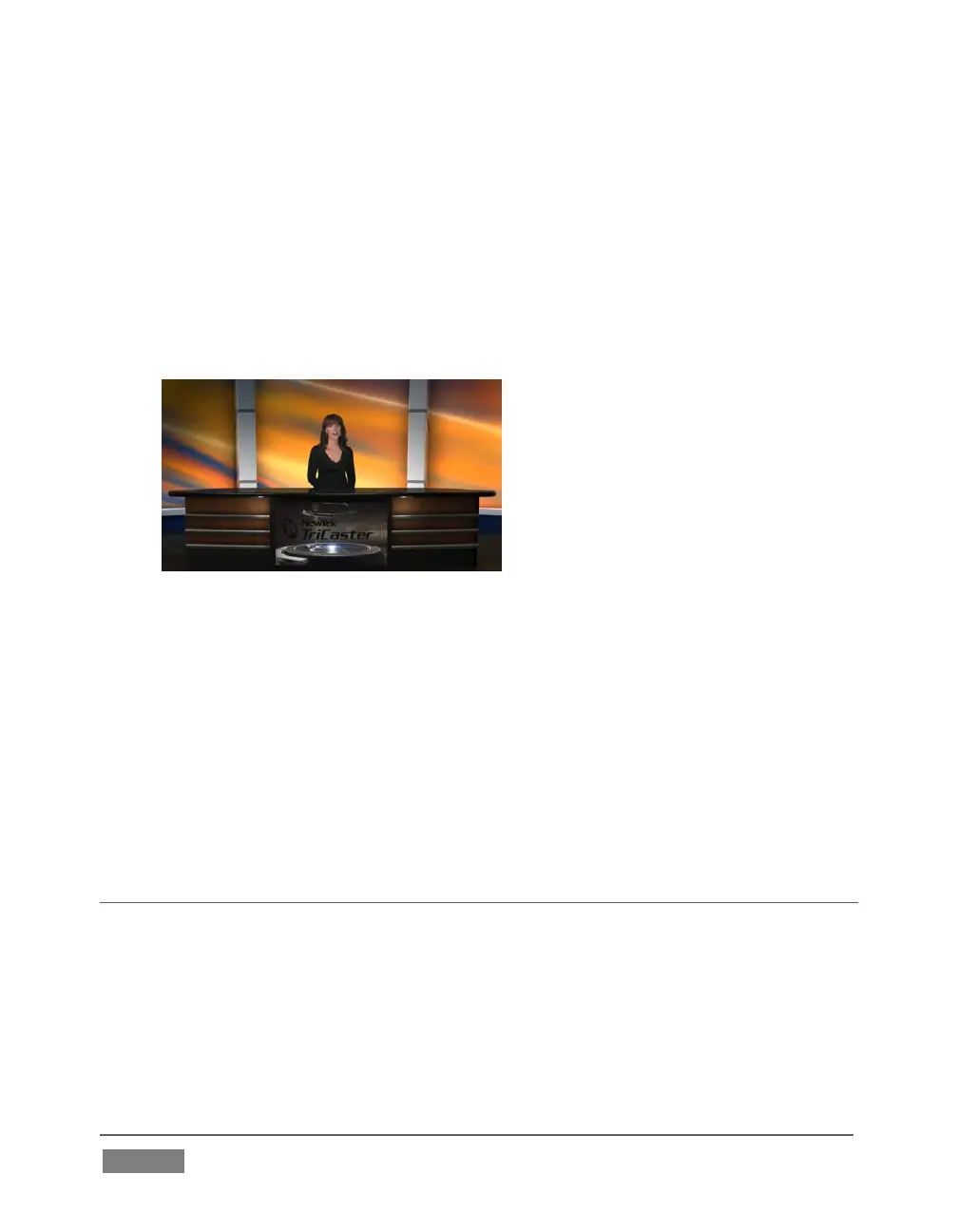
Observe that the view on the
Program monitor now gradually
pans/zooms to the degree
represented by the zoom preset icon
you clicked.
The animated zoom eases out nicely
as the animated effect ends at its
destination.
The animation duration is controlled by the menu beneath the LiveSet icon.
10. Click the duration, and select a different time for the animated zoom.
11. Click the thumbnail icon to open the Shot bin, and click a different preset icon
to test the new setting.
Using virtual set effects along with convenient zoom/pan presets, you can easily
mimic a very large studio complex from a much smaller location.
SECTION 4.12 BUFFERS
To this point, we have used photos, graphics and titles from TriCaster’s Media Players
as sources for several different exercises. Of course, for DSK and M/E Key purposes,
this approach requires you to carefully ensure that that the current playlist entry in
the respective Media Player is the right one for the moment.
TriCaster’s Buffers provide an alternative workflow that not only prevents selection
‘accidents’, but also offers other benefits.









 To Next Page