Page | 191
Just as for other sources, a Configure (gear) button is shown on rolling over these
monitor types; clicking it opens the Configuration panel for the related source (see
Chapter 8 I/O Configuration, Section 8.2).
Hint: When LiveMatte, Proc Amp, or Crop settings are active for a source, bright green,
blue and yellow indicators are lit under its monitor.
SECTION 10.2 PROGRAM MONITOR
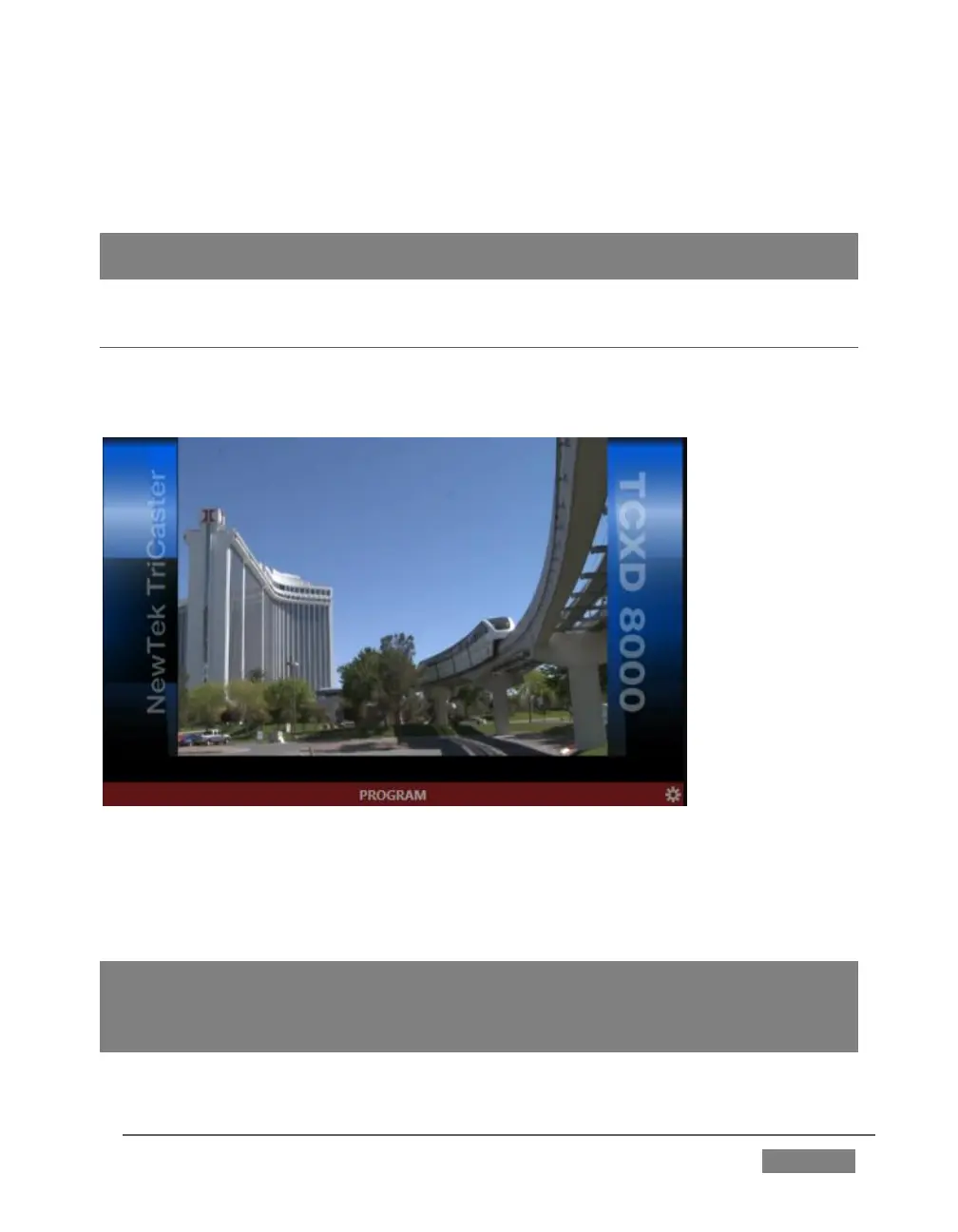
The Program Output monitor could hardly be more important, hence it’s prominent
default location at upper-right on the Live Desktop.
FIGURE 177
Normally, the Program monitor shows what TriCaster is displaying to your principal
viewing audience at any moment. The display includes the BKGD video layer as well
as any other video layers (such as one or more a DSKs, or FTB) displayed above it.
Note: By default, Program output is sent to TriCaster’s outputs, but this is subject to
assignments made in Output Configuration. When you move your mouse pointer over a
Program monitor, a Configure button (gear) appears at right in its titlebar. Clicking this
button opens the tabbed Output Configuration panel (see Section 8.1).









 To Next Page